
Applying the changes from a policy update
Press Apply to save your accepted changes to the policy as a new revision or into its working copy, see what is refused and why, and publish afterwards.
Updated
Applying is the step that finally writes your accepted answers to the policy. Before you press Apply, nothing has been written. The policy is the same as it was when you started.
Applying never publishes. The policy keeps whatever status it has. If the policy is already published, your changes go into its working copy, which families cannot see, until you publish that working copy yourself.
Apply your answers
- On the review page, answer the cards you want to answer. See Reviewing the changes.
- If the existing policy is published and already has unpublished changes, deal with those first. A warning at the top says "Apply cannot run yet." and tells you who started the unpublished changes and when.
- Look at the button at the top right of the bar: Apply N accepted changes. The number counts the changes you accepted. The line under the bar reminds you: "Applying saves a new revision of the policy. It does not publish anything — publishing stays on the policy’s own page, where it always was."
- Press Apply N accepted changes. It changes to "Applying…".
- The page comes back with a green message at the top. What it says depends on the policy:
- For a published policy: "Applied to" the policy's title "’s working copy, not yet published. Families still see the published version." with a link Review and publish the changes.
- For a draft (or archived) policy: "Applied." the policy's title "is now revision" a number, with a link Open the policy, and "it is still unpublished or published exactly as it was; this flow never changes a policy’s status."
- For a published policy, press Review and publish the changes. That takes you to the policy's changes page where you can compare the working copy with the published text, publish it, or discard it. See Working copy and publish.

The upload's status in the list now reads Applied (a draft or archived policy) or Applied, not published (a published policy whose accepted changes are in its working copy).
Example: Casey Example has accepted 4 of the 6 changes to answer for the Demo Park "Sun Protection Policy", which is published. Casey presses Apply 4 accepted changes. The message reads "Applied to Sun Protection’s working copy, not yet published. Families still see the published version." Casey presses Review and publish the changes, reads the comparison, and publishes it from there.
What gets written
- Only the changes you accepted. Everything else is left exactly as the existing policy has it.
- Only the words you accepted are rewritten, in place, inside KAL's own formatting. Headings, their anchors, tables, images and footnotes are untouched. Your own edited wording replaces the uploaded wording where you edited.
- Accepted Document details (version, effective date, review date) are written to those fields on the existing policy.
- A revision note is recorded for you. It starts "Policy update from" and the file name, how many changes were accepted, and a bullet for each change. If you edited wording, the note says how many were edited by hand.

What applying never does
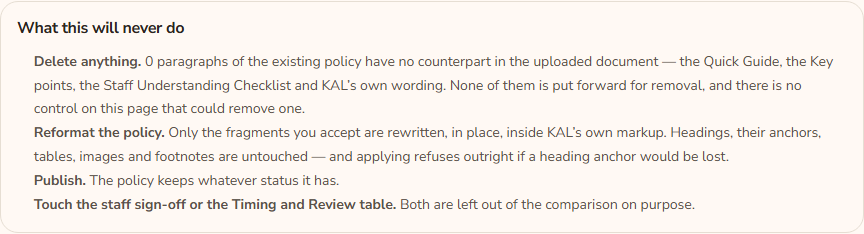
The review page lists these under What this will never do:
- Delete anything. Paragraphs of the existing policy with no counterpart in the uploaded document (the Quick Guide, the Key points, the Staff Understanding Checklist and KAL's own wording) are never put forward for removal, and there is no control that could remove one.
- Reformat the policy. Only the fragments you accept are rewritten, in place. Applying refuses outright if a heading anchor would be lost.
- Publish. The policy keeps whatever status it has.
- Touch the staff sign-off or the Timing and Review table. Both are left out of the comparison on purpose.
Close an update without applying
Press Discard at the top of the upload's page. Nothing is written to any policy. The update is closed and its record is kept. Use Delete upload to remove the record as well, if the update never changed a policy. See Policy updates.
Every option
| Option | What it does | Where |
|---|---|---|
| Apply N accepted changes | Writes the accepted changes to the policy. | The bar above the cards |
| Discard | Closes the update with nothing written. | Top of the upload's page |
| Review and publish the changes | Opens the policy's changes page to compare, publish or discard the working copy. | Green message after applying to a published policy |
| Open the policy | Opens the policy's admin page. | Green message after applying to a draft |
| Compare the unpublished changes, then publish or discard them | Opens the changes page for the policy's existing working copy. | Warning when a working copy is in the way |
| Open the existing policy in the editor | Opens the editor for the policy. | Same warning |
Questions
Why is the policy still the same for families?
If the policy is published, your changes are in its working copy and families see the published version until you publish. See Working copy and publish.

Can I undo an apply?
For a published policy, discard the working copy on the changes page and the published text is untouched. For a draft or archived policy, the apply is a new revision; use Versions and restore to go back to the one before it.
Why does it say "Apply cannot run yet."?
The existing policy has unpublished changes that someone started. Applying on top of them could mix the two, so you must publish or discard them first. After that, come back and press Apply again.
I accepted a change but it was not applied.
If the policy was edited between the review and the apply, a change whose text no longer matches cannot be applied. The Hub writes nothing for a change it cannot place safely, and tells you if none could be placed.
If something goes wrong
All of these mean nothing was written.
- "Nothing was written. Choose the uploaded wording for at least one change, or use Discard to close this update." You accepted none. Accept at least one, or press Discard.
- "Nothing was accepted, so nothing was written — the policy is unchanged and no revision was recorded. Use Discard to close this update."
- "This policy has unpublished changes started" a date "by" a name "Publish or discard them first, then apply this update." The screen then adds: "Nothing was written." and links to compare the unpublished changes or open the policy in the editor.
- "Nothing was written. The existing policy had unpublished changes when Apply was pressed. They have since been published or discarded, so Apply can be pressed again." Press Apply again.
- "REFUSING to write policy" followed by a number: "applying these changes would lose" some heading anchors "which the reading view’s "On this page" rail links to. Nothing was written." Tell the person who looks after the Hub the policy and the upload.
- "None of the accepted changes could be applied — the policy has been edited since this update was reviewed. Nothing was written." Press Compare against this again to rebuild the comparison, then answer again.
- "The policy could not be saved:" followed by the reason.
- "This update is already" its state ". Nothing was written."
- "No policy has been chosen for this update yet."
- "The policy this update points at no longer exists."
- "Nothing was written. The log names the reason." appears when the Hub has no more specific sentence.
Messages after a successful apply, shown in the page banner:
- "N change(s) saved as unpublished changes to" the title ". Families still see the published version — review and publish them when you are ready."
- "N change(s) applied to" the title "as revision" a number "."