
Make a KAL form from a Word file
Turn a Word form into a PDF in the KAL letterhead, check it, then add it to the library as new or as the replacement of a document.
Updated
The form builder turns a Word file into a PDF in the KAL letterhead. Only head office can use it. It uses no AI. A program rebuilds the Word file page by page, and you check the PDF before anything is added to the library.
Nothing changes until you approve the PDF.
Start a build
There are two ways to start.
From a new upload
- In the console, press Documents.
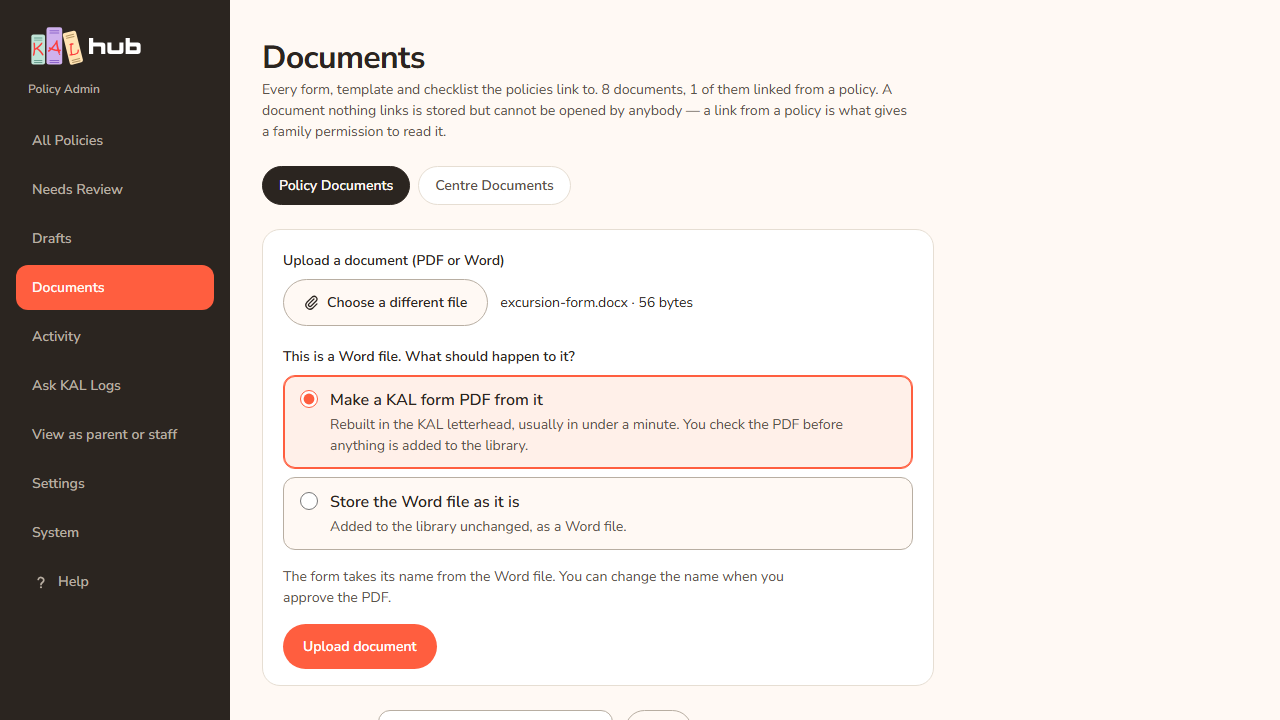
- Under Upload a document (PDF or Word), press Choose a PDF or Word file and pick a .docx file.
- A choice appears: This is a Word file. What should happen to it? Leave Make a KAL form PDF from it selected. This is the default.
- Press Upload document.
From a document already in the library
- Open the Word document's own page.
- Find Make a KAL form from this document.
- Press Make a KAL form from this document.
You land on the job page. It reloads itself every few seconds. A build usually takes under a minute.
Example: Casey Example (head office) uploads "Leave Request Form V2.docx". Casey leaves Make a KAL form PDF from it selected and presses Upload document. The job page opens and shows Making the KAL form.
The job page
The top of the page shows the form's title and a status. The status is one of these:
| Status | What it means |
|---|---|
| Waiting to start | The build is in the queue. |
| Building | The PDF is being made. |
| Ready to check | The PDF is made. It waits for your decision. |
| Not good enough to use | Too few of the Word file's words reached the PDF. No PDF was kept. |
| Failed | The build stopped with an error. The reason is on the page. |
| Being approved | The PDF is being saved to the library. |
| Approved | You approved it. It is in the library. |
| Discarded | You threw it away. Nothing was added. |
Check the PDF
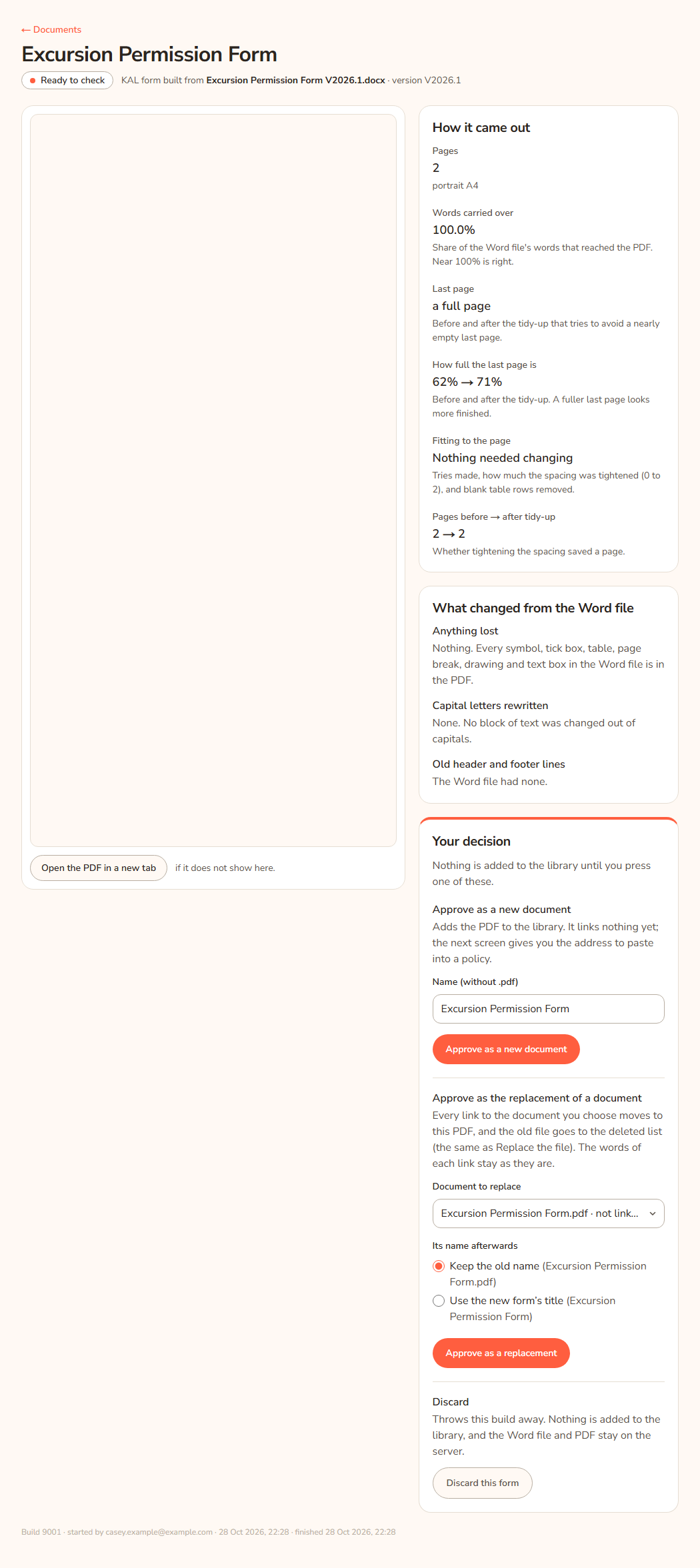
When the status is Ready to check, the PDF shows on the left. Press Open the PDF in a new tab to read it at full size. On the right:
- Things to check lists warnings, if there are any. Read each one against the PDF.
- How it came out shows the number of pages, the share of the Word file's words that reached the PDF (near 100% is right), and how full the last page is.
- What changed from the Word file shows anything lost (symbols, tick boxes, tables, page breaks, drawings, text boxes), any capital-letter text changed to ordinary case, and the old header and footer lines. The KAL letterhead replaces the Word file's own header and footer.
Approve or discard
Under Your decision, choose one.
Approve as a new document
- Check the name in Name (without .pdf). It starts as the form's title.
- Press Approve as a new document.
The PDF is added to the library. It links nothing yet. The next screen gives you the address to paste into a policy.
Approve as the replacement of a document
- Under Document to replace, choose the document. If you started from a library document, it is already chosen.
- Under Its name afterwards, choose Keep the old name or Use the new form's title.
- Press Approve as a replacement.
Every link to that document moves to the new PDF. The words of each link stay as they are. The old file goes to the deleted list, the same as Replace the file. See Documents.
Discard Press Discard this form. Nothing is added to the library. The Word file and the PDF stay on the server.
Example: The Demo Park leave form changed. Casey builds the new Word file, checks the PDF, and chooses Approve as the replacement of a document. Casey picks "Leave Request Form", keeps Keep the old name, and presses Approve as a replacement. All the links in policies now open the new PDF.
If the build fails or is refused
- Failed shows the reason on the page. Press Build again to try once more.
- This form was not good enough to use means too few of the Word file's words reached the PDF. Open the Word file. Check it is an ordinary form and not a scan or a picture of a form. Fix it and press Build again, or upload a fixed file.
- Discard is also on both pages if you want to close the job.
Every option
| Option | What it does | Default |
|---|---|---|
| Make a KAL form PDF from it | On upload of a Word file, builds a KAL form PDF for you to check. | Selected |
| Store the Word file as it is | Adds the Word file to the library unchanged. | Not selected |
| Make a KAL form from this document | On a Word document's page, starts a build from the stored file. | |
| Open the PDF in a new tab | Opens the built PDF at full size. | |
| Name (without .pdf) | The name of the new document. | The form's title |
| Approve as a new document | Adds the PDF to the library as a new document. | |
| Document to replace | The library document the PDF will replace. | The document you started from, if any |
| Keep the old name | The replaced document keeps its name. | Selected |
| Use the new form's title | The replaced document takes the PDF's title as its name. | Not selected |
| Approve as a replacement | Moves every link to the new PDF. | |
| Discard this form | Closes the job. Nothing is added. | |
| Build again | Starts a fresh build from the same Word file. Shown for failed and refused builds. |
Questions
Does this use AI?
No. The PDF is built by a program that follows fixed rules. It does not read or rewrite your words, except to change blocks of capital letters to ordinary case. The report lists each one.
Who can make a form?
Head office only. Staff and families never see these pages.
Can I get the Word file back?
Yes. Both the Word file and the PDF stay on the server, even if you discard the job.
What if the library already holds this PDF?
The page says the library already holds exactly this PDF and nothing was added or replaced. It links to the document that holds it.
If something goes wrong
- "That cannot be done to this form while it is in its present state. Nothing was changed." The job has moved on. Read the status at the top of the page.
- "This form was changed a moment ago, by you in another tab or by someone else. Nothing was changed here. The page below shows where it is now." Someone else acted first. Read the page as it is now.
- "Give the document a name of 1 to 200 characters, with no slashes." Fix the name and press the button again.
- "Choose which document to replace. It may have been deleted since the page was drawn." Choose a document from the list.
- "The PDF for this form is not on this server any more, or it changed on disk. Nothing was approved. Build the form again from the Word file." Press Build again.
- "The library already holds exactly this PDF, so nothing was added or replaced. Open the document that holds it, below." Use the link to that document.
- "The document you chose already holds exactly this PDF. Nothing was changed." Choose a different document, or discard.
- "One of the policies that links the document you chose has unpublished changes. Nothing was changed. Publish or discard those changes first, then approve again." See Working copy and publish.
- "The library refused this file. Nothing was changed. The reason is in the activity log." Open the document's page and read What has been done to this document.
- "Something went wrong while saving. It has been logged. Check Documents before trying again, because a document may have been made." Look in the list before you approve again.
- "Only a Word document can be made into a KAL form." The document you chose is not a Word file.
- "That Word file is too large once opened. Save it again from Word, or split it, and try again." Save a smaller file and upload it again.
- After an approval that replaced a document, a warning may say the new form's title could not be used as the name, so the old name was kept. Rename the document yourself if you want a different one.