
New policy from scratch
Start an empty policy in the editor, write or paste the text, and save it as a draft that families cannot see.
Updated
Use this when KAL is writing a policy itself and there is no Word or PDF document to start from. You open an empty editor, give the policy a title and a category, and write or paste the text. The policy is saved as a draft. Families cannot see a draft, and nothing is published until you publish it.
If you do have a Word or PDF file, use New policy from a document instead. It reads the file and fills in the title, category, version and dates for you.
Start a new policy from scratch
- Sign in to the console and open Policies in the sidebar.
- Press New Policy. The page is called New policy.
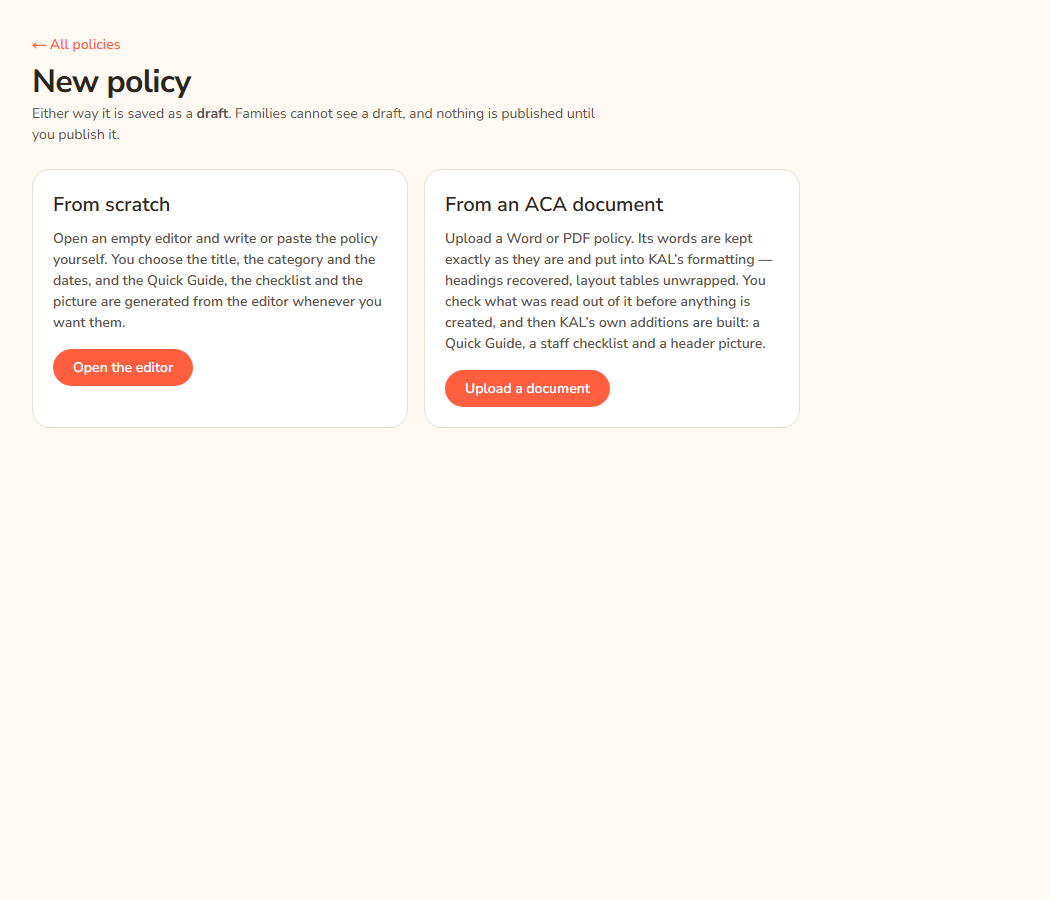
- Choose the card From scratch. Press Open the editor.
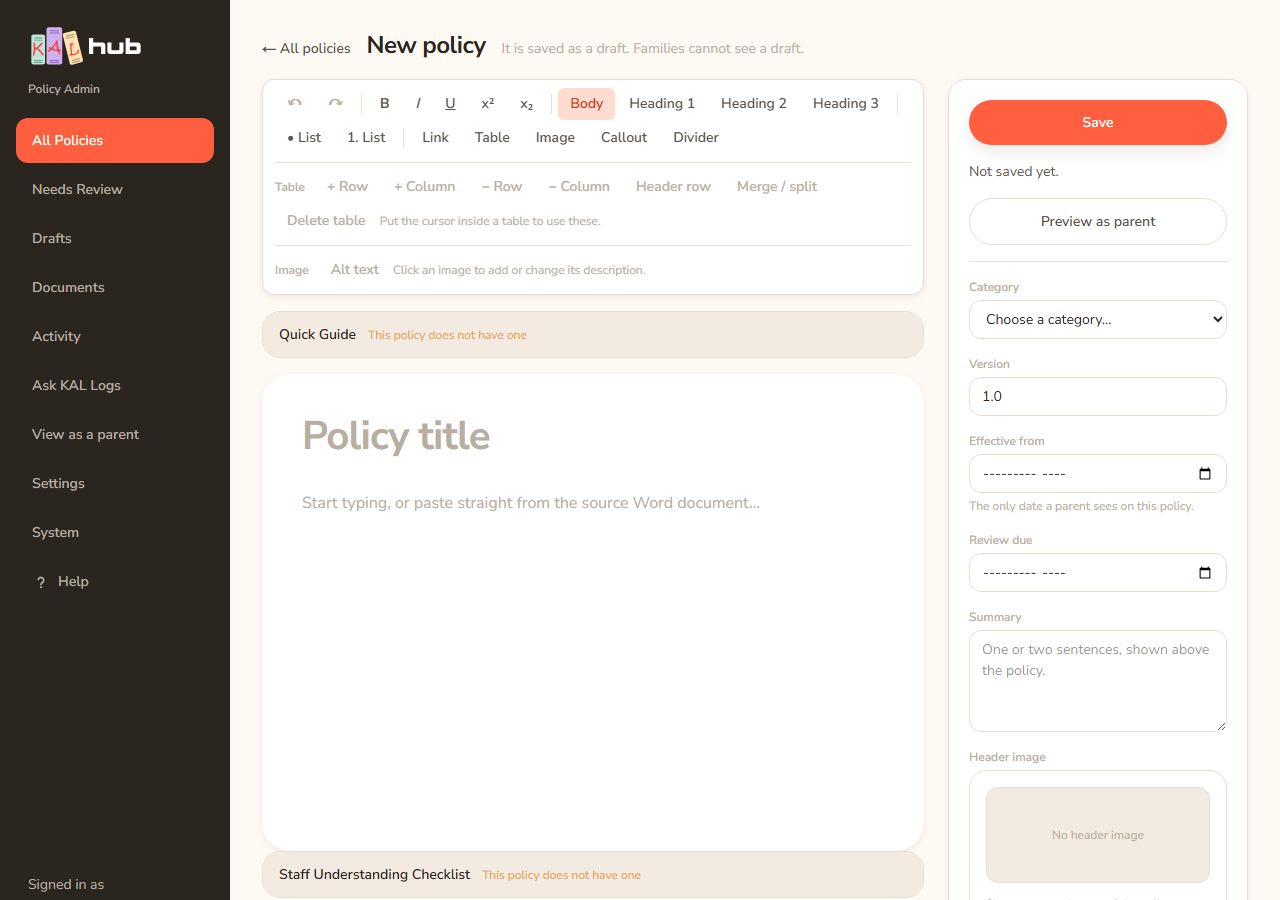
- The empty editor opens. At the top it says "It is saved as a draft. Families cannot see a draft."
- Type the policy title, choose a category, and write or paste the policy text. How the editor works is in The policy editor.
- Press Save when you are ready. The policy now appears in the Policies list with the status draft.
- Add the extras if you want them. The Quick Guide and checklist and the header image can each be generated from the editor once the policy has a title and enough text.
Example: Casey Example in head office is writing a new Demo Park policy about visitors to the centre. Casey presses New Policy, chooses From scratch, and presses Open the editor. Casey types the title, picks the category, pastes the text from an email, and presses Save. The policy shows in the list as a draft. Parents like Alex Demo cannot see it.
What the two cards say
The New policy page has two cards. You only choose one.
| Card | What it is for | Button |
|---|---|---|
| From scratch | Open an empty editor and write or paste the policy yourself. You choose the title, the category and the dates. The Quick Guide, the checklist and the picture are generated from the editor whenever you want them. | Open the editor |
| From an ACA document | Upload a Word or PDF policy. Its words are kept exactly as they are and put into KAL's formatting. You check what was read out of it before anything is created. | Upload a document |
Every option
| Option | What it does | Default |
|---|---|---|
| ← All policies link | Goes back to the Policies list without creating anything. | n/a |
| From scratch card | Opens the empty editor at "New policy". | n/a |
| From an ACA document card | Goes to the upload page. See New policy from a document. | n/a |
| Status of the new policy | Always draft. You cannot choose another status here. Publishing is done later from the policy's own page. See Status and scope. | draft |
Questions
Can families see my new policy straight away?
No. Both ways of starting a policy create a draft. Nothing is published until you publish it.
I bookmarked the old "New policy" address. Where does it go now?
It now opens the New policy page with the two cards. The empty editor is one click away: choose From scratch.
Can I delete a draft I made by mistake?
There is no delete-policy button in the console. A policy families may have read is not something a button should remove. If you made a draft by mistake, leave it as a draft and ask the person who looks after the Hub to remove it.
Does the editor save by itself?
No. You press Save (or use the keyboard shortcut). See The policy editor for the protections against losing work.
If something goes wrong
There are no messages on the New policy page itself. Messages from the editor, such as a failed save, are listed in The policy editor. Messages from the Quick Guide, checklist and picture buttons are listed in Quick Guide and checklist and Header images.