
Sign in with an emailed code
Get a six digit code by email and type it in to sign in. This is how educators sign in, and the fallback for parents.
Updated
An emailed code is a six digit number sent to your email address. It proves you can read that mailbox. Parents can use it instead of a PIN. Educators always use it, unless head office has Portal sign in for educators switched on (see below). Staff at Beattie Road, which is not on the payroll system, sign in the same way as other educators.
Sign in with a code
- On the sign-in page type your email address and press Continue.
- Press Email me a code instead.
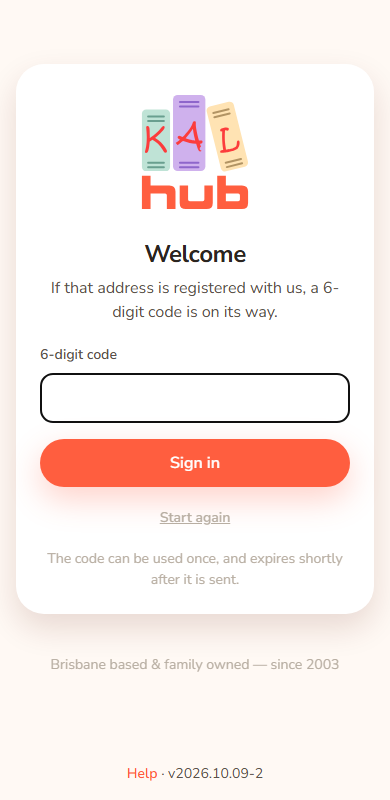
- The page says "If that address is registered with us, a 6-digit code is on its way."
- Open the email called "Your KAL Hub sign-in code". It says "Here is your sign-in code for the KAL Hub."
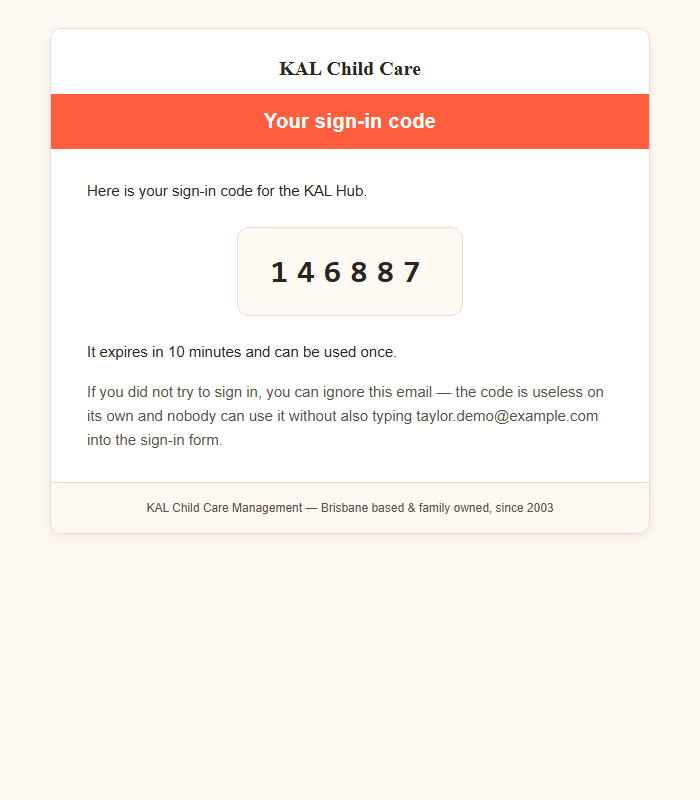
- Type the six digits in 6-digit code and press Sign in.
- If you have more than one centre, choose one. See Choosing a centre.
Example: Taylor Demo is an educator at Demo Park. Taylor types [email protected], presses Continue, then Email me a code instead. The email arrives, Taylor types the six digits and presses Sign in.
Things to know about the code
- It lasts 10 minutes and works once.
- You have a few tries at the code. After too many wrong tries the code stops working.
- If you ask again within a minute, no new email is sent. Wait a minute.
- Only a few codes can be sent to one address in a short time.
- The code is not in the email subject. Open the email to read it.
- If you did not try to sign in, ignore the email. The code is no use to anyone who does not also have your email address.
Educators: when sign-in goes through the KAL Portal
When head office turns on Portal sign-in for educators, pressing Email me a code instead does not send a code. The Hub takes you to the KAL Portal, to a sign-in page that shows the Hub logo. There you sign in with your 6-digit Portal PIN, or with a code the Portal emails you. If you have no PIN yet, the Portal asks you to create one. When you finish, you come back to the Hub signed in. If you choose Not you? or the Portal says you cannot sign in, you come back to the email box. Parents are not affected.
Change PIN
Once you sign in through the Portal with a PIN, the account button at the top right of every Hub page has Change PIN. Press the button, then Change PIN. It opens the Portal's Change PIN page, where you can change your PIN or reset it with a code the Portal emails you. When you finish you come back to the Hub. Parents and people who sign in with a Portal password do not see Change PIN. If head office has the Portal PIN sign-in switched off, there is no Hub PIN, so the item does not show. If the account button cannot load, Change PIN shows as a plain link beside your name on a computer.
Example: Taylor Demo signs in through the Portal with a PIN and wants a new one. Taylor presses the round account button, then Change PIN, and sets a new PIN on the Portal page.
If the code does not arrive
- Look in your junk or spam folder.
- Check you typed the right email address. Press Start again and try once more.
- Wait a minute before asking again.
- If it still does not come, contact your centre.
The page says the same thing whether or not the address is registered, so a code that never comes can mean the address is not one we can sign in.
Every option
| Control | What it does | Who sees it |
|---|---|---|
| Email me a code instead | Sends the code. | Everyone on the PIN step |
| 6-digit code | Takes the six digits. Numbers only. | Everyone on the code step |
| Sign in | Checks the code. | Everyone on the code step |
| Start again | Goes back to the email box. | Everyone on the code step |
| Change PIN | Opens the Portal page to change your PIN. | Educators who signed in through the Portal with a PIN |
Questions
Can I use spaces when I type the code?
Type just the six digits.
Why does the page say "if that address is registered"?
So the page cannot be used to find out who is a KAL family or who works at KAL.
Does an educator need a PIN?
Not for the Hub itself. Educators sign in with an emailed code. When head office has Portal sign in for educators switched on, you use your Portal PIN on the Portal page instead.
If something goes wrong
- "We couldn't sign you in with that email — please contact your centre." The code was wrong, used, expired or too many tries were made. Press Start again and ask for a new code. If it keeps happening, contact your centre.
- "That took too long — please start again." You waited too long. Press Start again.
- "Something went wrong. Please try again." Try again.
- An address typed with accented letters gets no code and the same refusal as an unknown address. Type it as the centre has it.