
Header images
Add, draw, replace or remove the picture at the top of a policy and on its library card, from the editor or the build screen.
Updated
Each policy can have one header image. It is shown across the top of the policy page and as a band on the policy's card in the library. You can upload a picture of your own, or have the Hub draw one from the policy's own text. The drawn pictures carry no words. They are a flat illustration of a scene in or around a centre, in KAL's colours, with KAL's mark on one object in the scene.
A header image is optional. A policy without one is still a complete policy.
Draw a picture for a policy
- Open the policy in the editor (see The policy editor).
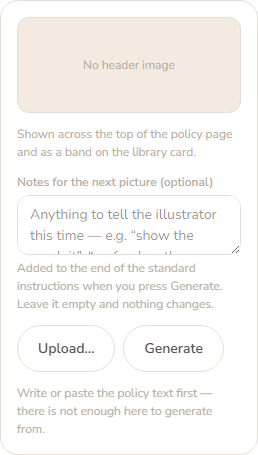
- In the sidebar, find Header image, under Summary. It shows the current picture, or "No header image".
- Make sure the policy has a title, a category and some text. Until it does, Generate is greyed out and the reason is written under the buttons.
- If you want to steer the picture, type in Notes for the next picture (optional), for example "show the sandpit" or "no food on the bench". Notes can be up to 500 characters. They apply to this press of Generate only. Leave it empty and the standard instructions are used.
- Press Generate. The button changes to "Working…". It can take up to a minute.
- When it finishes the new picture shows in the panel, with a note: "A picture has been drawn for" the policy title, then its size and how many seconds it took, then "Nothing is saved until you press Save."
- Look at the picture. If you do not like it, change the notes and press Generate again. You can do that as many times as you like.
- Press Save (the editor's own Save, not a button in the panel). The picture is now stored with the policy.
Example: Casey Example opens the Demo Park "Sun Protection" demo policy. Casey types "show a shaded sandpit" in the notes, presses Generate, and a few seconds later a picture of a shaded play area appears. Casey presses the editor's Save.
Upload a picture of your own
- In the Header image panel press Upload….
- Choose a PNG, JPEG or WebP picture. The limit is 8 MB.
- The picture shows in the panel and a note says "Header image set. Nothing is saved until you press Save."
- Press the editor's Save.
Replace or remove a picture
- If the policy already has a picture, pressing Generate or Upload… first asks: "This policy already has a header image. Replace it? The current picture will be dropped from the form. Nothing is saved either way until you press Save." Press OK to continue or Cancel to keep it.
- Press Remove to take the picture off. A note says "Header image removed from the form. Press Save to make it stick."
Pictures for a new draft (the build screen)
When you create a policy from a document, the screen Building KAL's version has a Header picture row with its own Write the header picture button. It draws a picture the same way and saves it straight away. This only works while the policy is still a draft. On a policy that has been published, change the picture in the editor instead, where the change is visible. See Quick Guide and checklist.
If the row already has a picture, it says "This policy already has a picture. Press Redo if you want a new one."
Every option
| Option | What it does | Default |
|---|---|---|
| Picture preview | Shows the current picture, or "No header image". | none |
| Caption under the picture | For a drawn picture: "Drawn from this policy's own text. It carries no words." For an uploaded one: "Uploaded. Shown at the top of the policy page and on the library card." If the Hub does not know where the picture came from, it only says where it is shown. | n/a |
| Notes for the next picture (optional) | Extra instructions added to the end of the standard instructions for this press only. Up to 500 characters. Not saved with the policy. | empty |
| Upload… | Opens the file chooser for a PNG, JPEG or WebP, up to 8 MB. | n/a |
| Generate | Draws a picture from the policy's text. Needs a title, a category and enough text. Nothing is saved until you press Save. | n/a |
| Remove | Removes the picture from the form. Press Save to make it stick. Drawn only when there is a picture. | n/a |
| Dismiss (×) on a message | Closes the message under the panel. | n/a |
Questions
Does the picture have words on it?
No. Drawn pictures carry no words. Only the KAL mark appears, on one object in the scene.
Why do pictures sometimes look like a different scene from what I expected?
Each policy title is turned into a scene (a place, a few objects, and one object that carries the mark). The Hub does not use the policy's summary for this. Use the notes box to steer a picture.
Does changing the picture count as changing the policy?
No. The picture is kept apart from the policy text. Changing it does not move the policy's "Updated" date, does not appear in the revision history, and does not cause the Ask KAL index to be rebuilt.
Can families on a staff-only policy see its picture?
The picture is decorative and has no words. Staff-only policies are not shown to families at all, so the picture is not shown to them either.
Can I make pictures for many policies at once?
That is a job done on the server by the person who looks after the Hub, not a button in the console. Ask them.
If something goes wrong
Messages next to the panel:
- "Choose a category first — it is named in the picture's prompt." Choose a category on the editor, then press Generate again.
- "Give the policy a title first — the picture is drawn from it."
- "This policy has" a number "characters of text, and at least 500 are needed. Write or paste the policy first — a picture is not worth drawing for a document nobody has written yet."
- "The picture could not be drawn for this policy. The image service may have declined the subject — upload a picture instead, or try again."
- "The picture was drawn but could not be saved to the image store. Nothing has been changed — check the server's upload directory." Tell the person who looks after the Hub.
- "That could not be drawn just now. Nothing has been changed — try again."
- "That image is" a size "MB. The limit is 8 MB."
- "That image could not be sent to the server — it may be too large."
- "That image could not be added."
- On Save: "That header image is not one this Hub stored. Upload or generate it again." and "That header image is not in the store any more. Upload or generate it again before saving."
- "That category no longer exists. Reload the page and try again."
Messages on the build screen's picture row:
- "A picture is optional — you can upload one in the editor instead." This is added to the end of a failure message.
- "It was drawn but could not be stored. Try again."
- "This policy was published or changed by another run while the picture was being drawn, so nothing was stored." followed by the draft-only reason. Reload the page to see where it got to.
- The policy is not a draft: the message starts with the policy's short name, then "this policy is" its status "not a draft. The build screen assembles a policy that has never been published; a picture for one anybody can already read is chosen in the editor, where the change is visible and reviewed."