
Example - edit a live policy and publish the change
A worked example from start to finish - change a published policy safely, check it, publish it, and undo it if it was wrong.
Updated
This example follows one head office change from beginning to end. It uses a made-up policy, the Sun Protection Policy at Demo Park Early Learning and Example Bay Early Learning, and a made-up person, Casey Example.
The job: Jordan Sample, a centre staff member, points out that the policy does not mention sunscreen for babies under six months. Casey adds one paragraph and publishes it to every centre.
1. Open the policy
- Casey signs in to KAL Hub and presses Admin, then Enter the console. See The admin console tour.
- In the list, Casey types "Sun" into Filter policies… and presses Apply.
- Casey presses Sun Protection Policy. The status pill says Published and the line beside it says All centres.
2. Make the change

- Casey presses Edit. The strip says "This policy is published." and explains that what you save is kept as unpublished changes, and that families keep reading the published version until you press Publish changes.
- Casey clicks at the end of the section headed "Sunscreen" and types the new paragraph.
- Casey changes Version in the side panel from 2026.1 to 2026.2.
- Casey presses Save changes. The line under the button reads "Changes saved just now. Not published."
Families still read the old version. Nothing they see has changed.
3. Check it before it goes out
- Casey presses Preview as parent. The Hub saves and shows the page as a family would see it. The banner says the policy is published and that families can see it now.
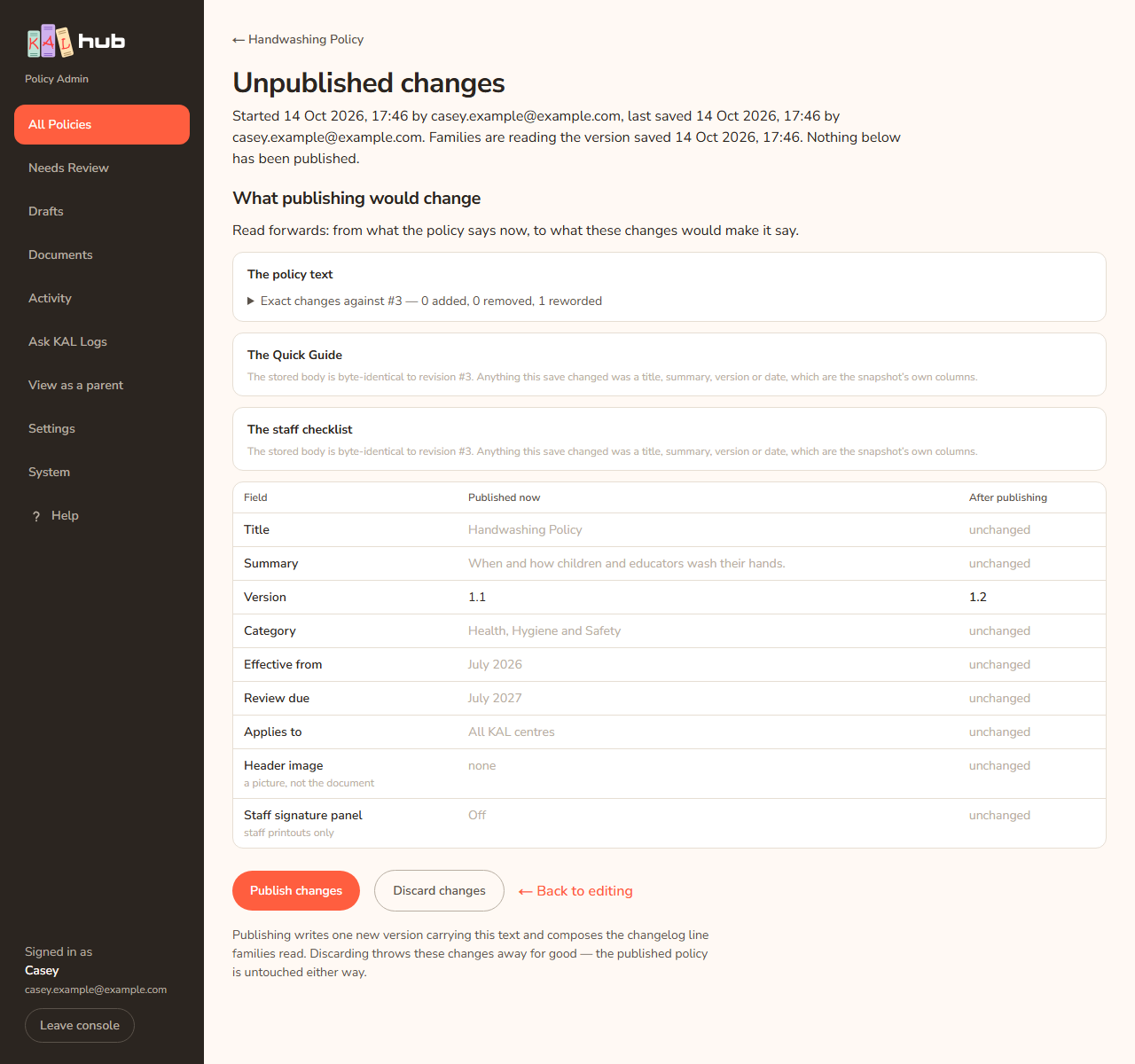
- Casey presses ← Back to editing, then Compare with live.
- The panel The policy text shows one Added paragraph. The table shows Version changing from 2026.1 to 2026.2 and every other row unchanged.
4. Publish

- Casey presses Publish changes. The button changes to Publishing….
- The policy page opens with a green banner: "Published. The policy now says what those changes said, saved as version #4. A changelog line is being written for it."
- The orange unpublished changes strip is gone. The policy now shows the new paragraph to families at both centres.
5. Tidy the history
- Further down the policy page, under Hub saves (admin only), Casey finds version #4 with a change note describing the added paragraph, marked Shown to families.
- That is correct, so Casey leaves it. A formatting-only save would be marked "Hidden from families — Hub maintenance" and Casey could press Show to families if wanted.
6. If it was wrong: go back

- Casey presses Versions.
- Casey finds version #3, the version before the change, and presses Restore version #3 (or Restore in the list).
- The green banner says "Restored. The policy now says what it said in the version you chose, saved as version #5."
- Version #4 is still in the list. Nothing was deleted. If Casey changes their mind again, Restore on version #4 puts the paragraph back.
Better still, Casey could have pressed Discard changes before step 4. Discarding throws away unpublished changes and leaves the published policy as it was.
Every option
| Step | Button | What it does |
|---|---|---|
| Open | Edit | Opens the editor |
| Change | Save changes | Saves into the working copy |
| Check | Preview as parent | Shows the family view of the working copy |
| Check | Compare with live | Lists what would change |
| Send | Publish changes | Makes the change live and writes a new version |
| Abandon | Discard changes | Deletes the working copy |
| Undo | Restore version #N | Writes a new version with the old text |
Questions
What if a colleague also edited the policy?
Only one working copy exists, so you both save into it. If your save is refused, reload the page. Your work is kept in the browser and the editor offers it back with Restore them.
What if a colleague published while I was editing?
The strip turns red and Publish changes is greyed out. Use Compare with live and start again from the current text. See Working copy and publish.
Will families be told about the change?
They see a line in the changelog at the foot of the policy. The Hub writes the line when you publish.
Can I publish to only one centre?
Yes. Before you publish, change Applies to to Only the centres I choose and tick the centre. See Status and scope.
If something goes wrong
- The Publish changes button is grey: the live policy changed after your changes were started. Press Compare with live and start again.
- "Nothing was published. Those changes say exactly what the published policy already says, so nothing was written and no line was added to the changelog families read. Discard them instead." Nothing differs from the live policy. Press Discard changes.
- "The save did not go through and nothing was changed. Please try again." Press Save changes again.
- "Nothing was restored." followed by a reason on the Versions page: see Versions and restore.