
Centre documents - pages and PDFs for centres
Make a page or a PDF for a centre, choose who reads it, make it Friendly with pictures, publish it, and preview it.
Updated
A centre document is a page or a PDF that belongs to one centre, a few centres or all centres. An example is Welcome Guide for New Families. Head office makes and manages them in the console.
A centre document is not linked from a policy. The ticks and the centres you choose decide who can read it. Families and staff see it only after it is published.
Find the Centre Documents tab
- In the console, press Documents.
- Press the Centre Documents tab. The other tab, Policy Documents, is the usual list of forms and templates linked from policies. See Documents.
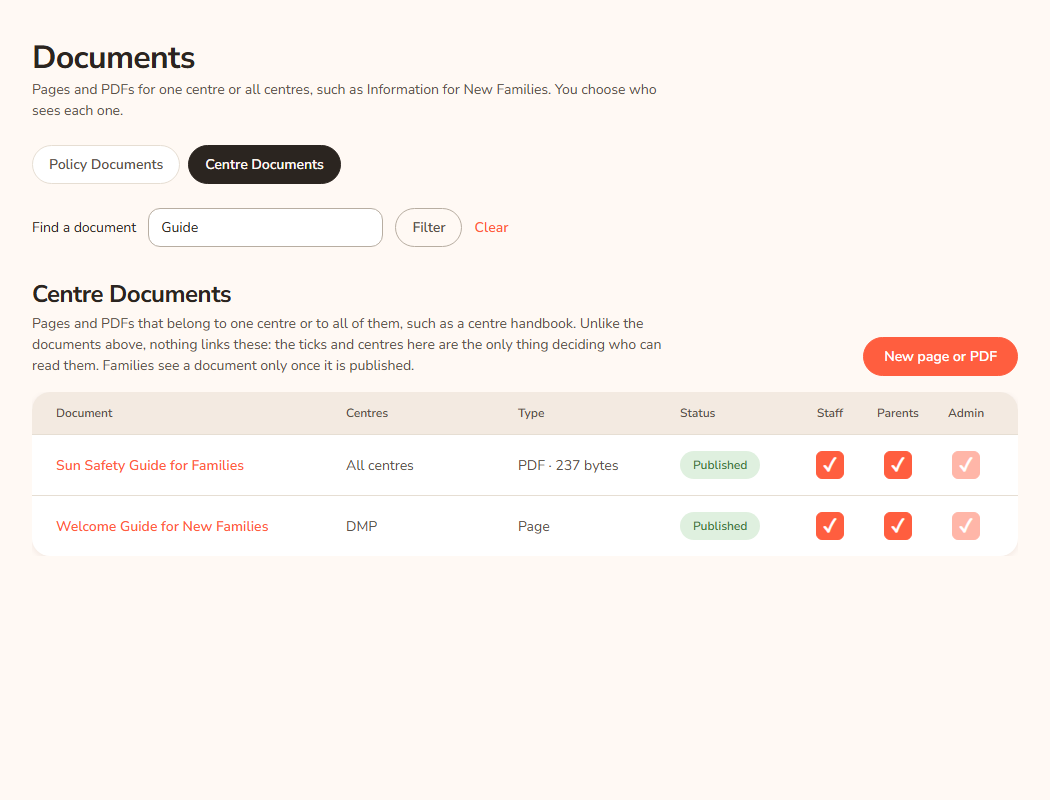
The list shows each document's centres, type (Page or PDF), status, and three tick columns: Staff, Parents and Admin. Press New page or PDF to make one. Use Find a document to search.
Make a page from a Word file
- On the Centre Documents tab, press New page or PDF.
- In Upload a Word file (formatted for you), press Choose a Word file and pick a .docx file. It must be no bigger than 8 MB.
- Under Which centres, choose All centres or Only the centres I choose, and tick the centres.
- Press Upload and format.
The Word file becomes a page in the KAL house style. The headings, lists and tables are tidied. The fonts and colours in the Word file are not used. You land on the document's page. A note says "Formatted from" and the file name, and may list things worth a look.
The new page is a draft for Staff only. Nobody else can see it until you publish it.
Example: Casey Example (head office) uploads "Welcome Guide for New Families.docx" for Demo Park. The page opens as a draft. Casey reads it, ticks Parents, and presses Publish.
Make a blank page or upload a PDF
- Start a blank page: type a Title, choose the centres and the ticks, and press Create page. Type or paste the text on the next screen.
- Upload a PDF: type a Title, press Choose a PDF, choose the centres and the ticks, and press Upload PDF. The PDF must be no bigger than 8 MB.
For these two, Staff is ticked and Parents is not. Change the ticks before you publish if you want to.
The document's page
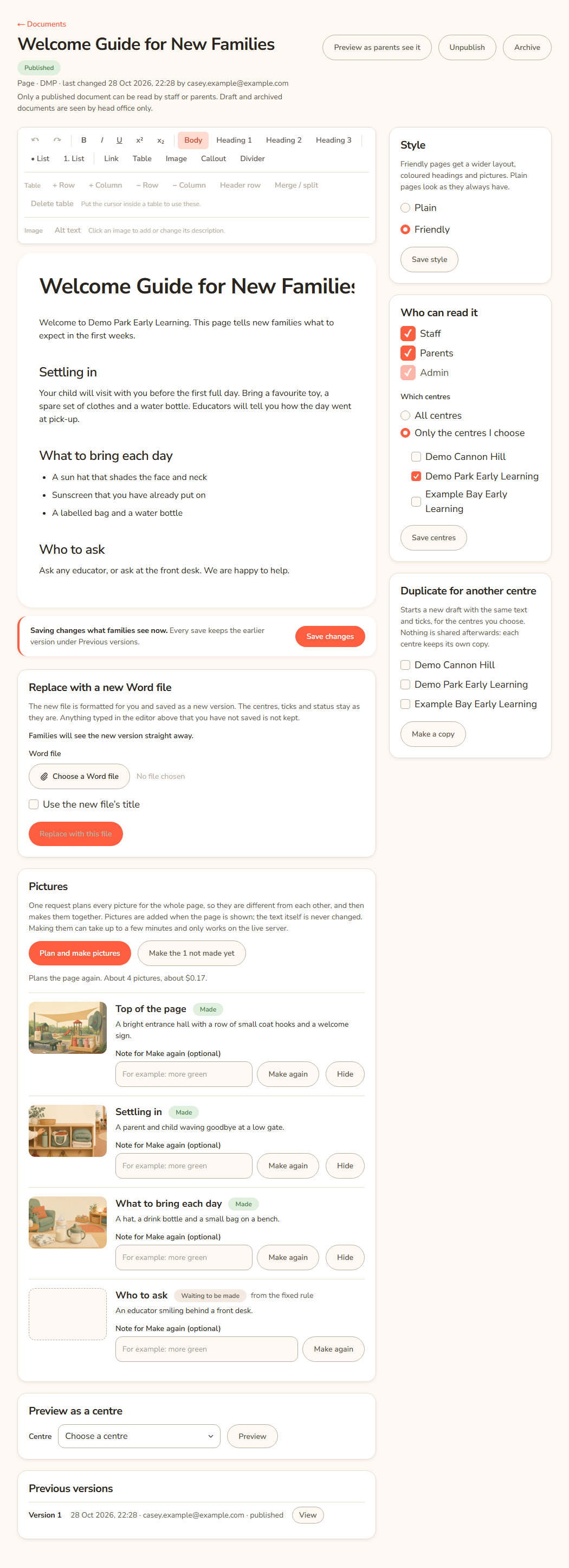
Each document has its own page. At the top are the title, a status, and these buttons:
- Preview as parents see it shows the page as families see it. See below.
- Publish makes it readable. It shows on drafts and archived documents.
- Unpublish makes a published document a draft again.
- Archive puts it away. It shows when the document is not already archived.
Only a published document can be read by staff or parents. Draft and archived documents are seen by head office only.
On the left is the page itself. You edit it in the editor and save it. For a PDF, you see the file name and size and Open the PDF. On the right is Who can read it:
- Staff and Parents. Tick the box to allow that group. The tick saves as soon as you press it.
- Admin is always ticked. Head office always sees every document.
- Which centres, then Save centres.
Example: Casey wants staff to read the Demo Park handbook but not families yet. Casey leaves Staff ticked, leaves Parents empty, and presses Publish. Staff at Demo Park can read it. Families cannot.
Replace with a new Word file
On a page, find Replace with a new Word file.
- Press Choose a Word file and pick the new version.
- Tick Use the new file's title if you want the title to change too.
- Press Replace with this file.
The new file is formatted for you and saved as a new version. The centres, ticks and status stay as they are. Anything you typed in the editor and did not save is not kept. On a published page, families see the new version straight away.
On a PDF, use Replace the PDF, then Choose a PDF and Replace PDF.
Preview as parents see it
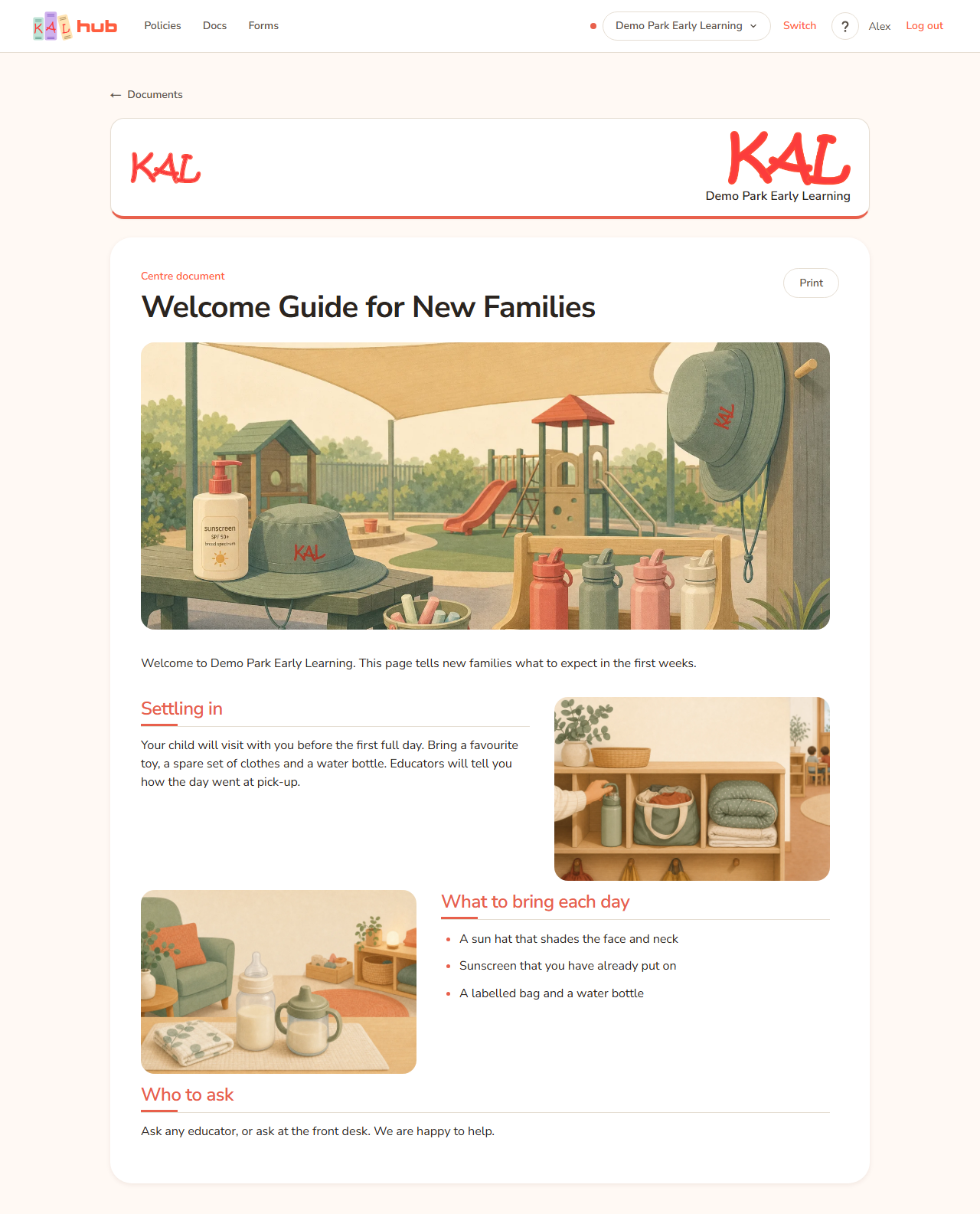
Press Preview as parents see it at the top of the document's page. It opens the page the way a family sees it, using the same page design.
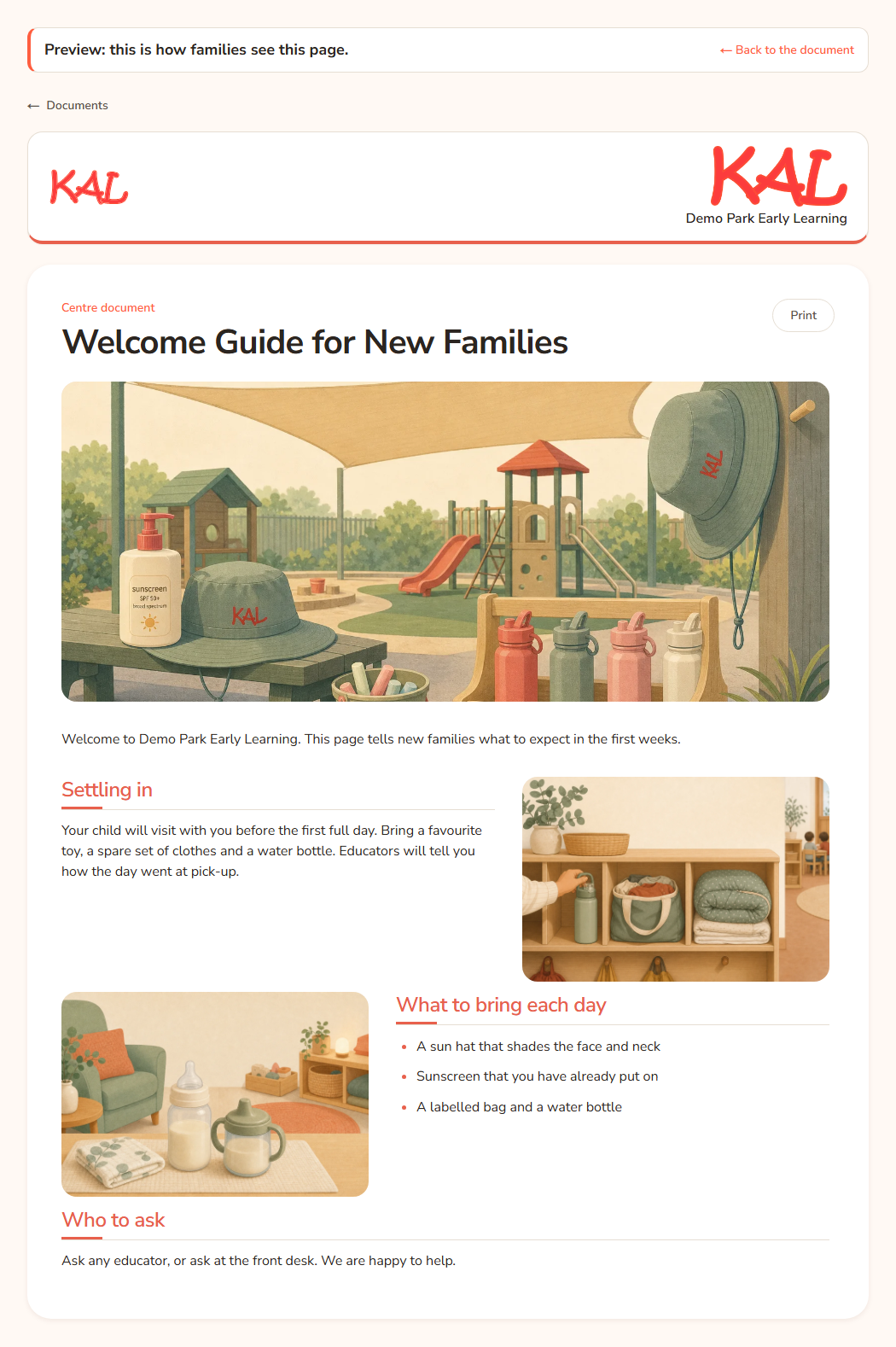
It also shows drafts, archived documents and documents where Parents is not ticked. A bar at the top says "Preview: this is how families see this page." If families cannot see the document yet, the bar tells you why. For example: "Families cannot see this yet because it is a draft and only published documents are shown to families and Parents is not ticked."
The preview uses the document's first centre for the centre colour and logo. Press ← Back to the document to return.
There is also Preview as a centre lower on the page. Choose a centre and press Preview to see whether the document is available there and who can read it.
Friendly pages
A page can be Plain or Friendly. Plain is how every page looked before. A PDF is always plain.
A Friendly page is wider and wears the centre's own brand:
- The centre's banner, with its logo, at the top.
- Headings in the centre's colours and fonts.
- A brand divider between the big sections.
- Small brand shapes in the side margins on a wide screen. They never cover the text and they hide on a phone.
It can also have pictures. A centre with no brand yet keeps the KAL look.
Choose the style
- Open the page from the Centre Documents list.
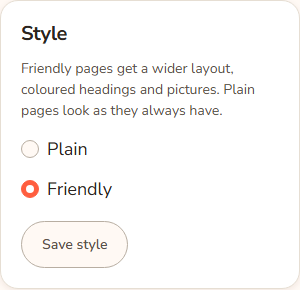
- Find the Style card.
- Choose Plain or Friendly, then press Save style.
The style changes straight away for anyone who can read the page. The text is never changed.
Make the pictures
On a Friendly page you also see a Pictures box.
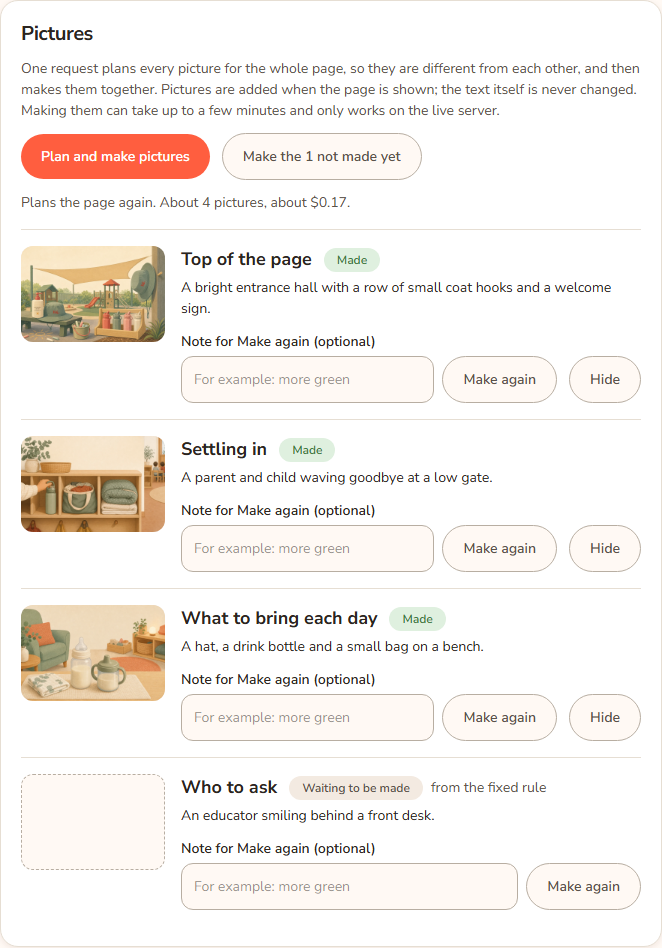
- Press Plan and make pictures.
- Wait. It can take a few minutes. The page does not update by itself, so press refresh it in the message to see how far it has got.
One AI step reads the whole page and plans every picture first. This is why the pictures are all different from each other. Then the pictures are made together. There is a picture at the top of the page and one for some sections. Each picture costs about $0.04. The box shows the total before you press the button.
If some pictures are not made, a second button appears: Make the 1 not made yet (the number changes). It makes only those.
Example: Casey Example sets Welcome Guide for New Families to Friendly and presses Plan and make pictures. After a few minutes the page has a picture at the top and a picture beside two of its headings.
Hide, Show and Make again
Each row has its own buttons.
- Hide takes a picture off the page. The file is kept. The row then says Hidden and the button changes to Show.
- Show puts a hidden picture back.
- Make again draws that one picture again. You can type a Note for Make again (optional) first, for example "more green". The note is only a hint to the picture maker.
A row shows one of these pills: Waiting to be made, Made, Failed or Hidden. A failed row shows the reason in red. Press Make again to try it again.
Notes on a picture
- from the fixed rule means the AI step could not plan this picture. A simple fixed rule chose the spot instead. The picture is still fine to use. If you want the AI to choose, press Plan and make pictures again.
- no longer matches the text means someone changed or removed the heading this picture belongs to. The picture is not shown on the page. Press Plan and make pictures to plan again, then check the page.
See the Friendly page as a family sees it
Press Preview as parents see it. A Friendly page shows its pictures there, in the same wide layout families see.
Copy for another centre and old versions
- Duplicate for another centre: tick the centres and press Make a copy. This starts a new draft with the same text or file and the same ticks. Nothing is shared afterwards. Each centre keeps its own copy.
- Versions: see the next section.
Versions
Every change makes a new version: a save, a new Word or PDF file, a tick, the centres, the status or a restore. Old versions are never deleted. Families do not see the versions.
Each version in the Versions list shows its number, when it was saved, who saved it (their email) and a note about what changed. The newest has a Current pill.
The note
- When the text changes, the AI writes a short note, for example "Added a requirement that hats be worn outside from September."
- Other changes get a fixed note, for example "Published.", "Parents can now read this." or "New PDF file: handbook.pdf."
- To write your own note, type it in Note about this change (optional) before you press Save or replace the file. Your note is kept as you typed it.
- A note can take up to a minute to appear. Until then the row says "Writing the note…".
See what changed
- Find the version in the Versions list.
- Press Compare with previous.
The page shows the words that were added, removed and reworded, and any other details that changed. For a PDF it shows the two files side by side. Use Earlier change and Later change to step through the history.
Example: Casey Example opens Welcome Guide for New Families and presses Compare with previous on version 6. The page shows one sentence added under "Who to ask".
Restore an earlier version
- Press Restore this version on the version you want.
- Check the details, then press Restore version N (the number changes). Press Cancel to go back.
Restore brings back that version's title and text, or its PDF. It is saved as a new version, so you can restore again. Who can read it, the centres and whether it is published stay as they are now. Families who can read the page see the restored version straight away.
Press View to read any old version. It is read-only.
Every option
| Option | What it does | Default |
|---|---|---|
| Centre Documents tab | Shows the list of centre documents. | |
| New page or PDF | Opens the page to make a new document. | |
| Upload and format | Makes a page from a Word file. | Draft, Staff only |
| Create page | Makes a blank page. | Draft, Staff ticked |
| Upload PDF | Makes a PDF document. | Draft, Staff ticked |
| All centres / Only the centres I choose | Who the document is for. | Only the centres I choose |
| Staff | Staff can read it once published. | Ticked on new documents |
| Parents | Families can read it once published. | Not ticked on new documents |
| Admin | Head office sees every document. | Always ticked |
| Publish / Unpublish / Archive | Changes the status. | Draft |
| Save centres | Saves the centre list. | |
| Preview as parents see it | Shows the family view, drafts included. | |
| Replace with this file | Replaces a page with a new Word file. | |
| Use the new file's title | Also changes the title. | Not ticked |
| Make a copy | Starts a draft copy for other centres. | |
| Plain / Friendly and Save style | Chooses the page design. Friendly is wider, uses the centre's banner, colours and fonts, and has pictures. | Plain |
| Plan and make pictures | One AI step plans every picture, then they are made together. About $0.04 a picture. Live server only. | |
| Make the N not made yet | Makes only the pictures that are missing. | Shown when some are missing |
| Hide / Show | Takes a made picture off the page, or puts it back. | |
| Make again and its note | Draws one picture again. The note is optional. |
Questions
Why can't families see my document?
Check three things. The status must be Published. Parents must be ticked. The document must be for the family's centre. Preview as parents see it tells you which of these is missing.
Does editing a published page change it straight away?
Yes. There is no working copy for centre documents. Save changes what families see now.
Why does a picture say "from the fixed rule"?
The AI step could not plan it, so a simple rule picked the spot. Plan again if you want the AI to choose.
Why is a picture missing from my Friendly page?
Check its row in the Pictures box. It may be Hidden, Failed, Waiting to be made, or marked "no longer matches the text". Only Made pictures show.
Can I change the centre's colours, banner or fonts?
Not on this page. They come from the KAL brand kit, which head office keeps. Ask head office if a centre's brand is wrong.
Do pictures change my text?
No. They are added when the page is shown. The text is never changed.
How is this different from the other Documents tab?
Policy documents are linked from policies, and a link gives permission to read them. Centre documents have no links. The ticks and the centres decide.
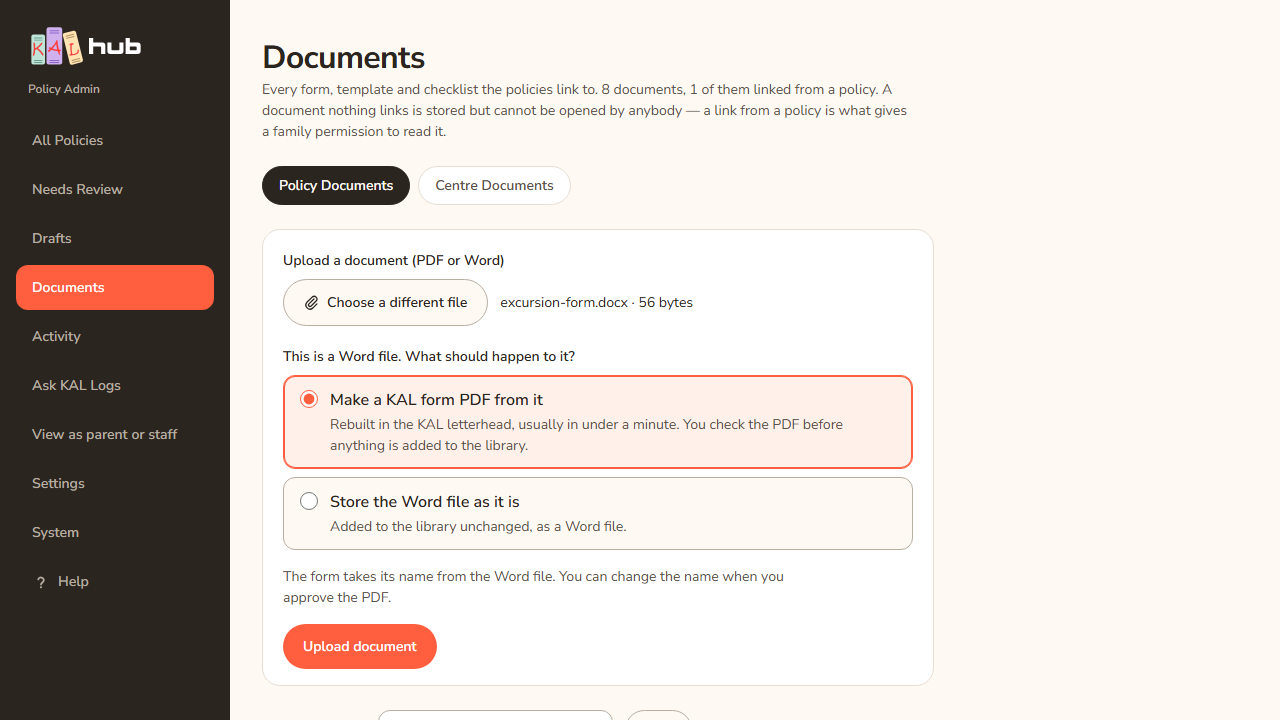
Can I turn a Word form into a PDF in the KAL letterhead?
Yes, but that is for the Policy Documents tab. See Make a KAL form from a Word file. On that tab, choosing a Word file shows a choice: make a KAL form PDF, or store the Word file as it is.
If something goes wrong
- "Give the document a title." Type a title.
- "Choose at least one centre, or make it available to all centres." Tick a centre or choose All centres.
- "A page needs some text, and a PDF needs a file, before it can be published." Add the text or the file, then publish.
- "That document is not in the library. Nothing was changed." It no longer exists. Go back to the list.
- "No file was attached. Choose a PDF and try again." Choose a PDF first.
- "No file was attached. Choose a Word file (.docx) and try again." Choose a Word file first.
- "That file is not a .pdf." Save or export the file as a PDF.
- "That PDF is larger than 8 MB." Make the PDF smaller.
- "That file is not a Word file (.docx). Save it from Word as a .docx and try again." Save the file as a .docx.
- "That Word file is larger than 8 MB." Make the Word file smaller.
- "That Word file could not be opened safely: it is too large once opened, or it is not a normal Word file. Save it again from Word as a .docx and try again." Save it again from Word.
- "That Word file could not be turned into a page. Check that it opens in Word and try again." Open it in Word to check it.
- "That file could not be stored as a PDF. Check that it opens as a PDF and try again." The file may be damaged.
- "That change was refused. Nothing was changed." and "That did not work. It has been logged. Nothing was changed." Try again. If it keeps failing, tell the Hub's maintainers.
- "This version is the same as the current one. Nothing was changed." The page already looks like that version.
- "That version does not exist. Nothing was changed." Go back to the Versions list and choose again.
- "The PDF of that version is no longer stored on this server, so it cannot be restored. Nothing was changed." Upload the file again with Replace if you still have it.
- A version says "No note". The note could not be written. Tell the Hub's maintainers; they can fill it in.
- Success notes: "Restored. The earlier content is now the current version, saved as a new version.", "Created as a draft. Nobody can see it until you publish it.", "Saved.", "Centres updated.", "Status updated.", "The PDF was replaced." and "Copied as a new draft. Choose its title, check its text, then publish it."