
The policy page in the console
Everything on one policy's console page - status buttons, printing for a centre, the Hub saves list and the admin actions list.
Updated
Press a policy's title in the policies list and you land on its console page. It shows the policy as staff see it, with controls for head office above and below it. Use it to publish, unpublish or archive, to print a copy for a centre, and to see what has been saved and by whom.
Publish, unpublish or archive
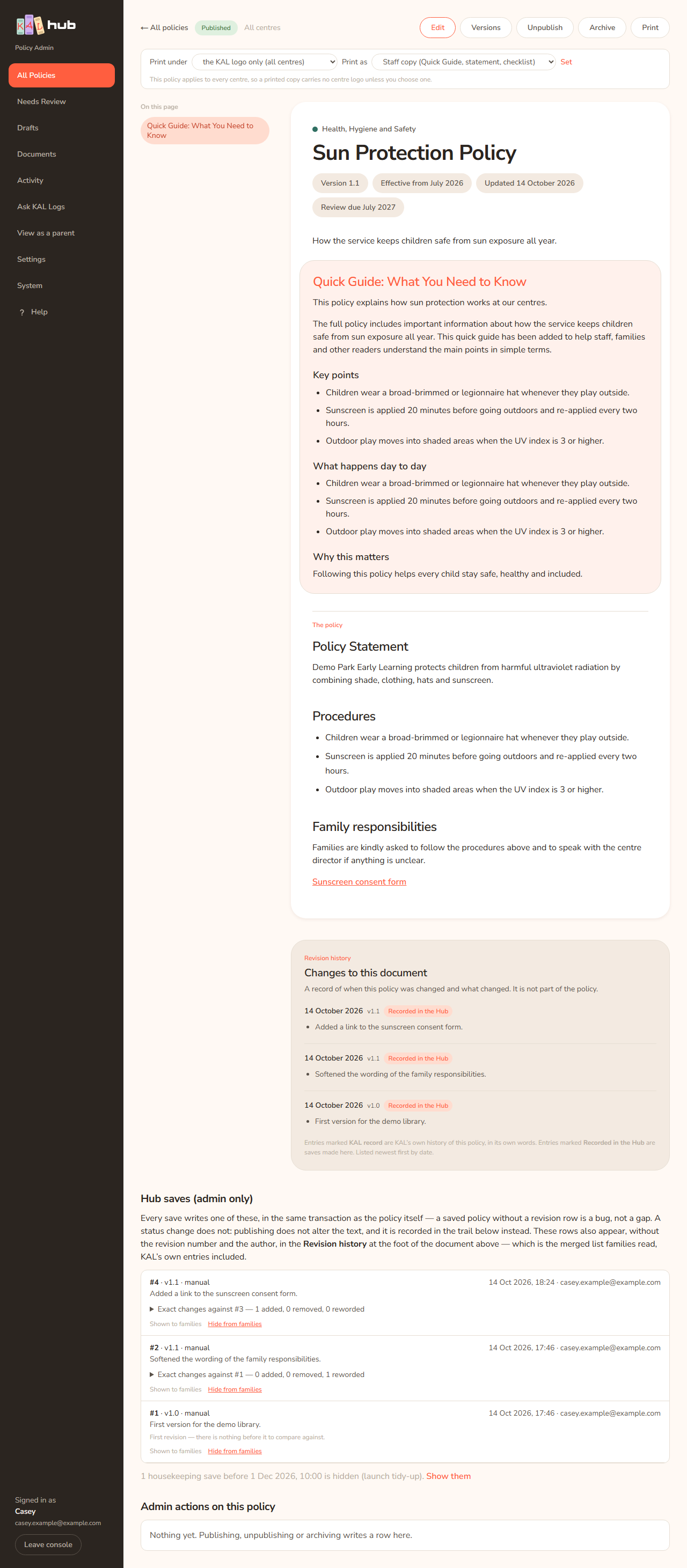
- Open the policy.
- Look at the row of buttons at the top right. They depend on the policy's status:
- A Draft has Publish and Archive.
- A Published policy has Unpublish and Archive.
- An Archived policy has Restore as draft.
- Press the button. It changes to Publishing…, Unpublishing…, Archiving… or Restoring….
- The page reloads with the new status pill. Each press is recorded under Admin actions on this policy.
Point at a button to read its hint. Publish "Makes this policy visible to every family at every centre it applies to." Unpublish "Returns it to a draft. Families stop seeing it immediately." Archive "Retires the policy. Parents stop seeing it; the text and its revisions stay." Restore as draft "Brings it back as a draft. It stays invisible to families until it is published."
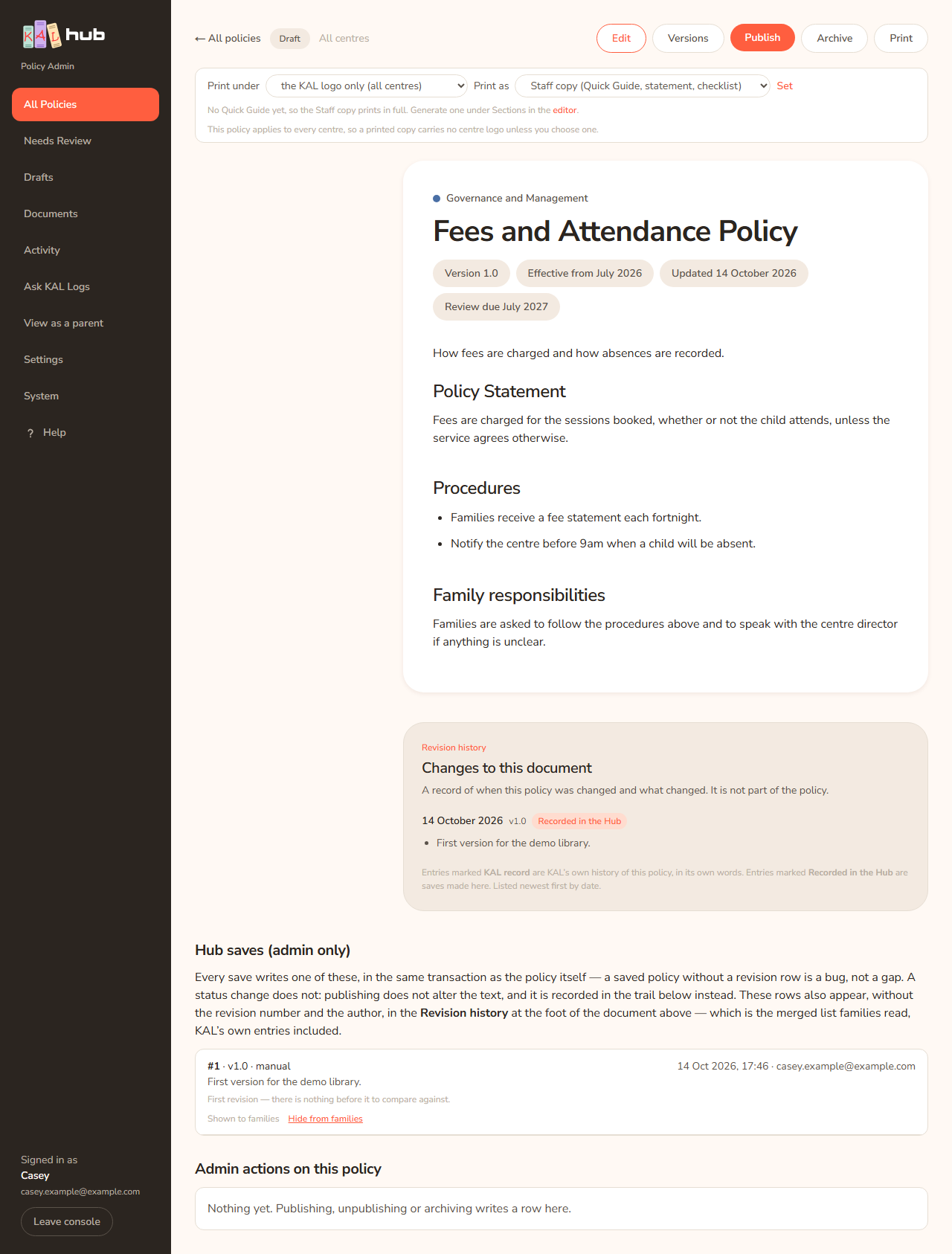
Example: Casey Example finishes a new draft called Sun Protection Policy and presses Publish. The pill changes from Draft to Published. Families at the centres the policy applies to can now find it.
If two people have the page open, the second to press a button is refused quietly: the Hub checks the status is still what the page showed.
Edit, see versions, print
- Edit opens the editor.
- Versions lists every saved version and lets you go back to one. See Versions and restore.
- Print prints the page. Use Print under and Print as first.
Print for a centre or an audience
The row of two menus under the buttons controls the printout and the on-screen copy.
- In Print under, choose the KAL logo only (all centres) or KAL + a centre name. A policy for all centres carries no centre logo unless you choose one here.
- In Print as, choose the copy:
- Staff copy (Quick Guide, statement, checklist) prints the Quick Guide, the Policy Statement, the staff checklist and the signature panel. It is the default.
- Full copy (whole policy, checklist and sign-off) prints the whole policy.
- Family copy prints what a family sees. It is not offered for a policy in a staff-only category.
- Press Set.
- Press Print.
If a policy has no Quick Guide, the line "No Quick Guide yet, so the Staff copy prints in full. Generate one under Sections in the editor." appears and the Staff copy prints in full. See also Printing a policy.
Preview what families see
Press Preview as parent in the editor's side panel. The preview page says "Preview as a parent" and tells you whether families can see the policy now. It never publishes anything. Use ← Back to editing, Compare with live or The policy page to move on. The Preview link on the orange unpublished changes strip is different: it shows this page with the working copy applied, the way staff see it.
Hub saves (admin only)
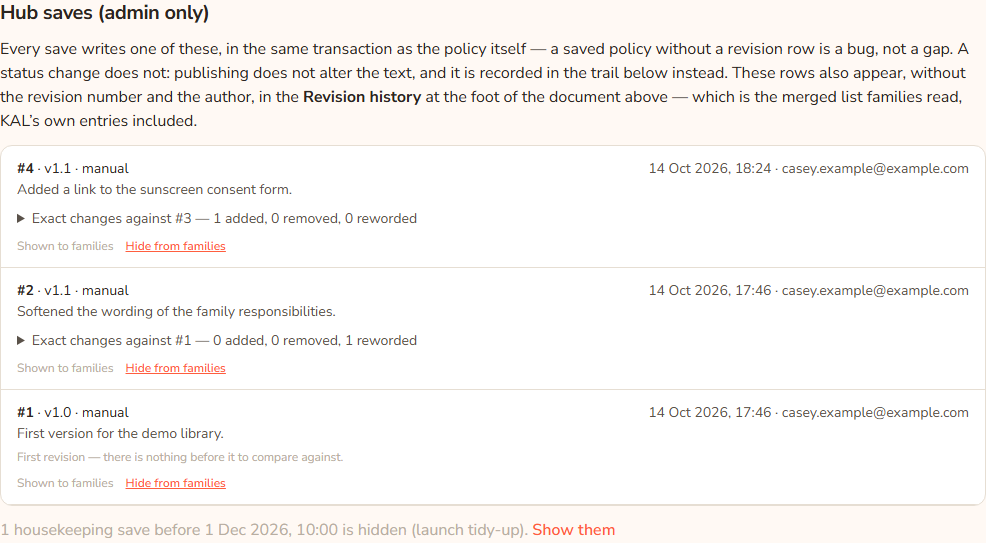
Each row also says either Shown to families or Hidden from families — Hub maintenance. A save that changed nothing a family would notice, such as formatting only, starts as hidden so that families only see real changes in the changelog at the foot of the policy.
- Find the row.
- Press Hide from families to take that line out of the family changelog, or Show to families to put it in. The button changes to Saving….
No confirmation is needed. It only moves a line between two lists and you can undo it with the other button.
Example: Casey Example saved a policy after fixing a typo. The row says "Shown to families", so families would read a changelog line about a typo. Casey presses Hide from families.
Housekeeping saves
If the page says "N housekeeping saves before DATE are hidden (launch tidy-up)", older launch-time rows are held back. Nothing is deleted. Press Show them to see them and Hide them again to hide them. Head office can move the cut-off date in Settings. See Housekeeping revisions.
Admin actions on this policy

Every option
| Option | What it does | Default |
|---|---|---|
| ← All policies | Back to the list | Not applicable |
| Edit | Opens the editor | Not applicable |
| Versions | Opens the versions list | Not applicable |
| Publish / Unpublish / Archive / Restore as draft | Changes the status | Depends on the current status |
| Prints the page | Not applicable | |
| Print under | Which logos a printout carries | the KAL logo only (all centres) |
| Print as | Staff, Full or Family copy | Staff copy |
| Set | Applies Print under and Print as | Not applicable |
| Publish changes / Preview / Compare with live / Discard… | Working copy strip. See Working copy and publish | Shown only when a working copy exists |
| Hide from families / Show to families | Moves one save between the family changelog and admin only | Set by the Hub when the save is made |
| Show them / Hide them again | Shows or hides old housekeeping saves | Hidden |
Questions
Do families see the Print as menu?
No. Only staff and FoundU educators can choose a copy. Families print the family copy only.
What does "Hidden from families — Hub maintenance" mean?
That save is not shown in the changelog families read. It is still stored and you can still restore it.
Where does the change note come from?
A person can type one, or the Hub writes one when a policy is published or restored. The line "No change note. Nobody typed one and none was written" means the note is missing. A technical person can fill these in.
If something goes wrong
- "Nothing was published." followed by a reason: see Working copy and publish for each reason.
- "This policy was not published. Its own text says it applies only to named centres, but it is stored as applying to all centres — publishing it would send it to families at every centre. Open Edit, set the centres it applies to under Scope, save, and publish it then. Nothing was changed." Do as it says. See Status and scope.
- A button does nothing and the page stays the same: someone else changed the policy first. Reload the page and try again.