
New policy from a document
Upload a Word or PDF policy, check the title, category, version and dates the Hub read from it, and create a draft in KAL's formatting.
Updated
Use this when a brand new policy arrives as a Word or PDF file. The Hub reads the file, keeps its words exactly as they are, and puts them into KAL's formatting: headings recovered and layout tables unwrapped. Nothing is created until you have checked a screen showing what the Hub read. Then the draft is made and you move on to building KAL's own additions.
If the file is a new version of a policy KAL already has, do not use this. Use Policy updates so you can decide each change one at a time.
Create a new policy from a document
- Open Policies, press New Policy, and choose the card From an ACA document. Press Upload a document.
- The page New policy from an ACA document opens. It says nothing is created yet.
- Press the file chooser under "The policy document (Word or PDF)" and choose your file. The Read the document button stays grey until a file is chosen.
- Press Read the document. The button changes to "Uploading and reading the document…". Reading a Word file takes a few seconds.
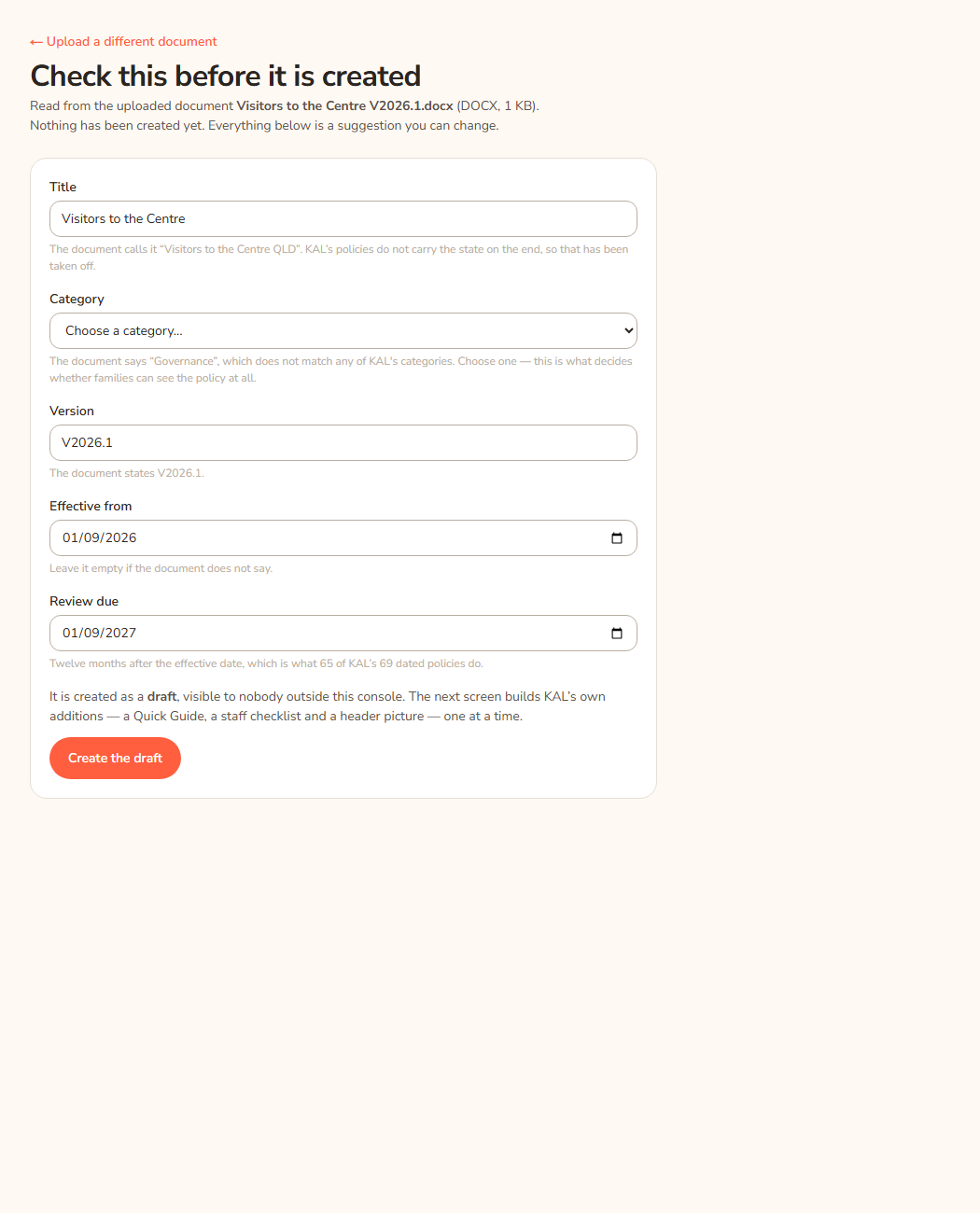
- The next screen is called Check this before it is created. It names the file, its type and size, and says nothing has been created yet. Check each field (see the table below).
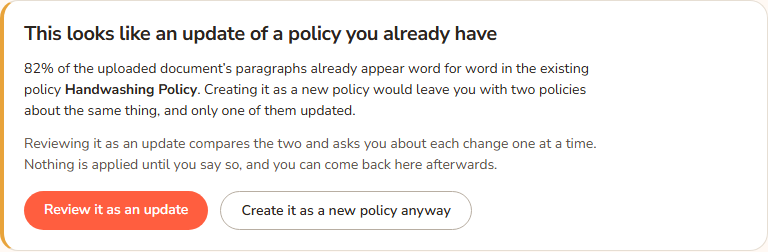
- If a yellow card says This looks like an update of a policy you already have, read it. It names the existing policy and the percentage of the uploaded document's paragraphs that already appear word for word in it. Choose Review it as an update to compare the two, or Create it as a new policy anyway.
- Press Create the draft. The button changes to "Creating…".
- You land on Building KAL's version. The draft already exists. Go to Quick Guide and checklist to add the Quick Guide, the staff checklist and the header picture.
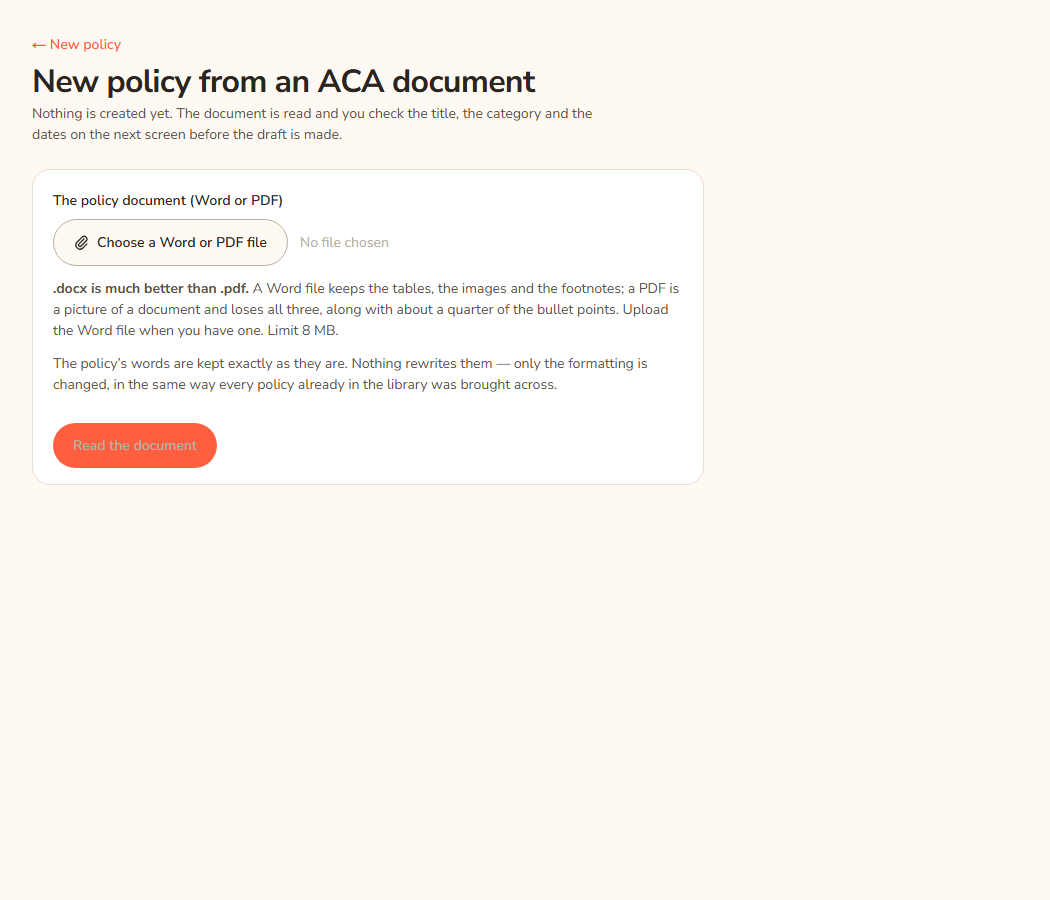
Example: Casey Example has a Word file called "Visitors to the Centre V2026.1.docx" for Demo Park. Casey uploads it. The check screen suggests the title "Visitors to the Centre" (the file said "Visitors to the Centre QLD", and the state on the end has been taken off), picks the category from the document, shows version V2026.1, and suggests a review date twelve months after the effective date. Casey changes the category, presses Create the draft, and arrives at Building KAL's version.
Word is much better than PDF
The upload page says it plainly: a Word file is much better than a PDF. A Word file keeps the tables, the images and the footnotes. A PDF is a picture of a document and loses all three, along with about a quarter of the bullet points. Upload the Word file when you have one. The limit is 8 MB.
The words are kept exactly as they are. Nothing rewrites them. Only the formatting is changed, in the same way every policy already in the library was brought across.
The check screen: every field
Everything on the check screen is a suggestion and every field can be changed.
| Field | What it does | Default |
|---|---|---|
| Title | The policy's name. Required, up to 255 characters. A trailing state such as " QLD" is taken off, because KAL's policies do not carry it. The hint under the box shows what the document called it. | The document's title with the state removed |
| Category | The library section the policy belongs to. Required. The category decides whether families can see the policy at all, so Hub never guesses. If the document's own category does not match one of KAL's, the box is blank and you must choose. A category marked "— staff only" hides the policy from families. The guide category is not offered. | Matched from the document where it can be |
| Version | The version label, up to 32 characters. Required. | The version the document states; if it states none, KAL's own style for the current year |
| Effective from | The date the policy takes effect. Optional. Leave it empty if the document does not say. | The date in the document |
| Review due | When the policy should next be reviewed. Optional. | Twelve months after the effective date |
| Create the draft | Creates the policy as a draft, visible to nobody outside the console. | n/a |
| ← Upload a different document | Goes back to the upload page. | n/a |
| What reading it turned up | Yellow cards listing anything odd the reader noticed in the file, for example a PDF that lost its tables. Read them before you continue. | Shown only when there are warnings |
| Review it as an update (yellow card) | Opens the update review for this file, comparing it against the existing policy. | Shown only when at least half of the paragraphs already appear in an existing policy |
| Create it as a new policy anyway (yellow card) | Jumps down to the form so you can create the new policy regardless. | Shown with the card above |
Questions
Why do some buttons mention a supplier?
Those buttons name where the file comes from: a publisher's policy document. Once a policy is in the Hub it is simply a KAL policy and no screen families or staff see mentions it.
What if I upload the same file twice?
For a new policy, each upload makes its own check screen. If you already created the draft, uploading again would make a second draft, so check the Policies list first.
Why does the yellow warning only warn?
The Hub cannot always tell a genuinely new policy that looks like an old one from an update of it. A duplicate draft is a draft nobody publishes, but a new policy wrongly pushed into the update flow would make every paragraph look like a change. So the card warns and you decide.
Is the draft published?
No. It is a draft. Families cannot see it. See Status and scope when you are ready to publish.
What note is recorded on the first revision?
The revision history records the first save with the note "New policy."
If something goes wrong
Messages on the upload page:
- "No file was attached. Choose a .docx or .pdf and try again."
- "That file is neither a .docx nor a .pdf. Nothing else is accepted."
- "That file is larger than 8 MB."
- "The file could not be read. It has been logged with its name — if it opens in Word, send it on and it can be looked at." Send the file to the person who looks after the Hub.
Messages on the check screen:
- "One of the dates is not a real calendar day, so nothing was created. Check the two date fields and press Create again." Fix Effective from and Review due, then press Create the draft again.
- "The policy could not be created and nothing was written. The reason is in the log with this upload’s name." Tell the person who looks after the Hub the file name.
- This upload has already been dealt with — the page appears if you open the check screen for an upload that has already become a draft or been closed. It says "It is" followed by the upload's state and "Nothing here would create anything." Press See what happened to it →.
Messages that can appear when the draft is created:
- "No title could be read from this document, so it cannot become a policy. Create the policy in the editor and paste the text in."
- "Only" followed by a number, then "characters of text could be read from this document, and at least 500 are needed to make a policy out of it. Nothing was created. Check the file opens and has selectable text — a scanned page has none — or create the policy in the editor and paste the text in." A scanned PDF has no selectable text. Use a Word file, or create the policy from scratch.
- "That category no longer exists, so nothing was created. Reload the page and choose one from the list."
- The quoted category name followed by "is not a section of the policy library — it holds the guides that explain how to read a policy — so a policy created in it would be missing from browse and from search. Nothing was created. Choose a library category."
- "The draft could not be created:" followed by the reason.