
Example - a parent signs in for the first time
A worked example, step by step - a parent signs in with a PIN, then with an emailed code, chooses a centre and signs out.
Updated
This example follows Sam Example, a parent of Leo Example, who opens KAL Hub for the first time on a phone. Sam's children are at Demo Park Early Learning and Example Bay Early Learning. The names are demo people.
The goal
Sam wants to read the sick child policy at Example Bay.
Step by step
- Sam opens the Hub address from the centre newsletter. The page says "Welcome" and "Every policy and procedure for your centre, in one place."
- Sam types [email protected] in Your email address and presses Continue.
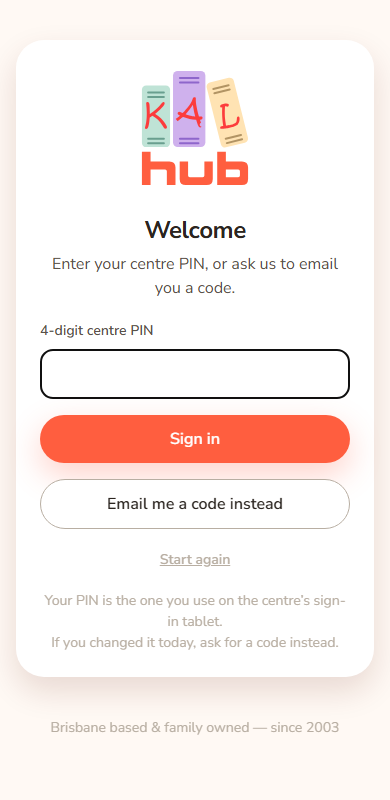
- The page says "Enter your centre PIN, or ask us to email you a code." Sam does not know the PIN, so Sam presses Email me a code instead.
- The page says "If that address is registered with us, a 6-digit code is on its way."
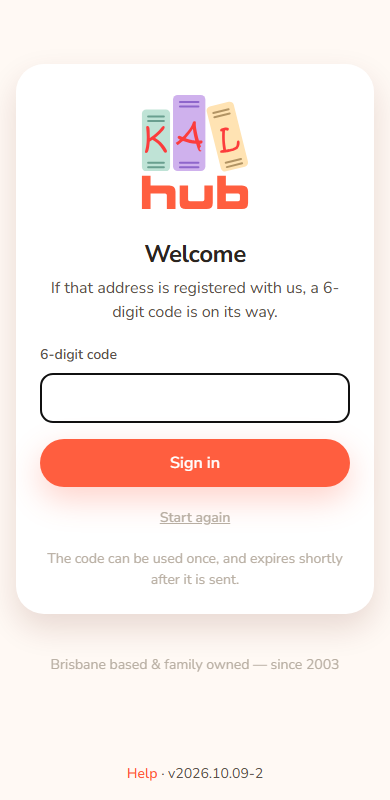
- Sam opens the email "Your KAL Hub sign-in code" and types the six digits in 6-digit code, then presses Sign in.
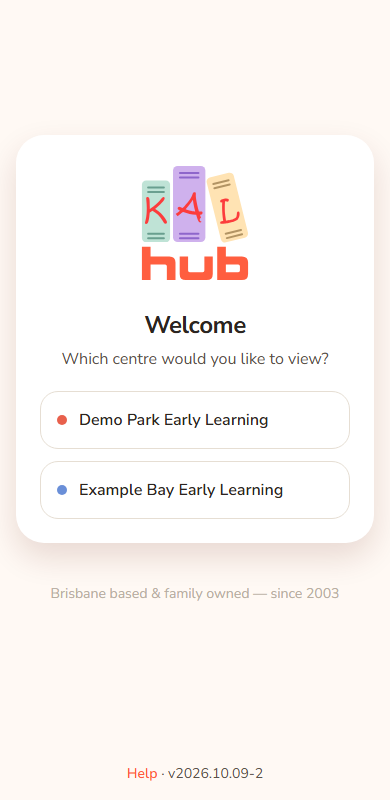
- Sam has children at two centres, so the page says "Which centre would you like to view?" Sam presses Example Bay Early Learning.
- Sam lands on the Example Bay welcome page and presses Policies in the header.
- When finished, Sam presses the round account button and then Log out.
Next time
Sam now knows the PIN from the sign-in tablet. Next time Sam types the email and the four digits and presses Sign in. See Sign in with your centre PIN.
What if it goes wrong?
Suppose Sam types the code too late. The page shows "We couldn't sign you in with that email — please contact your centre." Sam presses Start again, asks for a new code, and uses the newest email. See Sign in problems.
Every option
| Step | Control | What happens |
|---|---|---|
| Continue | Goes to the PIN step | |
| PIN step | Email me a code instead | Emails a code |
| Code step | Sign in | Checks the code |
| Centre step | Centre button | Opens that centre's library |
| Any time | Log out (account button) | Ends the session |
Questions
Does Sam need to do this every visit?
No. Sam stays signed in on that device for a long time unless Sam signs out. See Signing out and timeouts.
Can Sam change centre later?
Yes, with the centre list and Switch in the header. See Switching centre.
If something goes wrong
- "We couldn't sign you in with that email — please contact your centre." Press Start again and try once more, then contact your centre.
- "That took too long — please start again." Sam waited too long. Enter the email again.