
Documents - upload, rename, replace and delete
Manage the forms, templates and checklists that policies link to, and change them in every policy at once.
Updated
The Documents page in the console lists every form, template and checklist that KAL policies link to. You can upload a new one, and rename, replace or delete an existing one. Rename, Replace and Delete change every policy that links the document, in one go. Families and staff open these files from links inside a policy, and from the Docs tab if that is switched on (see The Documents tab).
A document nothing links to is stored but nobody can open it. A link from a policy is what gives a person permission to read it.
The two tabs
The Documents page has two tabs under its heading.
- Policy Documents is the list on this page: forms, templates and checklists that policies link to. It is the tab you see first.
- Centre Documents lists pages and PDFs made for one centre or all centres. Nothing links them. See Centre documents.
Upload a document
- In the console, press Documents in the left-hand list.
- Under Upload a document (PDF or Word), press Choose a PDF or Word file and pick the file. It must be a .pdf or a .docx and no bigger than 8 MB.
- Optional: in Name it (optional), type the name families should see. Leave it blank to use the file's own name. The name can be 1 to 200 characters and cannot contain slashes.
- If the file is a Word file, a choice appears: This is a Word file. What should happen to it? Make a KAL form PDF from it is selected. It builds a PDF in the KAL letterhead for you to check. See Make a KAL form from a Word file. Choose Store the Word file as it is to add the Word file unchanged.
- Press Upload document. The button reads Uploading the document… while it works.
- If you stored the file as it is, you land on the document's own page. A green note says the document is in the library. Copy the Address to paste into a policy link and paste it into a link in the policy editor. Until a policy links it, nobody can open it.
Example: Casey Example (head office) uploads "Excursion Permission Form.pdf" and leaves the name blank. The document is saved as "Excursion Permission Form". Casey copies its address, opens the Demo Park Excursions policy in the editor and adds a link to it. Now families at Demo Park can open the form.
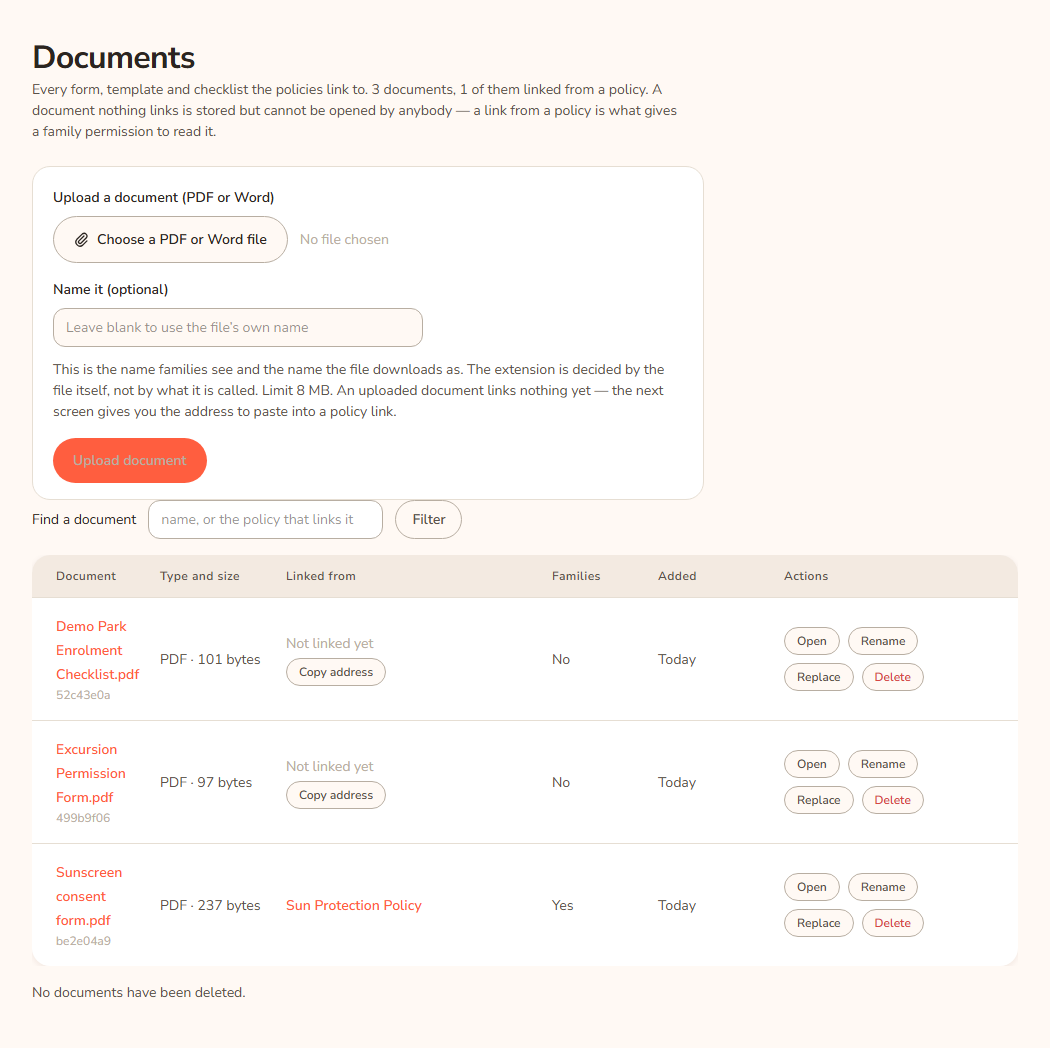
Find a document
- Type part of a name, or the title of a policy that links it, in Find a document.
- Press Filter. Capital letters do not matter.
- Press Clear to see everything again.
The address in your browser keeps the filter, so you can bookmark a filtered view or send it to a colleague.
Read the list
Each row shows the document name with a short code under it (the first eight characters of the file's fingerprint, which tells two documents with the same name apart), the type and size, the policies that link it, whether families can read it, and when it was added.
- Linked from lists each policy. A number in brackets, such as (2), means that policy links it twice.
- A document nothing links shows Not linked yet and a Copy address button.
- Families says Yes when at least one policy that links it is in a category families can see. It says No when it is linked only from staff-only policies, and also when nothing links it.
Rename a document
- On the list, press Rename on the row. This opens the document's page at the Rename section.
- Read the line under Rename. It says how many links will change.
- Type the New name (without the .pdf). The extension stays as it is.
- Press Rename the document.
The new name is what families see and what the file downloads as. Every link whose wording is the document's old name gets the new name. A link where someone wrote their own sentence is left exactly as it is. The page lists those, marked "wording of its own, a rename leaves it".
Example: "Excursion Permission Form" becomes "Excursion Permission Form 2027". The links in two policies that read "Excursion Permission Form" now read "Excursion Permission Form 2027". A third link that reads "complete the zoo form" is left alone. Casey edits that one by hand in the policy.
Replace the file
- Press Replace on the row (or find Replace the file on the document's page).
- Press Choose a PDF or Word file under Choose the new file (PDF or Word) and pick the new version.
- Press Replace the file. The button reads Uploading and moving the links… while it works.
Every link keeps its wording and moves to the new file. The old file stays on the server and moves to the deleted list, because saved earlier versions of policies still point at it. If the new file is a different type from the old one (for example Word instead of PDF), the page tells you that the document's name now ends with the new extension.
Example: The Demo Park enrolment checklist changed. Casey chooses the updated PDF and presses Replace the file. The green note reads "Replaced. 3 link(s) across 2 policy/policies now point at the new file."
Delete a document
- Press Delete on the row.
- Read the Delete section. It says how many links will be removed.
- Type the document's full name (shown in bold) in the box.
- Press Delete this document. The button reads Removing the links… while it works.
Delete removes the link from every policy that has one. The words stay, only the link goes. A sentence reading "complete the Excursion Permission Form" keeps those words. The document disappears from the library and from the Docs tab. Nothing is deleted from the server. The file and its record stay, because saved versions of policies still use them.
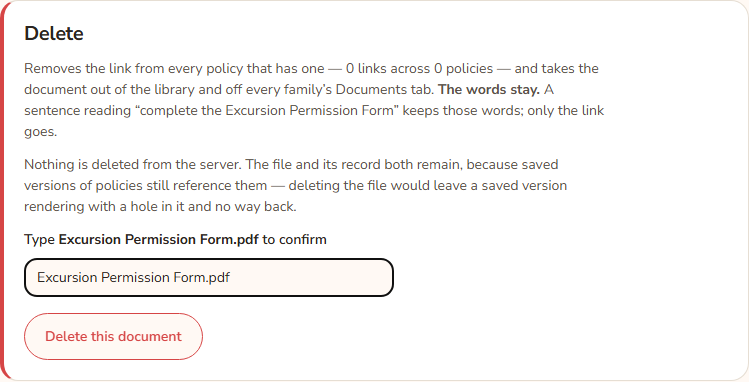
To see deleted documents, press see them at the bottom of the list. That page is called Deleted documents and shows who deleted each one and when. It has no buttons.
Make a KAL form from a Word document
On the page of a Word document, find Make a KAL form from this document and press the button of the same name. It builds a PDF in the KAL letterhead. You check it, then approve it as a new document or as the replacement of a document. Head office only, and no AI is used. See Make a KAL form from a Word file.
The document's own page
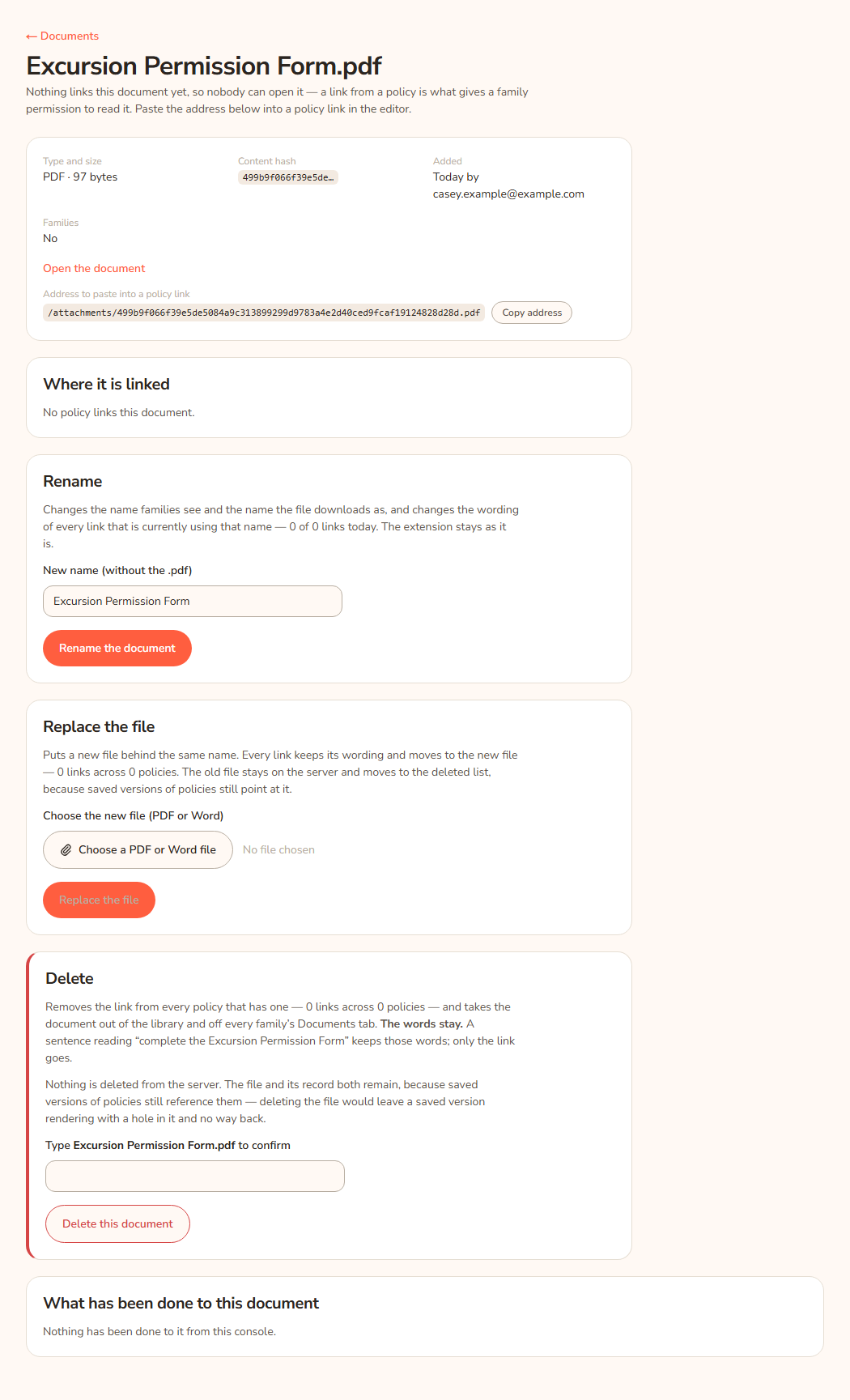
Each document has a page that shows:
- the type and size, a short fingerprint, who added it and when, and whether families can read it. Open the document opens the file in a new tab.
- Where it is linked: every policy, its status, how many links, and the words on each link.
- What has been done to this document: a log of every upload, rename, replace and delete from the console, with the date and the person.
Every option
| Option | What it does | Default |
|---|---|---|
| Upload a document (PDF or Word) | Chooses a .pdf or .docx file, 8 MB at most. | No file |
| Name it (optional) | The name families see and the file downloads as. 1 to 200 characters, no slashes. | The file's own name |
| Upload document | Stores the file. It links nothing. | |
| Find a document and Filter | Searches names and the titles of policies that link them. | Everything shown |
| Clear | Removes the filter. Shown only while a filter is on. | |
| Open | Opens the file in a new tab. | |
| Rename | Opens the rename section on the document's page. | |
| Replace | Opens the replace section on the document's page. | |
| Delete | Opens the delete section on the document's page. | |
| Policy Documents / Centre Documents tabs | Switch between the two lists. | Policy Documents |
| Make a KAL form PDF from it / Store the Word file as it is | Shown when you choose a Word file to upload. | Make a KAL form PDF from it |
| Make a KAL form from this document | On a Word document's page, starts a form build. | |
| Copy address | Copies the address to paste into a policy link. Shown on documents nothing links yet, and on the document's page. | |
| New name (without the .pdf) | The new name. The extension cannot change. | The current name |
| Rename the document | Renames it and updates the matching links. | |
| Choose the new file (PDF or Word) | The replacement file. | No file |
| Replace the file | Puts the new file behind every link. | |
| Typed name box | You must type the full document name to delete it. | Empty |
| Delete this document | Unlinks it everywhere and hides it. | |
| see them | Shows deleted documents. | |
| ← Documents | Back to the main list. |
Questions
Where are the pages and PDFs for one centre?
On the Centre Documents tab. See Centre documents.
Why can't I Rename, Replace or Delete?
Those three buttons are greyed out while any policy that links the document has unpublished changes (a working copy). If they were allowed, publishing that working copy later would put the old links back. The page names the policies. Publish or discard their changes first. See Working copy and publish.
Does renaming change the wording in policies?
Only on links where the words are the document's own name. Links with different wording are left alone, and the page lists them so you can edit them in the policy.
Can a family open a document nothing links to?
No. A family can open a file only through a link in a policy they are allowed to read, at their own centre.
What happens to the old file when I replace it?
It stays on the server and moves to the deleted list. Earlier saved versions of policies still use it.
Does Delete really delete the file?
No. It removes the links, hides the document and keeps the file. Nothing in the console deletes a stored file.
What if I upload a file that is already in the library?
It is refused, because the same file is one document however many times it is uploaded. Search the list for it.
Who can see what I did?
Every upload, rename, replace and delete is logged with your address and the time. It shows on the document's page under What has been done to this document.
If something goes wrong
- "No file was attached. Choose a PDF or a Word document and try again." You pressed the button without choosing a file. Choose one and try again.
- "That file is neither a .pdf nor a .docx. Documents arrive as one of those two; nothing else is accepted." (Upload page.) Save the file as a PDF or a Word document and upload again.
- "That file is neither a .pdf nor a .docx. Documents arrive as one of those two." (Document page, Replace.) Same fix.
- "That file is larger than 8 MB." Make the file smaller (for example compress the pictures) and try again.
- "Give the document a name of 1 to 200 characters, with no slashes." Shorten the name or remove any slash. On the Rename section the message continues "If the name is unchanged there is nothing to do."
- "Those exact bytes are already in the library under another name, so nothing was added. Search for it below — the store is content-addressed, so one file is one document however many times it is uploaded." The file is already there. Use Find a document.
- "The file could not be read. It has been logged with its name — if it opens in Word or a PDF reader, send it on and it can be looked at." The file is damaged or not a real PDF or Word file. Try saving it again from the original program. If it still fails, tell the Hub's maintainers.
- "That Word file is too large once opened. Save it again from Word, or split it, and try again." The Word file is too big to read safely. Save a smaller file.
- "Only a Word document can be made into a KAL form." Make a form only from a .docx document.
- "That document is not in the store. Nothing was changed." The document no longer exists. Go back to the list.
- "That is the same file — byte for byte, it is the document already stored. Nothing was changed." You chose the file that is already in place.
- "That is not the document's name. Nothing was changed." What you typed in the delete box did not match. Type the name exactly as shown.
- "One of the policies that links this document has unpublished changes. Nothing was changed — publish or discard them first. The policies are named below." See the first question above.
- After a delete the list shows: "Deleted. N link(s) across N policy/policies became plain text, and the document no longer appears in the library or on the Documents tab. The file itself was not deleted — nothing in this console ever deletes a stored file." This is a success message.
- A link to this document cannot be reached (a warning box). A policy names the document in a link that is not a proper link, so Replace and Delete refuse. Rename still works. Open that policy in the editor, delete the broken link and add it again.