
Example - updating a policy from a new document
A worked example from upload to publish. Casey Example in head office updates a published Demo Park policy from a new Word document.
Updated
This is a whole update from start to finish, with made-up people. It uses the steps from Policy updates, Reviewing the changes and Applying the changes. Read those for the detail of each screen.
The situation. Demo Park Early Learning has a published policy called Sun Protection. A new version of the policy document has arrived as a Word file, "Sun Protection V2026.2.docx". Casey Example in head office is going to update the policy. Alex Demo, a Demo Park parent, reads the policy in the library and must keep seeing the published version until Casey publishes the new one.
Step 1: upload the file
- Casey signs in to the console and opens Policies. Casey presses Upload Policy Update.
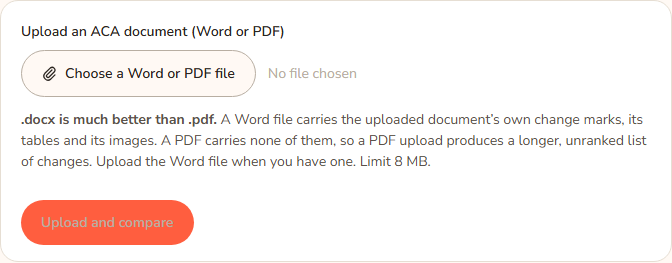
- On Policy updates, Casey chooses "Sun Protection V2026.2.docx". Casey picked the Word file, not the PDF, because Word carries the document's own change marks.
- Casey presses Upload and compare. The button says "Uploading and reading the document…" for a few seconds.
Step 2: choose the existing policy
- The upload's page opens, headed Which existing policy does this uploaded document update? One candidate is listed: Sun Protection, with "78% of the uploaded document’s paragraphs already appear in this existing policy". The assistant's sentence above it agrees.
- This is the right policy, so Casey presses Compare against this. It says "Comparing…" and then the review opens.
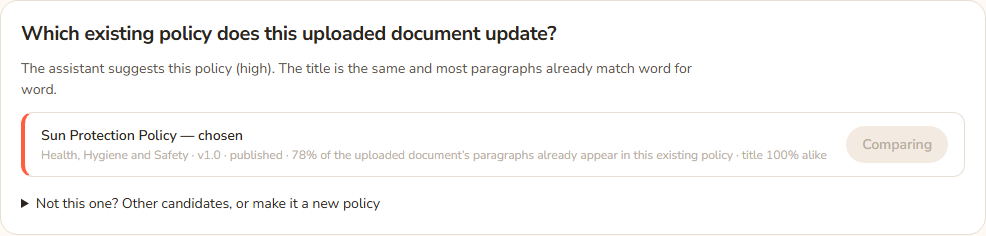
Casey also checks the percentage. 78% is high, which is what an update of the same policy looks like. A low figure would mean the wrong policy was chosen.
Step 3: review
- The summary says there are 8 changes. A bar shows "0 of 6 decided · 6 need a decision" (the other two changes are in a collapsed group that needs no answer).
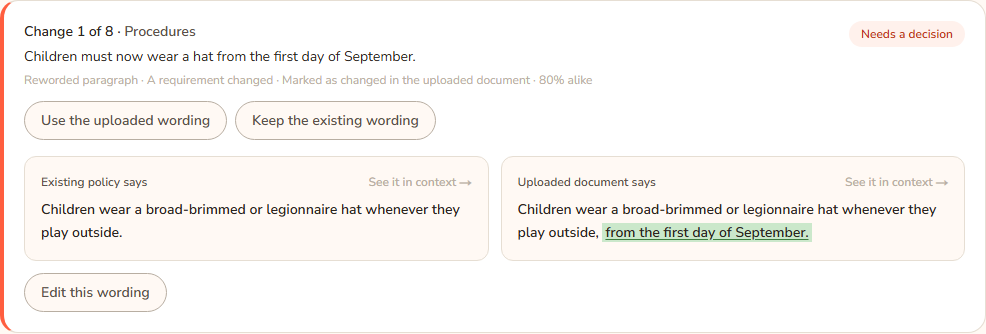
- The first group is The uploaded document marks 2 of these as changed. These come first. Casey reads each card. The Existing policy is on the left and the Uploaded document on the right. On one card the new version says children must wear a hat from the first day of September. That is a requirement change, so Casey presses Use the uploaded wording.
- The other marked card is a new paragraph: educators check that each child's hat fits before going outdoors. Casey presses Add this whole paragraph.
- Casey would rather word the hat sentence slightly differently. Casey presses Edit this wording on the first card, types the sentence, and presses Save this wording. The pill says "Wording edited by hand". Casey then presses Use the uploaded wording on that card so the edit is accepted.
- The group Document details has three cards: the version and two dates. Casey presses Use the uploaded wording on the version and Keep the existing wording on the two dates. The one card in 1 other difference adds the nominated supervisor as a second contact for families. The document did not mark it, so Casey reads it, agrees, and presses Use the uploaded wording.
- Casey opens one card's See it in context → in a new tab to see where a new paragraph would sit. It is in the right place.
- The bar now reads "All decided — apply when ready".
Step 4: apply
- Casey notices there are 4 accepted changes. The button reads Apply 4 accepted changes. Under it: "Applying saves a new revision of the policy. It does not publish anything — publishing stays on the policy’s own page, where it always was." and a note that 2 further changes are left as the existing policy has them and will not be written.
- Casey presses Apply 4 accepted changes.
- The page shows: "Applied to Sun Protection’s working copy, not yet published. Families still see the published version." The upload's status is now Applied, not published.

Step 5: publish
- Casey presses Review and publish the changes. See Working copy and publish.
- The changes page shows the published text against the working copy. Casey reads it, then publishes.
- Alex Demo reloads the library. The updated policy now shows. Before the publish, Alex saw the old text.
What Casey did not have to worry about
- Nothing in the existing policy was deleted. The Quick Guide and the staff checklist, which are not in the uploaded document, were left alone.
- The policy kept its status the whole time.
- Casey could have pressed Discard at any point before Apply, and the policy would not have been touched.
Every option
The choices Casey made, and the other choices open at the same point:
| Stage | What Casey chose | Other choices |
|---|---|---|
| Upload | Word file | A PDF (no change marks, longer unranked list) |
| Match | Compare against this on the suggested policy | Another candidate; any policy from the drop-down; Create it as a draft if the document is a policy KAL does not have |
| Each card | Use the uploaded wording or Keep the existing wording | Edit this wording and accept it; leave it undecided |
| Groups | Read the marked ones first | Open the collapsed groups with Show these as full cards |
| Apply | Apply 4 accepted changes | Discard to close without writing anything |
| After apply | Review and publish the changes | Leave the working copy unpublished for now |
Questions
What if Casey had changed the policy in the editor in the middle of this?
If the unpublished changes existed when Casey pressed Apply, the Hub would refuse: "Apply cannot run yet." Casey would publish or discard the unpublished changes first, then apply.
What if Casey applied the update to a draft policy?
Then there is no working copy. The accepted changes are saved as a new revision straight away: "Applied. Sun Protection is now revision" a number. The draft is still a draft.
How would Casey undo it?
Before publishing, discard the working copy on the changes page. After publishing, restore the earlier version.
If something goes wrong
- "Nothing was written. Choose the uploaded wording for at least one change, or use Discard to close this update." Casey accepted none.
- "This policy has unpublished changes started" a date "by" a name "Publish or discard them first, then apply this update." Deal with the unpublished changes first.
- "None of the accepted changes could be applied — the policy has been edited since this update was reviewed. Nothing was written." Press Compare against this again and answer again.
- The full list of messages for each screen is in Policy updates, Reviewing the changes and Applying the changes.