
Reviewing the changes in a policy update
Read each change between the existing policy and the uploaded document, choose which wording to use, edit it if you need to, and see it in context.
Updated
After you choose which existing policy an uploaded document updates, the Hub builds a list of changes. Each change is a card. On every card the Existing policy is on the left and the Uploaded document is on the right. Old to new. You answer each card with one of two choices: use the uploaded wording, or keep the existing wording. Nothing is written to the policy until you press Apply (see Applying the changes).
The Hub never puts forward the removal of anything. A paragraph that exists in KAL's policy but not in the uploaded document is KAL's own work (the Quick Guide, the Key points, the Staff Understanding Checklist, KAL's own wording). It is left alone.
Answer the changes
- Open the upload from Policy updates. The status says Review changes.
- Read the summary under the heading. It says in a sentence what the comparison found.
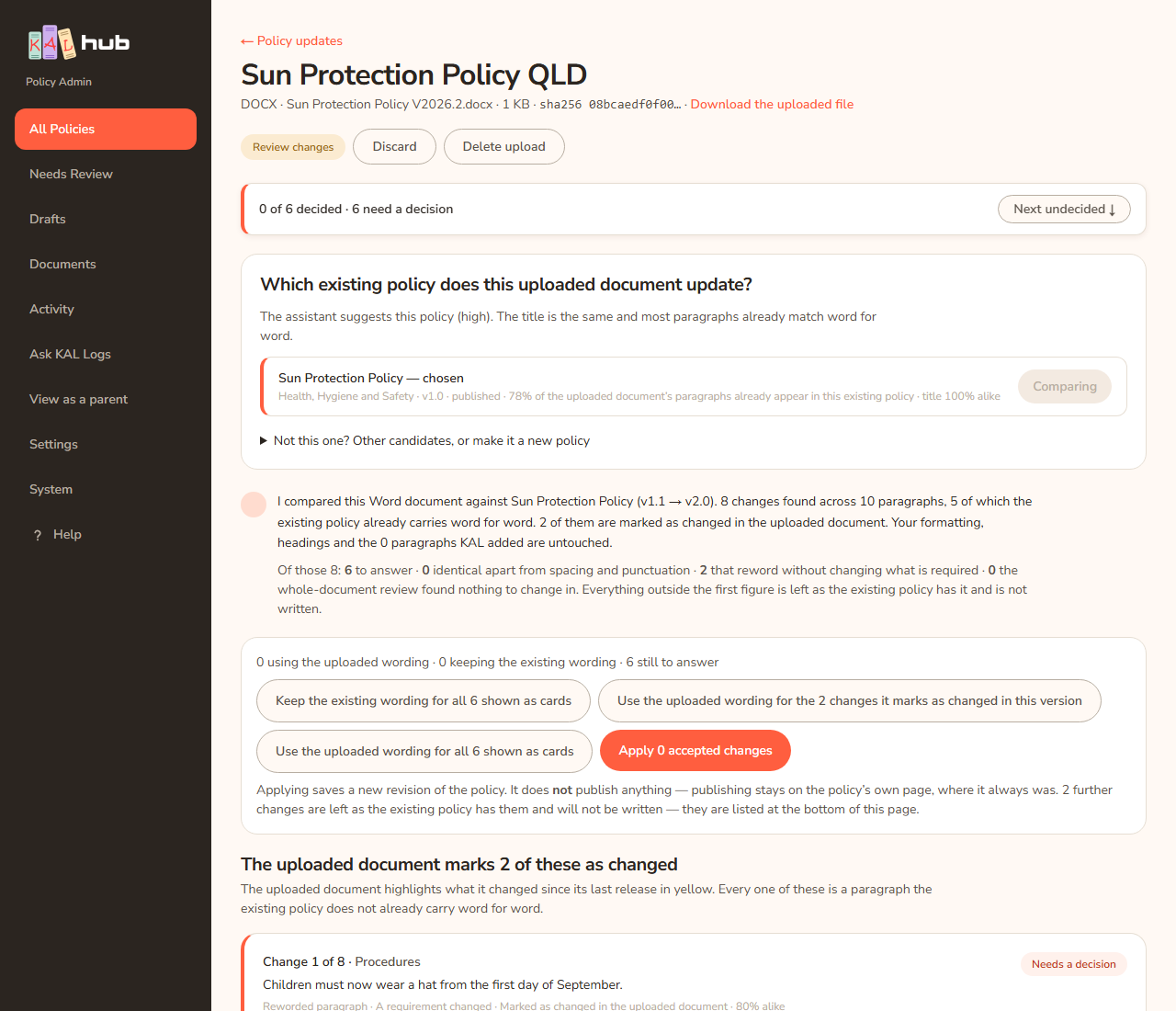
- A bar near the top stays on screen as you scroll. It says how many you have decided, for example "3 of 12 decided · 9 need a decision". Press Next undecided ↓ to jump to the next card that still needs an answer. When all are answered it says "All decided — apply when ready".
- For each card, read what changed. Words that were removed are struck through on the left. Words that were added are underlined on the right.
- Press Use the uploaded wording to take the new text. Press Keep the existing wording to leave the policy as it is. The pill on the card changes from Needs a decision to Using the uploaded wording or Keeping the existing wording. You can change your mind at any time before you apply.
- When you have answered the cards you want, go to Applying the changes.
You do not have to answer every card. A card left undecided is not written.
Example: Casey Example opens an upload for the Demo Park Sun Protection policy. The summary says there are 8 changes. The top of the page shows "0 of 6 decided · 6 need a decision". Casey presses Use the uploaded wording on the card where the new version says children must wear hats from September, and Keep the existing wording on a card where the uploaded text just rephrases a KAL sentence. The bar now reads "2 of 6 decided · 4 need a decision".
What a card shows
Each card has a title and a few details:
- Change 3 of 14 and the heading it sits under, or "Before the first heading".
- A one-sentence note describing the change.
- The kind: New paragraph, Reworded paragraph, New passage (with a paragraph count) or Document detail.
- How important the change is: A requirement changed, Wording only, or Reference or link only.
- Marked as changed in the uploaded document when the document itself highlights it as a change.
- For a reworded paragraph, "% alike" — how close the two wordings are.
- For a new paragraph, "Adds it after:" and the first words of the paragraph it will follow.
- A coloured note starting "Placed under" when the whole-document review put a paragraph under a different heading from the one its order would suggest. Check which one is right before you answer.
- The two panels. On the left Existing policy says, on the right Uploaded document says. For a new paragraph the right panel is Uploaded document adds. Press a panel (or See it in context →) to open the change in context.
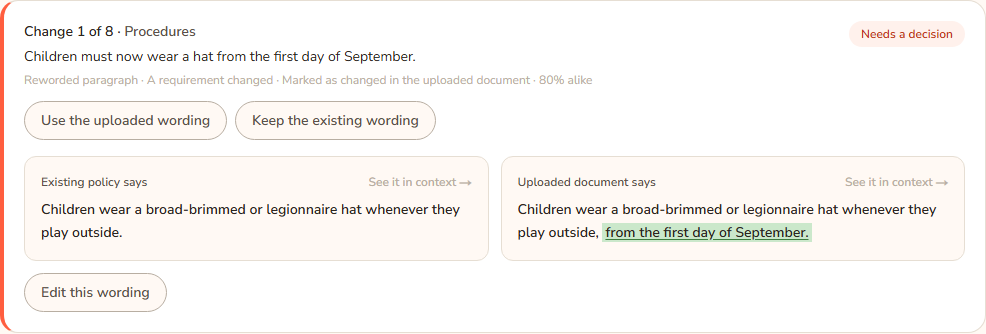
Every card shows both fragments in full. The assistant's note about a change can be wrong, so read the words themselves.
The groups on the page
The cards are in groups, so the ones that matter most come first.
| Group | What is in it |
|---|---|
| The uploaded document marks N of these as changed | Paragraphs the document highlights in yellow as changed since its last release. Every one is a paragraph the existing policy does not carry word for word. Start here. |
| Document details | The version and dates printed at the top of the uploaded document. Using one writes that field on the existing policy. The body is untouched. |
| N other differences | The document did not mark these. Most are KAL's own wording rather than an edit in the uploaded document. Read before choosing. |
| Collapsed groups at the bottom | Changes nobody is asked about. See below. |
The collapsed groups
Three kinds of change are collapsed into a line each, below the cards, because they need no answer:
- identical apart from spacing and punctuation — the two wordings match once curly quotes, dash shapes and spacing are ignored.
- that reword without changing what is required — the same requirement said differently. This is a judgement, so open the list if you want to be sure.
- unmarked differences the whole-document review found nothing to change in — the document does not mark them and the review did not put them forward.
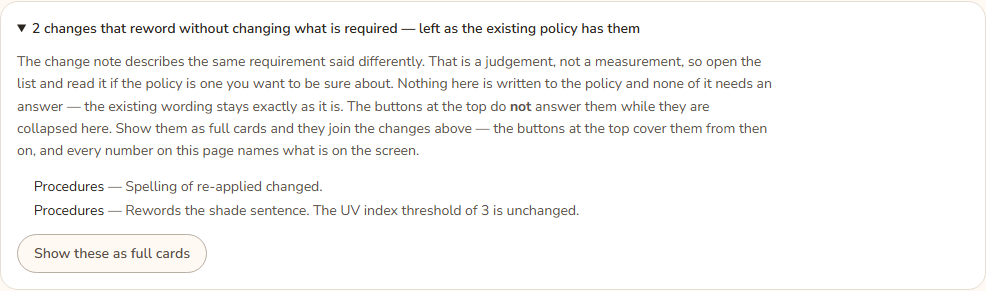
These are left exactly as the existing policy has them and are not written. Press Show these as full cards to open a group. Its changes then appear as ordinary cards above, need an answer like any other, and are counted by the buttons at the top. Press Hide them again to put them back. If you are typing your own wording on one of them, you are asked to save or cancel first: "Save or cancel the wording you are typing first — hiding this group would take that card off the page and lose it."
A change that the uploaded document marks as changed is never hidden this way.
Answer many at once
The bar above the cards has buttons that answer more than one card:
- Keep the existing wording for all N shown as cards — keeps the existing text for every card on screen.
- Use the uploaded wording for the N changes it marks as changed in this version — takes the marked ones only.
- Use the uploaded wording for all N shown as cards — takes every card on screen.
- The line beside them counts your answers: "N using the uploaded wording · N keeping the existing wording · N still to answer".
The buttons answer the cards that are on screen and nothing else. Changes in a collapsed group are not answered until you show them.
Edit the wording yourself
You can type your own wording instead of choosing either side.
- On the card press Edit this wording. A box opens under "Your wording for this paragraph" (or "…for this passage").
- Type the wording you want. For a passage, write one line per paragraph. A line starting with • is a bullet; any other line is a paragraph. A preview shows exactly what would be added.
- Press Save this wording. The pill shows "Wording edited by hand". The button now says Edit this wording again.
- Press Cancel to close the box without saving, or Go back to the uploaded wording (or "…paragraph" or "…passage") to throw your edit away and use the uploaded text.
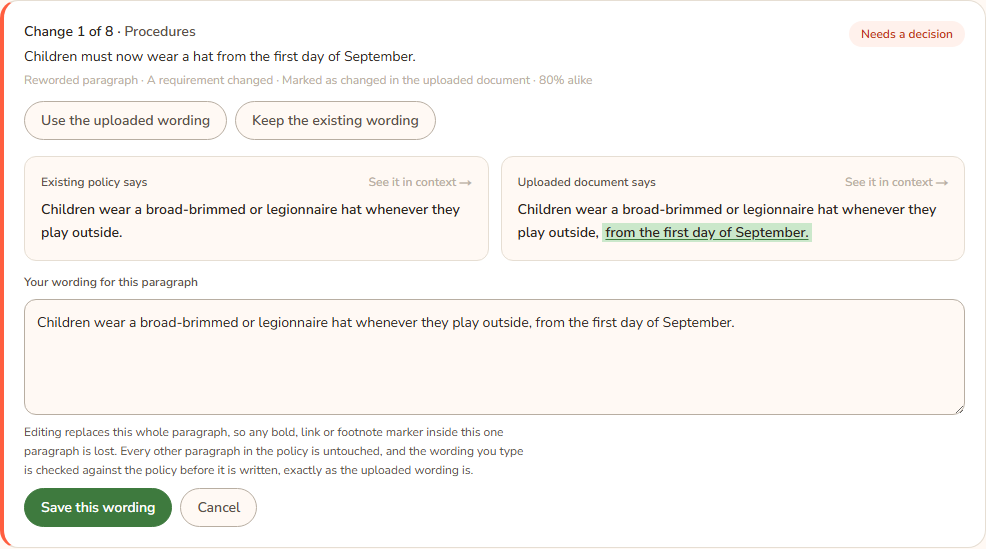
Editing replaces the whole paragraph, so any bold, link or footnote marker inside that one paragraph is lost. Every other paragraph in the policy is untouched, and your wording is checked against the policy before it is written, exactly as the uploaded wording is.
Saving your own wording is not the same as accepting the change. The card's answer stays as it was. Press the accept button (Use the uploaded wording, or Add this whole paragraph for a new one) as well. When the change is applied, your wording is written, not the uploaded text.
New passages
When the uploaded document adds several new paragraphs in a row in the same place, they are shown as one card, a New passage. The button reads Add this whole passage. A single new paragraph reads Add this whole paragraph. The passage is added, edited or left out as a whole.
See a change in context
Press either panel on a card, or See it in context →. A new tab opens with the Existing policy on the left, with the relevant paragraph highlighted, and the Uploaded document on the right, with the three paragraphs either side of it. You can answer from there as well. Press Open the full document → to read everything the Hub read out of the file, with the changed paragraphs marked. On that page, ← Back to the change list returns you.
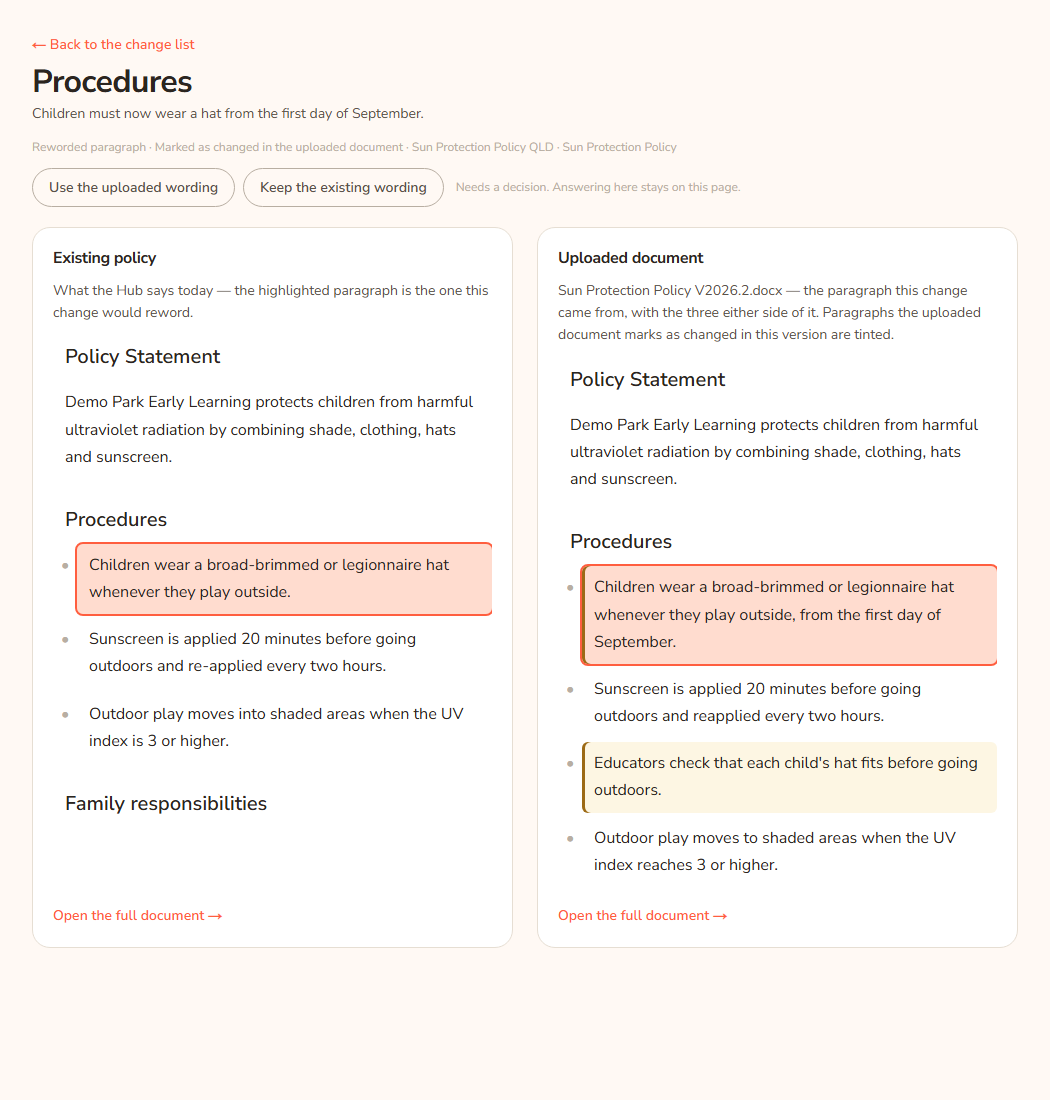
The text on the document page is what the Hub read out of your file. If the file is a PDF it says "A PDF records no change marks of its own."
If you have edited a paragraph by hand, the context page says "This paragraph’s wording was edited by hand on the change list. The uploaded document is shown below exactly as it arrived; the wording that would be written is the edited one."
Every option
| Option | What it does | Default |
|---|---|---|
| Use the uploaded wording / Add this whole paragraph / Add this whole passage | Accepts the change. The pill shows Using the uploaded wording. | Needs a decision |
| Keep the existing wording | Rejects the change. The pill shows Keeping the existing wording. | Needs a decision |
| Edit this wording | Opens a box to type your own wording. | n/a |
| Save this wording / Cancel / Go back to the uploaded wording | Saves, cancels or discards your own wording. | n/a |
| Next undecided ↓ | Scrolls to the next card with no answer. | n/a |
| Bulk buttons | See the section above. | n/a |
| Show these as full cards / Hide them again | Opens or closes a collapsed group. | Collapsed |
| Discard | Closes the whole update without writing anything. | n/a |
| Download the uploaded file | Downloads the file as it was uploaded. | n/a |
Questions
Why are some changes marked and others not?
Word files have yellow highlighting on what the document's authors changed since the last release. The Hub reads those marks. Marked changes come first. Unmarked differences are usually KAL's own wording, so choose carefully. A PDF carries no marks, so a PDF upload gives one longer, unranked list.
Can I change an answer after I press Apply?
No. Once applied, the update is closed. If a change needs correcting, edit the policy in the editor, or restore an earlier version.
What does "Nothing differs" mean?
The page says "Nothing differs. Every paragraph in the uploaded document is already in the existing policy." There is nothing to apply. Press Discard.
I can't answer any more. Why?
The update has already been applied or closed. The cards show the record of what was decided, and the pills are read-only.
The comparison looks wrong.
Check the match at the top. A wrong policy makes every change look real. Press Compare against this on the right policy. If the policy was edited since the comparison was built, rebuild it the same way.
If something goes wrong
- "That was not saved — nothing has changed. This update may have been applied or closed in another tab. Reload the page." Reload the page and try again.
- "A document detail is a version or a date; there is no wording to edit." You cannot edit a version or date card; choose one of the two buttons.
- "The policy has been edited since this comparison was built — press Compare against this again." (on the context page)
- "That paragraph is no longer in this policy. Press Compare against this again on the change list to rebuild the comparison."
- "This comparison was built before the Hub recorded where each change sits, so this position was found by matching the text. It may not be the paragraph the comparison used — press Compare against this again to record it properly."
- "This update is" its state ", so its decisions can no longer be changed. This page is the record of what was compared."
- "No policy has been chosen for this update yet." (on the context page)