
Reading a policy
What is on a policy page - the Quick Guide, the contents list, the dates, the revision history - and how to ask about it.
Updated
A policy page shows one policy from top to bottom, with a contents list beside it on a computer. This topic walks through what is on the page. To print, see Printing a policy.
Read a policy
- Open Policies in the header and press a card, or pick a name from the search drop-down.
- Read the page from the top. Use the On this page list to jump to a section.
- Press ← All policies to go back to the library.
Example: Alex Demo opens "Sun Protection Policy" at Demo Park, reads the Quick Guide at the top, then taps the heading in the On this page list to jump back to it. In the demo policy the list holds one heading, Quick Guide: What You Need to Know.
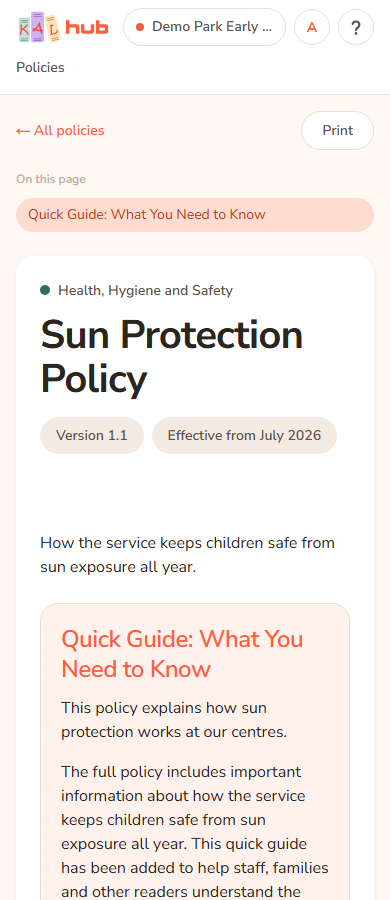
What is on the page
From the top of the page down:
- ← All policies and, beside it on a computer, the category name. Both lead back to the library. The category name opens the library already filtered to that category.
- A row of buttons at the right: Print as and Set (staff only), Edit in console (head office only) and Print.
- On this page: a list of the policy's headings. On a computer it sits beside the policy and follows you as you scroll. On a phone it sits above the policy. The section you are reading is highlighted. Pressing a heading scrolls to it. If a policy has no headings the list is not drawn.
- A picture across the top of the policy, if the policy has one. It is only decoration.
- The category name and the policy title.
- Three small labels: Version with the version number, Effective from with a month and year, and Updated with a date. Updated is the last time the words of the policy changed.
- A short summary, if one was written.
- The Quick Guide, if the policy has one. It is a boxed summary of what you need to know. Under it is the label The policy, and then the full policy text.
- The section Changes to this document: the history of the policy.
- A button Ask about this, when Ask KAL is switched on.
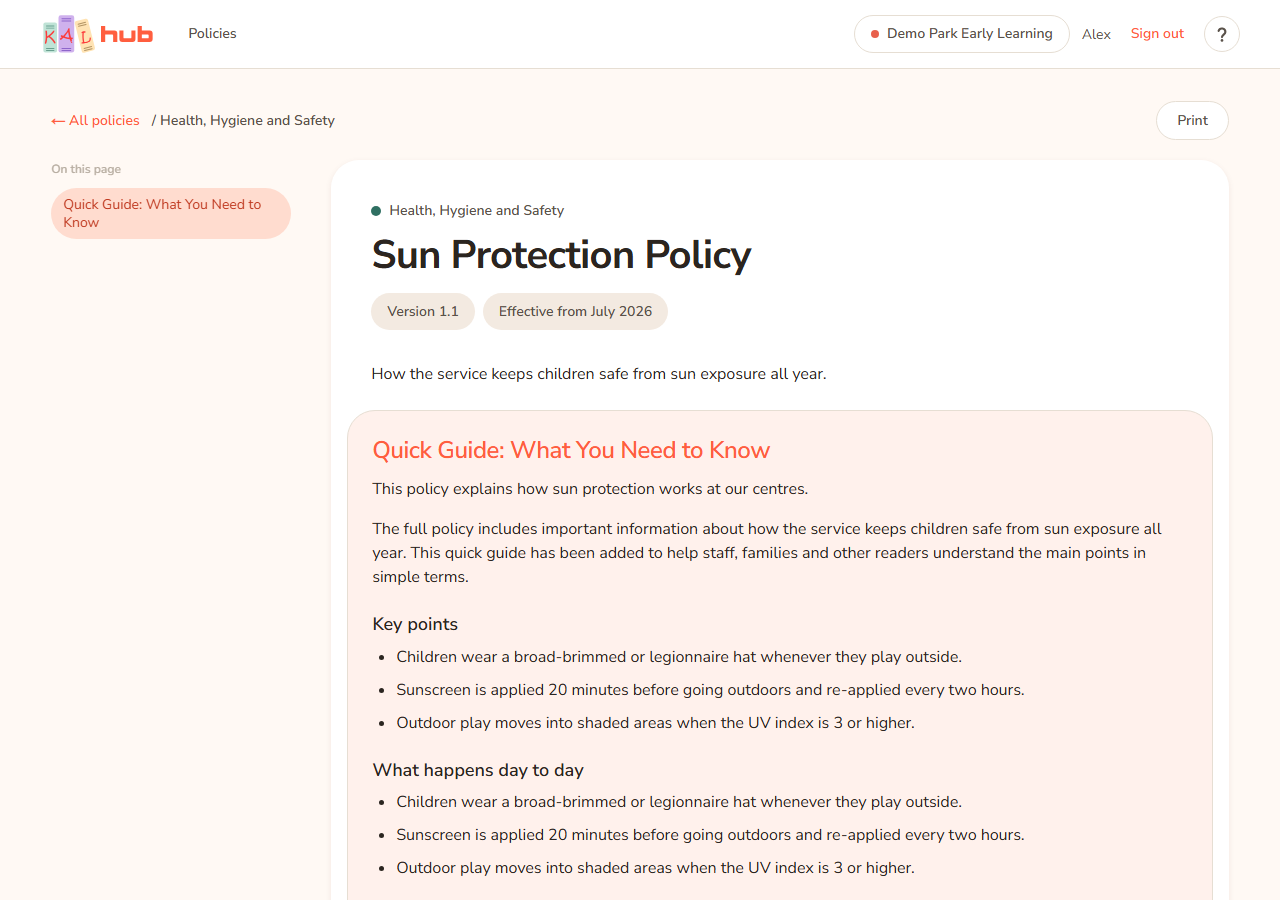

The Quick Guide
Many policies start with a Quick Guide. It is a short summary written by KAL. It does not replace the policy. If the guide and the full text ever seem to disagree, follow the full text and ask at your centre.
Changes to this document
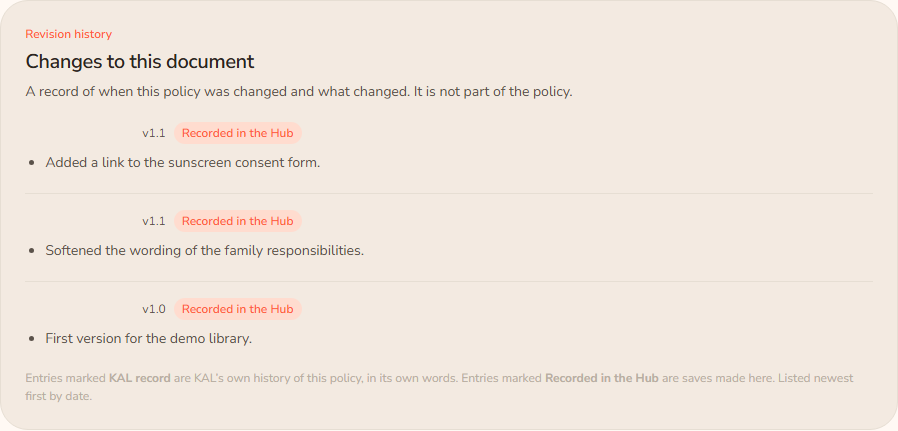
At the bottom of the page is a record of when the policy changed and what changed. It says it is not part of the policy.
- Each entry shows a date, a version, a tag and the notes.
- The tag KAL record marks KAL's own history, in its own words. The tag Recorded in the Hub marks a change made in KAL Hub.
- Newest entries are listed first.
- This section appears on the screen only. It does not print.
Small housekeeping saves are not listed for families and staff. Head office sees them in the policy console.
Example: Jordan Sample opens "Medication Policy" and sees an entry dated in September with the tag Recorded in the Hub and the note "Updated the form to match the new regulation". Jordan now knows why a colleague mentioned a change.
Ask about this
When Ask KAL is on, a button Ask about this stays in view as you scroll. It opens Ask KAL with a note naming this policy, so your question is about this policy. Ask KAL still answers from the policies you can read.
Edit in console
Head office users see Edit in console. It opens the policy in the policy console. Nobody else sees it. Editing is explained in the head office topics.
Every option
| Option | What it does | Who sees it |
|---|---|---|
| ← All policies | Back to the library. | Everyone |
| Category name | Back to the library, filtered to this category. Hidden on a phone. | Everyone |
| On this page | Jump to a heading in the policy. | Everyone, if the policy has headings |
| Print as and Set | Choose which copy to print. | Staff and educators only |
| Edit in console | Open the policy in the console. | Head office |
| Open your browser's print window. | Everyone | |
| Ask about this | Ask KAL a question about this policy. | Everyone, when Ask KAL is on |
| Version, Effective from, Updated | Shows which version this is, when it starts, and when its words last changed. | Everyone |
| Changes to this document | The policy's history. Screen only. | Everyone, if it has any entries |
Questions
Why does a policy show a different version at another centre?
A centre can have its own version of a policy. The page shows the version that applies at the centre named in the header. See Switching centre.
What does "Effective from" mean?
It is the month the version started to apply. Updated is a different date: the day the policy's words last changed in KAL Hub.
Why are there no entries under Changes to this document?
Either the policy has not changed since it was added or its changes were housekeeping only. When there is nothing to show the whole section is left out.
Are staff checklists and signature pages shown on screen?
No. Staff checklists and signature pages never show on screen for anyone. Staff can print them. See Printing a policy.
If something goes wrong
- A page not found screen. The policy does not exist at your centre, is not published, or is a staff-only policy and you are signed in as a family member. Go back to the library and search again.
- The On this page list is missing. The policy has no headings that can be linked. On a phone the list is drawn above the policy instead of beside it.
- Ask about this is missing. Ask KAL is switched off. See Ask KAL.
- No changes have been recorded for this policy yet. This sentence appears under Changes to this document if the section is shown with no entries (for example when the page records a review cycle only). It is not a fault.
- No change note was recorded. An older KAL record had no notes.
- Saved in the Hub; no change note was written. A change was saved without a note.