
Ask KAL - ask a question about the policies
Ask a question in plain words and get an answer taken from your centre's policies, with links to the policies it used.
Updated
Ask KAL answers questions about your centre's policies. You type a question in your own words. Ask KAL reads the current policies you are allowed to read and replies, with a link to each policy it used. It is for policy questions. It is not the place for anything about your own child. Your centre is the place for that.
Ask a question
- Open Ask KAL in one of three ways:
- press Ask beside the search box on the Policies page, with your question typed in;
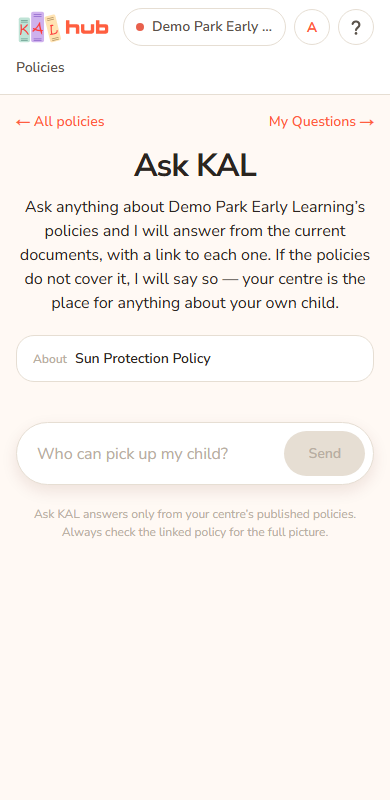
- press Ask about this on a policy page to ask about that policy;
- or press Ask a question on the My Questions page when you have not asked anything yet.
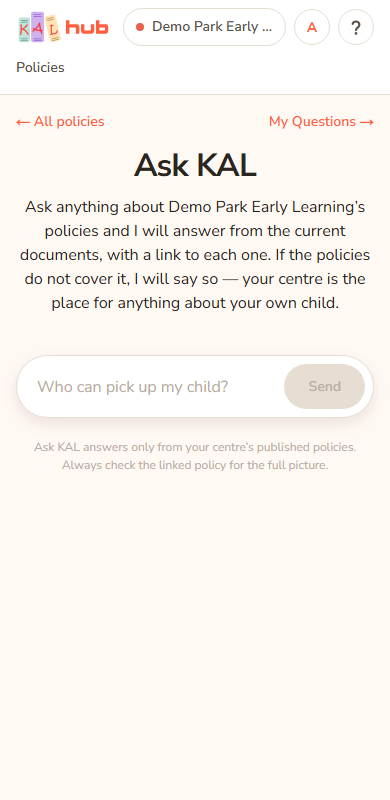
- Type your question in the box. The box says "Who can pick up my child?" until you start. Questions can be up to 500 characters.
- Press Send. While it works the button says Asking… and the screen says "Reading through your centre's policies…" with the centre's name.
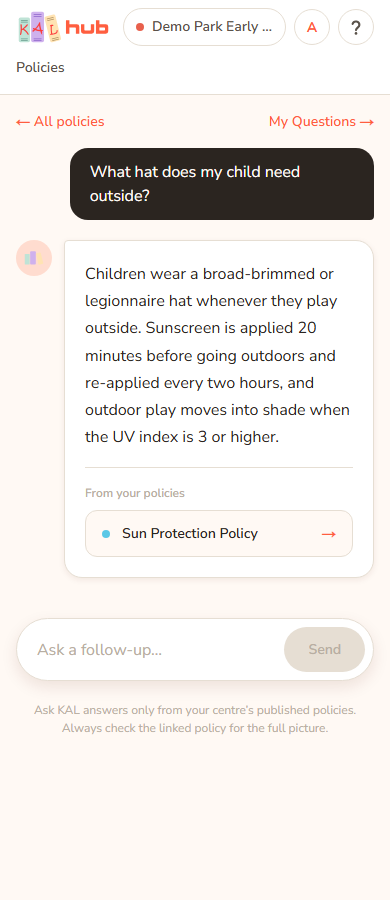
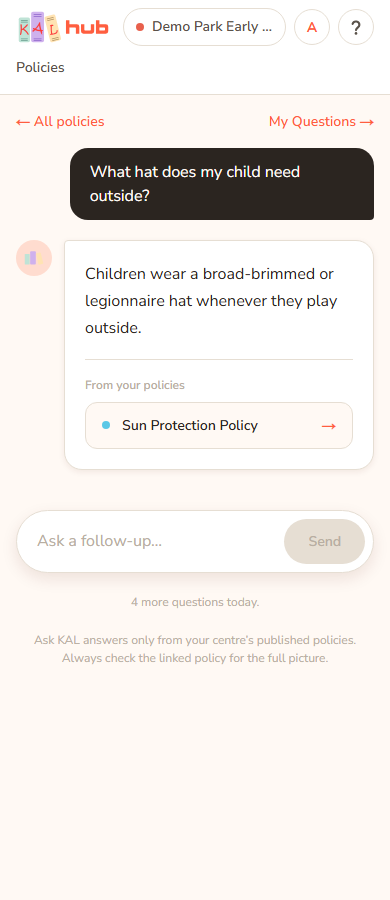
- Read the answer. Under it, From your policies lists the policies the answer came from. Press one to read it.
- To ask more, type in the box that now says "Ask a follow-up…" and press Send. Ask KAL remembers the earlier question in this conversation.
Example: Alex Demo is at Demo Park and types "Can my child take a hat from home?" and presses Send. Ask KAL replies in a few lines and lists "Sun Protection Policy" under From your policies. Alex presses it to read the whole policy. Alex then asks "What about in winter?" as a follow-up.
What Ask KAL answers from
- It uses only the published policies you can read at your centre. Drafts and other centres' policies are not used.
- Families get answers from the policies families can read. Staff-only policies are not used for a family.
- If the policies do not cover your question, it says so and suggests asking at reception or emailing your centre.
- A line at the bottom of the page reminds you: Ask KAL answers only from your centre’s published policies. Always check the linked policy for the full picture.
Staff: Ask as Staff or Parent
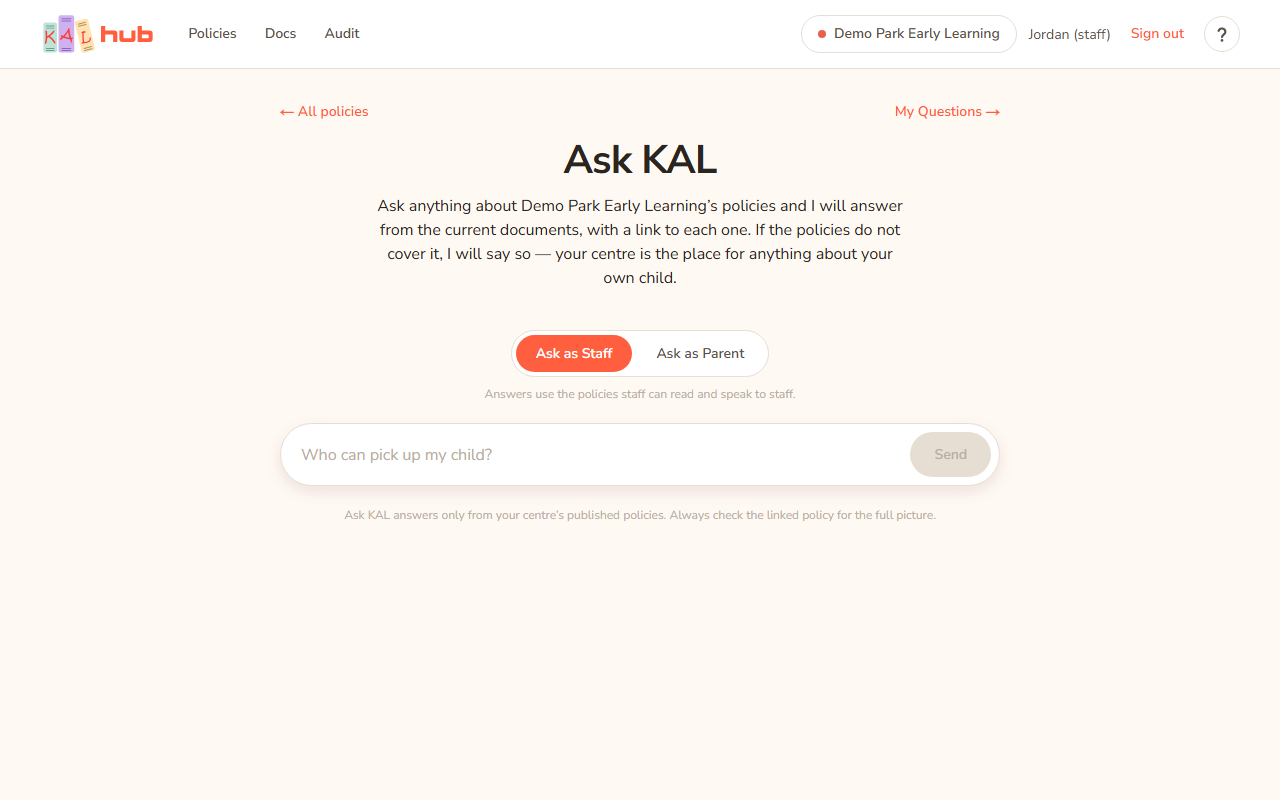
Staff and educators see a switch with two buttons: Ask as Staff and Ask as Parent.
- Ask as Staff answers using the policies staff can read, and speaks to staff.
- Ask as Parent answers using only the policies families can read, and speaks to a family. Use it to check what a family would be told. A note under the buttons says which is chosen. Your choice is remembered on that computer.
Daily limit
Each person can ask 30 questions in any 24 hours. The count moves with you: it is the last 24 hours, not a calendar day. When 5 or fewer are left, the page says how many remain. When none are left, you must wait; Ask KAL answers again within 24 hours. The library and search are not affected.
Turning Ask KAL off
Head office can switch Ask KAL off. When it is off, the buttons that lead to it (Ask, Ask about this) disappear. If you open the page anyway you see Ask KAL is turned off just now.
Every option
| Option | What it does | Default |
|---|---|---|
| Question box | Type your question, up to 500 characters. At least 3 characters are needed. | Empty |
| Send | Sends the question. Disabled while empty or while waiting. | |
| From your policies links | Open the policy an answer came from. | |
| About bar | Appears when you came from a policy's Ask about this. Names that policy. | Not shown |
| Ask as Staff / Ask as Parent | Staff and educators only. Chooses whose point of view the answer uses. | Ask as Staff |
| ← All policies | Back to the library. | |
| My Questions → | Opens your past questions. See My Questions. | |
| Remaining count | Shown when 5 or fewer questions are left today. | Hidden |
Questions
Who can see my questions?
Your questions are saved under your email address so you can read them again in My Questions. See Privacy and security.
Can I ask about my own child?
No. Ask KAL only knows the policies. For anything about your child, ask your centre.
Why did it say it could not find an answer?
The policies Ask KAL can read did not answer the question clearly. Try asking in different words, search the library, or ask at reception.
Why does the answer link to a policy I cannot open?
It should not. Ask KAL only links to policies you can read. If a link does not open, tell your centre.
If something goes wrong
- Ask KAL is turned off just now with "Every policy that applies at (your centre's name) is still here to search and read, and reception can answer anything you cannot find." Ask KAL has been switched off. Press Browse the policy library.
- Ask KAL is turned off just now. Your centre's policies are all still here to search and read, and reception can answer anything you cannot find. Shown under the box if Ask KAL is switched off while you are using it.
- I could not find an answer to that in your centre's policies. Please ask at reception or email your centre — they will be able to help. Ask KAL had nothing to go on. Ask your centre.
- You have asked 30 questions today, which is as many as Ask KAL takes in a day. It will start answering again within 24 hours. In the meantime you can search the library or ask at reception — they are always happy to help. The daily limit is reached.
- You have used all 30 of today's questions. Ask KAL will start answering again within 24 hours. The same limit, shown under the box.
- Please sign in again to ask a question. Your sign-in ended. Sign in again.
- Sorry — that is too short to look up. Type at least 3 characters.
- Sorry — questions are limited to 500 characters. Shorten the question.
- Sorry — no question was sent. Type your question and press Send.
- Something went wrong sending that question. Please try again. The request could not be read. Try again.
- Something went wrong looking that up. Please try again in a moment, or ask at reception. A fault on our side. Try again; if it keeps happening, tell your centre.
- That question could not be sent — please check your connection and try again, or ask at reception. Your internet connection dropped. Check it and try again.
- Something went wrong. Please try again in a moment. A general fallback message.