
Signing in
How parents, staff and educators sign in to KAL Hub with an email address and then a PIN, an emailed code or a KAL Portal password.
Updated
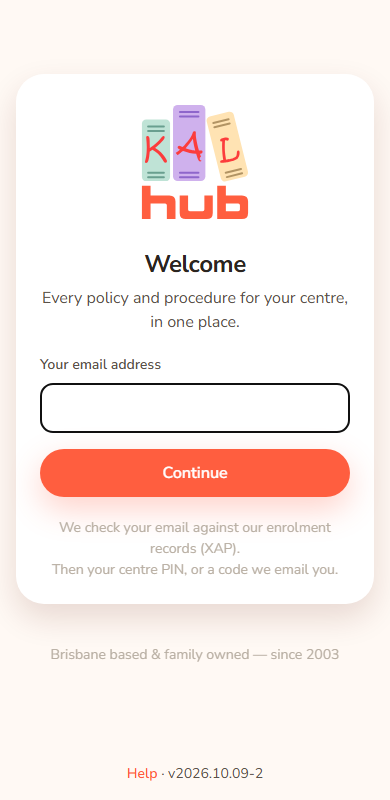
You sign in with your email address first. Then you prove it is you. Which proof depends on who you are. The sign-in page looks the same for everyone until you press Continue, so it never tells anyone whether an address is known.
Sign in
- Open the KAL Hub sign-in page. It says "Welcome" and "Every policy and procedure for your centre, in one place."
- Type your email address in Your email address and press Continue.
- Prove it is you:
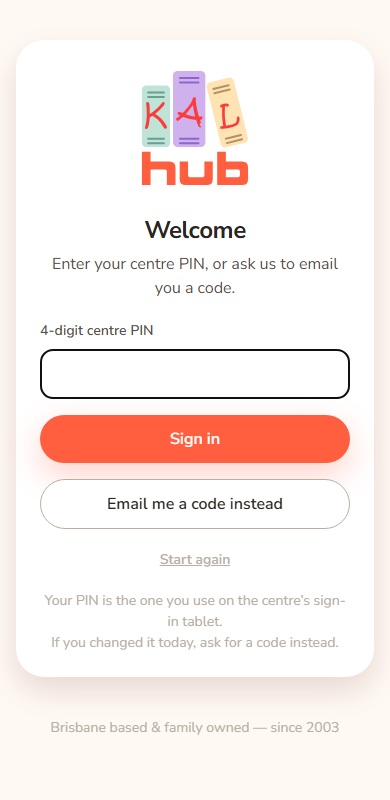
- Parents: type the four digit PIN you use on the centre sign-in tablet, or press Email me a code instead. See Sign in with your centre PIN and Sign in with an emailed code.
- Educators (including staff at Beattie Road): press Email me a code instead. When head office has Portal sign-in for educators switched on, this takes you to the Portal to sign in with your 6-digit PIN instead. See Sign in with an emailed code.
- People with a KAL Portal login (managers and head office): the page asks for your KAL Portal password. See Staff sign in.
- If you have more than one centre, choose one. See Choosing a centre.
- You go to the page you first asked for, or the welcome page.
Example: Sam Example is a parent at Demo Park and Example Bay. Sam types [email protected] and presses Continue. Sam types the PIN and presses Sign in. The page asks "Which centre would you like to view?" and Sam presses Demo Park Early Learning.
Example: Taylor Demo is an educator at Demo Park. Taylor types [email protected], presses Continue, then Email me a code instead, types the six digits from the email and presses Sign in.
Which email do I use?
Use the email your centre or KAL already has for you. Parents use the family email on the enrolment. Staff use their KAL work email. If you sign in to the KAL Portal, use your Portal email. An email address typed with accented letters or other characters outside the plain English alphabet is refused in the same way as an address the Hub does not know, and no code is sent. Type the address exactly as your centre has it.
Every option
| Screen or control | What it does | Who sees it |
|---|---|---|
| Your email address and Continue | Starts sign in. | Everyone |
| Sign in with KAL Portal | Signs you in through the KAL Portal. Only shown when head office has switched it on. | Everyone sees the button when it is on. It works for people with a Portal login |
| 4-digit centre PIN and Sign in | Signs a parent in. | Everyone sees the box. It works for parents |
| Email me a code instead | Emails a six digit code. | After Continue |
| 6-digit code and Sign in | Finishes sign in with the code. | After you ask for a code |
| KAL Portal password and Sign in | Signs in a person who has a KAL Portal login. | Portal users |
| Centre buttons | Choose which centre to view. | People with more than one centre |
| Start again | Goes back to the email box. | On the PIN, code and Portal password steps |
Questions
Why does the page never say "wrong email"?
On purpose. The page says the same thing for every address, so nobody can use it to find out who is a KAL family or who works at KAL.
I am a parent and I work at KAL. Which do I use?
You get the strongest sign in your email allows. If you have a KAL Portal login, you sign in with your Portal password. Otherwise, if you are an educator, use the emailed code. Your own children's centre is added to the centres you can choose.
Can I stay signed in?
Yes. See Signing out and timeouts.
If something goes wrong
- "We couldn't sign you in with that email — please contact your centre." This one message covers every refusal. Check the email, ask for a fresh code, and if it keeps happening contact your centre. See Sign in problems.
- "Please enter your email address." The email box was empty or not an email.
- "That took too long — please start again." You waited too long on a step. Enter your email again.
- "Something went wrong. Please try again." Something unexpected happened. Try again.
- "Portal sign-in did not work. Try again or use your email code." The KAL Portal sign in did not work. See Staff sign in.