
Sign in with your centre PIN
Parents can sign in with the four digit PIN they already use on the centre sign-in tablet.
Updated
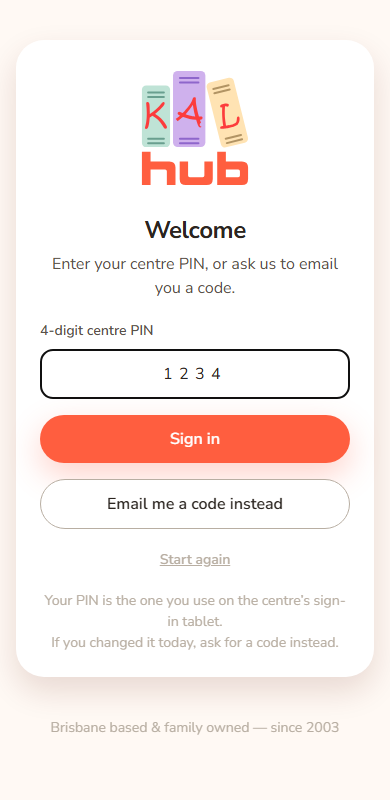
Parents already have a four digit PIN for the sign-in tablet at their centre. You can use the same four digits to sign in to KAL Hub. You type your email first, then the PIN.
Sign in with your PIN
- On the sign-in page type your email address and press Continue.
- The page says "Enter your centre PIN, or ask us to email you a code."
- Type your four digits in 4-digit centre PIN.
- Press Sign in.
- If you have more than one centre, choose one. See Choosing a centre.
Example: Alex Demo types [email protected], presses Continue, types 1234 and presses Sign in. Alex lands in the Demo Park library.
If you changed your PIN today
Your PIN reaches the Hub overnight. If you changed it on the tablet today, the new one will not work here until tomorrow. Press Email me a code instead and use an emailed code. See Sign in with an emailed code.
Every option
| Control | What it does | Who sees it |
|---|---|---|
| 4-digit centre PIN | Takes your four digits. The box accepts numbers only and shows them spaced out. | Everyone on this step |
| Sign in | Checks the PIN. | Everyone on this step |
| Email me a code instead | Emails you a six digit code. | Everyone on this step |
| Start again | Goes back to the email box. | Everyone on this step |
Questions
Where do I get my PIN?
It is the PIN you use on the sign-in tablet at your centre. Ask your centre if you do not remember it.
Some families have no PIN
Some parents do not have a PIN on record. They sign in with an emailed code instead.
Is my PIN stored safely?
The Hub never stores your PIN as typed. It keeps a scrambled version that cannot be turned back into your digits by looking at it.
Can an educator use a PIN?
A PIN signs you in as a parent. Educators sign in with an emailed code, or with a Portal PIN when head office has that switched on (see Sign in with an emailed code). The centre PIN is a different thing and has no Change PIN item.
If something goes wrong
- "We couldn't sign you in with that email — please contact your centre." The PIN was not accepted, or the email is not one we can sign in. Check the digits. If you changed your PIN today, use Email me a code instead. Too many wrong tries pauses sign in for a while. If it keeps happening, contact your centre.
- "That took too long — please start again." You waited too long. Press Start again.