
Welcome to KAL Hub
What KAL Hub is, who it is for, and a quick tour of the screens you will see after you sign in.
Updated
KAL Hub is where KAL families and staff read the policies and procedures for their centre. You can search the library, read and print a policy, and ask a question in plain words with Ask KAL. Everything you see is for the centre you are viewing.
What you do first
- Open the KAL Hub address your centre gave you.
- Sign in with your email address and then a PIN or a code. See Signing in.
- If you have more than one centre, choose the one you want. See Choosing a centre.
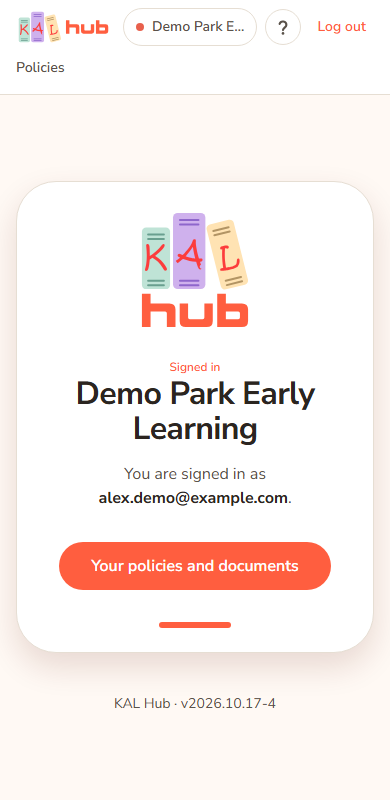
- Read, search or ask. You land on a welcome page for your centre, with the way in to the policy library.
Example: Alex Demo is the parent of Mia Demo at Demo Park Early Learning. Alex opens the Hub on a phone, types [email protected], types the four digit PIN used on the centre sign-in tablet, and lands in the Demo Park library.
The header
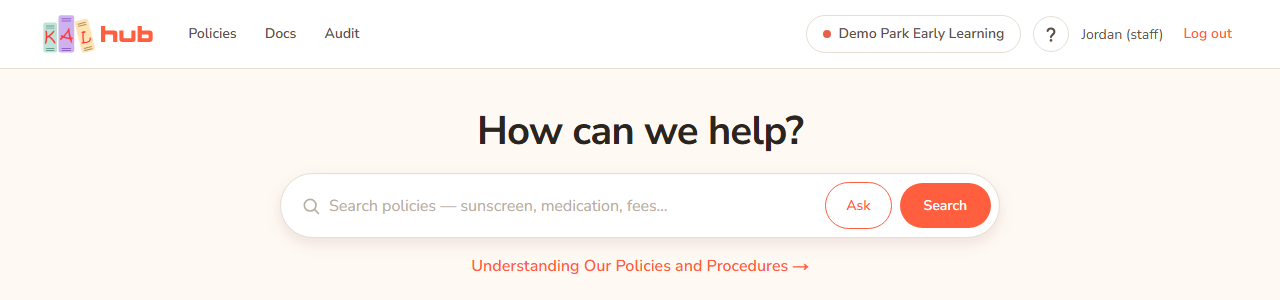
The bar at the top of every Hub page has:
- The KAL Hub logo on the left.
- Policies: the policy library for your centre.
- Docs: forms and other documents linked from policies. Staff only. It may be switched off.
- Audit: who has read which policy. Only head office and centre managers see it.
- Your centre. If you have more than one centre it is a list with a Switch button.
- Admin: head office only. It opens the editing console.
- A ? button that opens this help.
- The round account button at the far right, with your initials. Press it to see your name, email, centre and role, and to press Log out.
Admin is in the header at every size. On a computer it is a gear with the word Admin from 1024 pixels wide, and a gear alone on a tablet. On a phone it is the last tab on the second row, under the logo.
The account button is the same in every KAL app. Educators who sign in through the Portal with a PIN also see Change PIN in it. If the button cannot load, a plain Log out shows instead, with your name and Change PIN on a computer. On a phone the menu opens full width under the header.
The My Questions list is not in the header. Open Ask KAL and press My Questions there. See Ask KAL.
Every option
| Item | What it does | Who sees it |
|---|---|---|
| Policies | Opens the policy library for your centre. | Everyone |
| Docs | Opens the documents library. | Staff, when head office has it switched on |
| Audit | Opens the policy views report. | Head office and centre managers |
| Centre name and Switch | Change the centre you are viewing. | People with more than one centre |
| Admin | Opens the editing console. | Head office |
| Account button | Shows who is signed in, with Log out and, for some educators, Change PIN. | Everyone signed in |
| Log out | Ends your session on this device. | Everyone signed in |
| ? | Opens this help. | Everyone signed in |
Questions
Do I need an account?
No account to make. You use the email address your centre already has for you. Parents use the family email on the enrolment. Staff use their work email. See Signing in.
Can I use it on my phone?
Yes. The Hub is made to work on a phone first.
Who can see what?
See Who can do what.
Where do I get help if I am stuck?
Start with Sign in problems. If that does not help, contact your centre.
If something goes wrong
- "Something went wrong. Please try again." Shown on the sign-in page when something unexpected happens. Try again. If it keeps happening, tell your centre.