
The policy editor
Write and format a policy - toolbar, pasting from Word, pictures, the side panel fields and the safety nets that protect your work.
Updated
The editor is where you change what a policy says. It works like a simple word processor. The page you type on looks like the reading page families see. Settings for the policy sit in a panel on the right. You can paste straight from Word and the Hub tidies it for you.
Open the editor
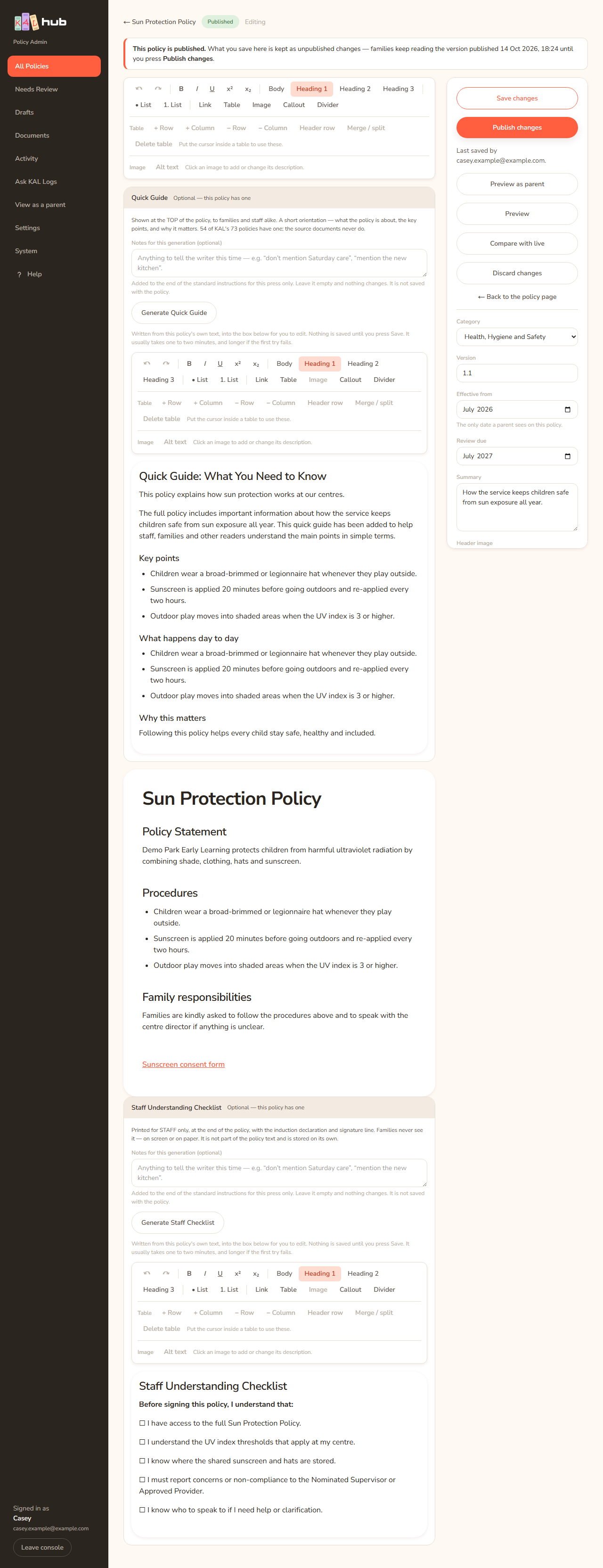
- Open the policy in the console.
- Press Edit.
- A strip at the top tells you what saving will do. See Save and what it does.
Format the text
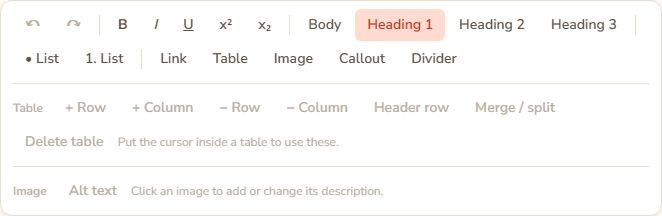
| Button | What it does |
|---|---|
| ↶ and ↷ | Undo (Ctrl+Z) and redo (Ctrl+Shift+Z) |
| B, I, U | Bold, italic, underline |
| x² and x₂ | Superscript and subscript |
| Body | Ordinary paragraph text |
| Heading 1 | A main section. The "On this page" list for readers is built from these |
| Heading 2 | A sub-heading |
| Heading 3 | A sub-sub-heading |
| • List and 1. List | Bulleted and numbered lists |
| Link | Add or change a link (Ctrl+K). A box asks for the address. Leave it empty to remove the link |
| Table | Inserts a table with 3 columns, 3 rows and a header row |
| Image | Picks a picture from your computer. The button reads Image… while it uploads |
| Callout | A tinted "In short" box |
| Divider | A horizontal line |
The policy's title is not in the toolbar. You type it in the large box above the page.
Tables
A second row labelled Table has + Row, + Column, − Row, − Column, Header row, Merge / split and Delete table. They are greyed out unless your cursor is in a table. Delete table asks "Delete this table and everything in it?"
Pictures
- Press Image, or drag a picture onto the page, or paste one.
- Allowed types are PNG, JPEG, GIF, WebP and SVG. The limit is 8 MB.
- After adding, a note says "Image added." Click the picture and press Add alt text to describe it for someone who cannot see it. A box asks you to "Describe this image for somebody who cannot see it". Leave it empty for a decorative picture.
- If the same file is already in the library the Hub reuses it.
Paste from Word
- Open the Word document and copy the part you want.
- Click where it should go on the editor page and paste (Ctrl+V).
- The Hub tidies the Word formatting into lists, headings and tables in KAL styles. A note appears, for example "Pasted from Word — 12 bullets tidied into lists, 3 headings recognised, 1 table kept."
- Read the note. If it says "N image could NOT be brought across", Word sent only a link to a file on your computer. Drag that picture onto the page instead.
Example: Casey Example copies the new Sun Protection section from the uploaded Word file, pastes it under Heading 1 "Hats and clothing", reads the note and drags in one diagram that Word could not bring across.
The side panel
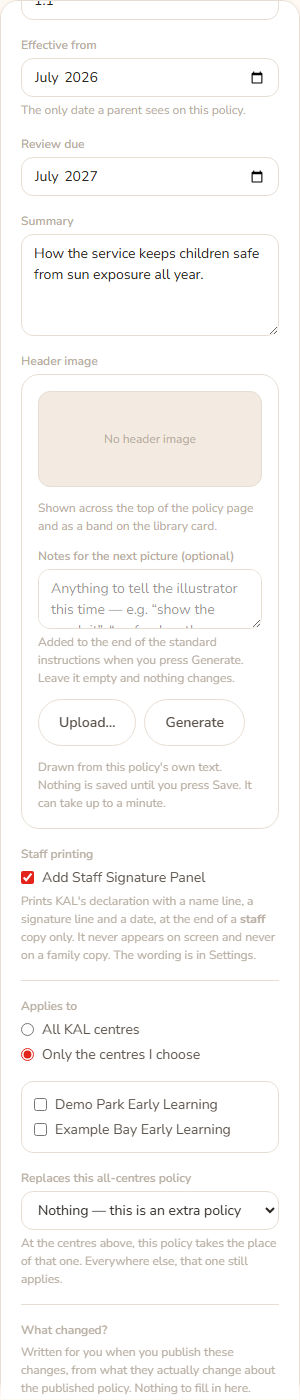
| Field | What it does |
|---|---|
| Save or Save changes | Saves your work |
| Publish changes | Only when a working copy exists. See Working copy and publish |
| Preview as parent | Saves, then shows the policy the way a family sees it |
| Preview, Compare with live, Discard changes | Only for a working copy |
| ← Back to the policy page | Leaves the editor |
| Category | Which group the policy sits in. A staff-only category shows "Families never see this category — it is staff-only." |
| Version | The version label, for example 2026.1 |
| Effective from | A month. "The only date a parent sees on this policy." |
| Review due | A month, used for Needs Review |
| Summary | One or two sentences shown above the policy |
| Header image | A picture for the top of the policy. See Header images |
| Staff printing: Add Staff Signature Panel | Prints the declaration, a name line, a signature line and a date on the end of a staff copy. Never on screen and never on a family copy |
| Applies to | All KAL centres or Only the centres I choose. See Status and scope |
| Replaces this all-centres policy | For a centre-specific policy: the all-centres policy it replaces at those centres |
| What changed? | An optional note kept with the version. For a working copy it says "Written for you when you publish these changes, from what they actually change about the published policy. Nothing to fill in here." |
Above and below the page are two more boxes, Quick Guide and Staff Understanding Checklist. Press one to open it. It says "This policy does not have one" or "Optional — this policy has one". You can type in it, or press Generate Quick Guide or Generate Staff Checklist. See Quick Guide and checklist.
Save and what it does
Look at the strip at the top of the editor.
- "This policy is published. What you save here is kept as unpublished changes": saving makes or updates a working copy. Families keep reading the published version until you press Publish changes. The button says Save changes.
- "You are editing unpublished changes": a working copy already exists. Saving updates it.
- "This policy is a draft." (or archived): families cannot see it, so Save writes straight to the policy and writes a new version.
To save, press Save or Save changes, or press Ctrl+S. The status line under the button reads "Saving…", then "Saved just now." for a draft or "Changes saved just now. Not published." for a working copy. There is no autosave.
Your work is protected
- If you leave with unsaved changes, the page asks "You have unsaved changes to this policy." and "Leave the page and lose them? (A copy is kept in this browser and will be offered back when you return.)" This also happens when you press Back or a link.
- Two seconds after you stop typing, the Hub keeps a copy in your browser. When you come back, a bar says Unsaved changes were found in this browser, with the time. Press Restore them to bring it back or Discard to throw it away. It never restores by itself.
- If someone else saved while you were working, your save is refused and your copy stays in the browser.
Every option
| Option | What it does | Default |
|---|---|---|
| Ctrl+S | Saves | Not applicable |
| Ctrl+K | Adds or edits a link | Not applicable |
| Restore them / Discard | Brings back or deletes the browser copy | Not applicable |
| Dismiss (×) | Closes a note under the toolbar | Not applicable |
Questions
Does saving a published policy change what families read?
No. It saves a working copy. Families read the new text only after you press Publish changes.
Is there autosave?
No. Save with the button or Ctrl+S. A backup copy goes to your browser, but only on your own computer.
Why is there no Heading 4?
The toolbar has Heading 1, 2 and 3. The page's own top heading is the policy title.
Where did my pasted picture go?
Check the note after pasting. If it says an image could not be brought across, drag the picture in.
If something goes wrong
- "A policy needs a title before it can be saved." Type a title in the large box.
- "Choose a category before saving." Choose a Category.
- "That category no longer exists. Reload the page and try again."
- "Choose at least one centre, or set the policy to apply to all centres." Tick a centre or choose All KAL centres.
- "The effective-from month is not a date I can read." and "The review-due month is not a date I can read." Pick the month again.
- "This policy has unpublished changes. Reload the page — your work is kept in this browser — and save into those changes instead." Reload, then restore your work.
- "This policy is live; changes are saved to its working copy. Reload the page — your work is kept in this browser." Reload the page.
- "This policy is not published, so there is nothing for changes to wait behind — save it directly. Reload the page; your work is kept in this browser."
- "Unpublished changes were started on this policy since you opened it. Reload to see them — your work is kept in this browser."
- "Someone saved these changes since you opened the editor. Reload to see their version — your work is kept in this browser."
- "The save did not go through and nothing was changed. Please try again."
- "The save could not be sent. Your work is still here and a copy is kept in this browser." Check your connection and press Save again.
- "This policy is published, and this save would leave it visible to the wrong families." The reason follows. Set the centres under Applies to.
- "That header image is not one this Hub stored. Upload or generate it again." and "That header image is not in the store any more. Upload or generate it again before saving."
- "No image was received." and "That image is empty." Choose the picture again.
- "That image is 9.0 MB. The limit is 8 MB." Make the picture smaller.
- "That file type (…) cannot be stored. Use a PNG, JPEG, GIF, WebP or SVG."
- "That paste could not be brought in. Check the document, then try again — or paste it in smaller pieces."
- ""…" is not a link this policy can carry, so it has not been added. Allowed: https:// http:// mailto: tel: or a path beginning with /."
- "Give the policy a title first — it is named in the generated section." and "Write or paste the policy text first — there is not enough here to generate from." These appear on the Generate buttons.