
The policies list - filters, sort and bulk actions
Find, filter and sort every policy in the console, see which need attention, and publish or unpublish many at once.
Updated
The policies list is the first page you see in the console. It lists every policy, newest changes and review dates included, so you can see at a glance what needs attention. You can narrow the list, sort it, and publish or unpublish many policies in one go.
Find a policy
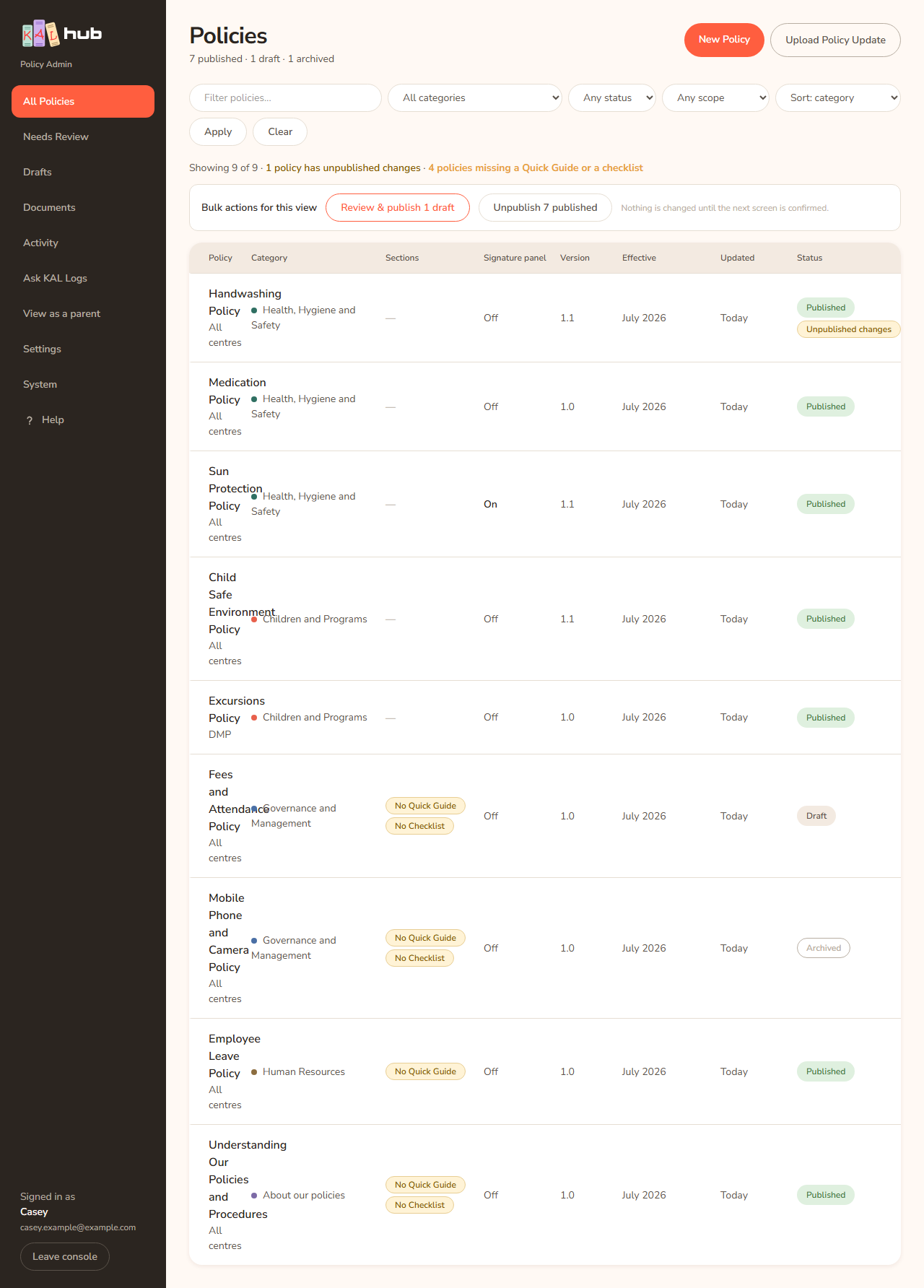
- Open All Policies in the sidebar.
- Type part of the title in the box that says Filter policies…. It only searches titles.
- Choose a Category, a status, a scope or a sort order if you want to narrow the list.
- Press Apply.
- Press the policy's title to open its policy page.
- Press Clear to put every filter back to the start.
Example: Casey Example wants every draft in Health, Hygiene and Safety. Casey chooses that category, chooses Draft in the status menu and presses Apply. The line under the filters reads "Showing 2 of 8".
The saved views in the sidebar
- All Policies shows everything.
- Needs Review shows policies whose review date is within the next 90 days, already past, or missing. The line above the table adds "due for review within 90 days (or with no review date)".
- Drafts shows only drafts.
- The orange link "N policies have unpublished changes" shows policies that have a working copy waiting. After you press it the line reads "with unpublished changes waiting".
Your filters stay when you press Apply from a saved view.
What each column shows
| Column | What it shows |
|---|---|
| Policy | The title. Under it: All centres, the centre codes (for example DMP, EXB), or No centres in red if a centre-specific policy has no centres |
| Category | The category and its colour dot |
| Sections | A dash when the policy has both a Quick Guide and a staff checklist. Otherwise an amber chip for each missing one: No Quick Guide and No Checklist |
| Signature panel | On or Off: whether staff printouts get the signature panel |
| Version | The version label, for example 2026.1 |
| Effective | The month the policy takes effect |
| Updated | How long ago the policy was last changed |
| Status | Published, Draft or Archived, plus amber chips: Unpublished changes, Review overdue or Review due soon |
A policy that is overdue for review also has an amber bar down the left of its row. Review due soon means within 30 days.
The numbers at the top, for example "6 published · 1 draft · 1 archived", count the whole library, not just the filtered rows. If some policies lack a Quick Guide or a checklist the line under the filters also says "N policies missing a Quick Guide or a checklist".
Publish or unpublish many policies at once

- Set the filters so the list shows only the policies you mean. For example choose Draft in the status menu.
- In the box Bulk actions for this view, press Review & publish N drafts (shown when the view has drafts) or Unpublish N published (shown when the view has published policies).
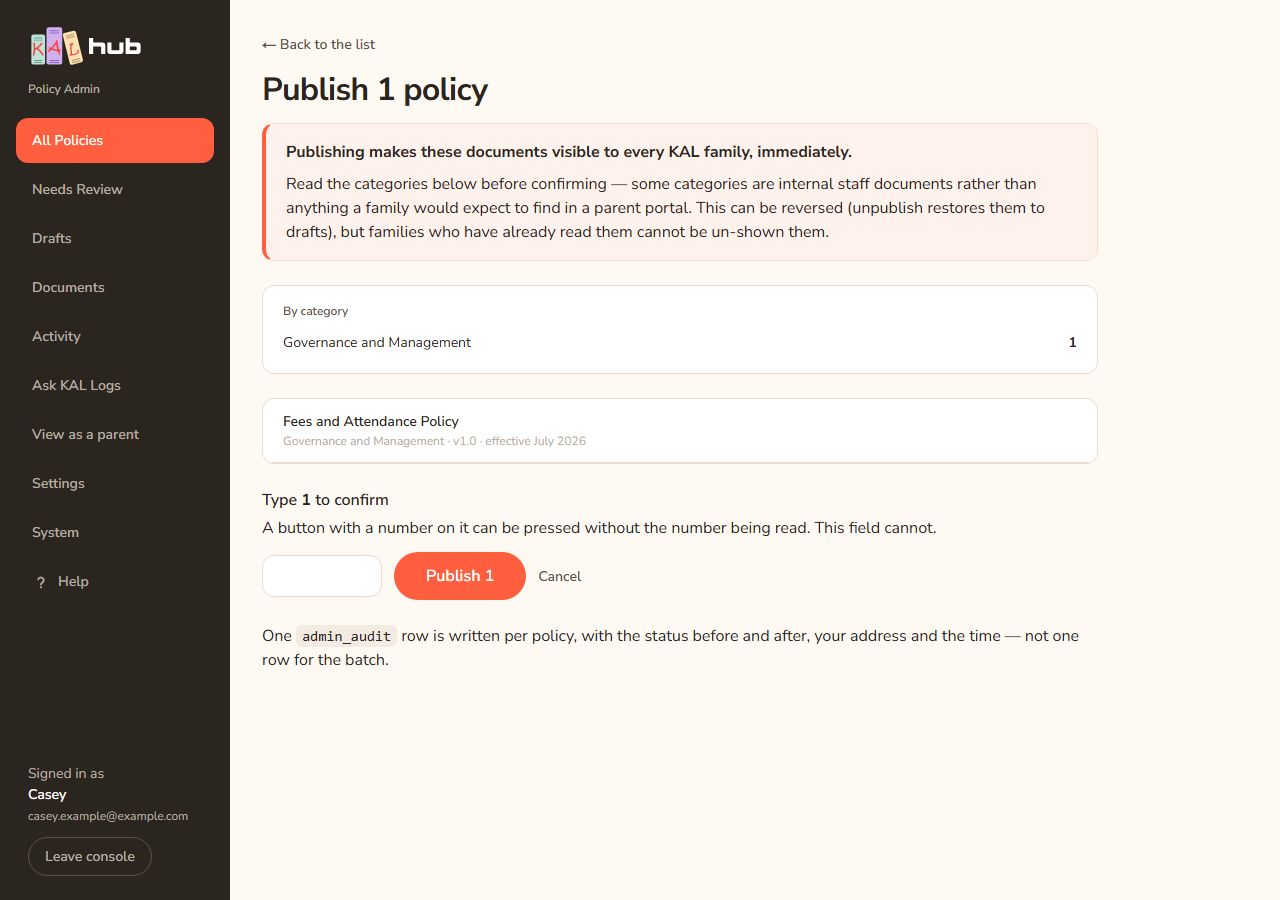
- The next screen is titled Publish N policies or Unpublish N policies. Read the By category counts and the list of titles. Press ← Back to the list if anything looks wrong.
- Type the number shown beside Type N to confirm.
- Press Publish N or Unpublish N. The button changes to Publishing N… or Unpublishing N….
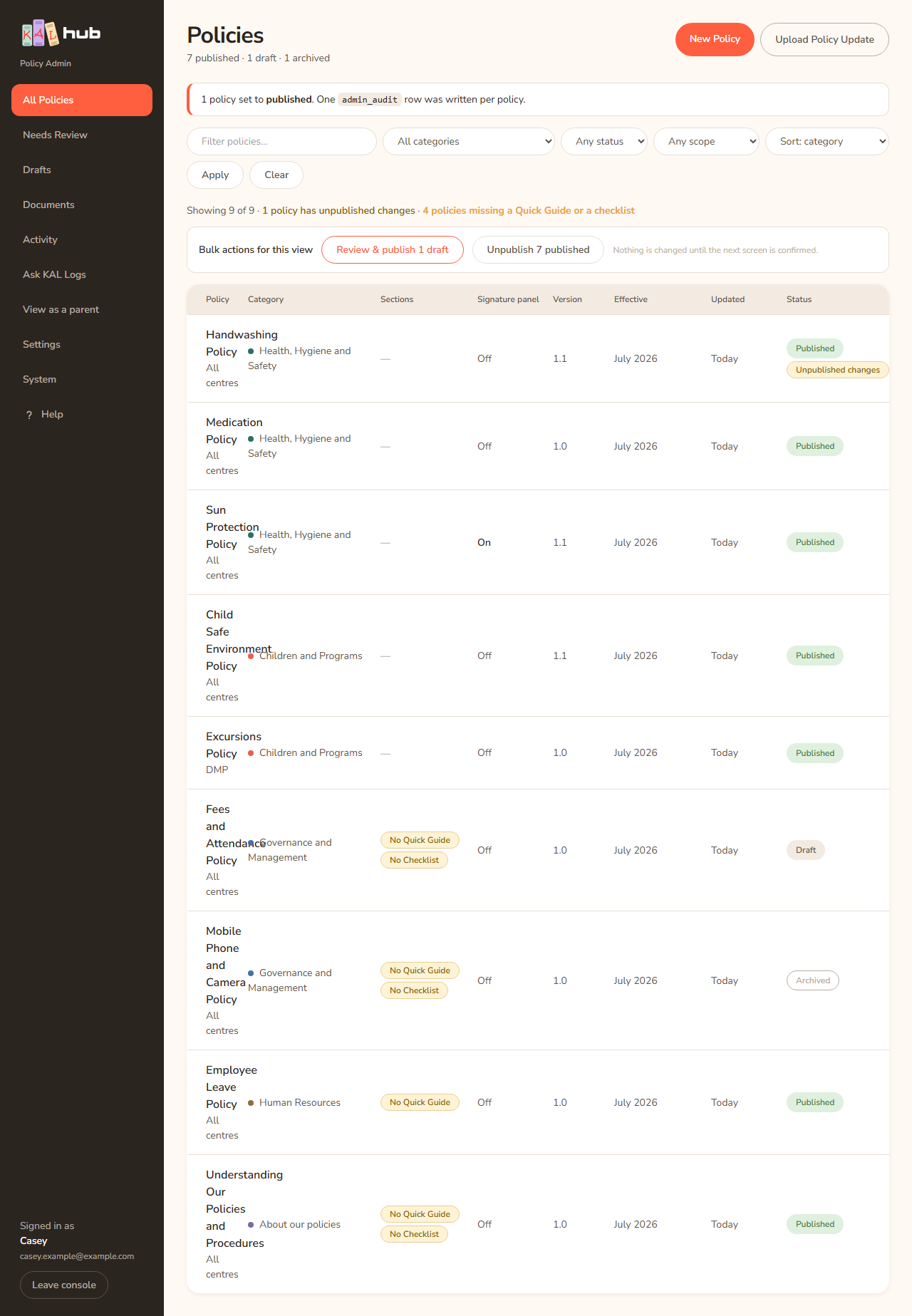
- You return to the list with a banner saying how many changed, for example "3 policies set to published".
Example: Casey has three finished drafts in the Communication category. Casey filters to Communication and Draft, presses Review & publish 3 drafts, types 3 and presses Publish 3. The banner reads "3 policies set to published." and the status chips change.
Every option
| Option | What it does | Default |
|---|---|---|
| Filter policies… | Searches policy titles | Empty |
| Category | Shows one category | All categories |
| Status | Any status, Draft, Published or Archived | Any status |
| Scope | Any scope, All centres, or Centre-specific | Any scope |
| Sort | Sort: category, title, last updated, effective from, status | Sort: category |
| Apply / Clear | Apply the filters / reset them | Not applicable |
| New Policy | Starts a new policy, saved as a draft. See New policy from scratch | Not applicable |
| Upload Policy Update | Compare an uploaded document with a policy. See Policy updates | Not applicable |
| Review & publish N drafts | Opens the bulk publish confirmation for the drafts in the view | Shown only when the view has drafts |
| Unpublish N published | Opens the bulk unpublish confirmation | Shown only when the view has published policies |
Questions
Why does the list say "Showing 3 of 8"?
Three policies match your filters out of eight in the whole library.
Can I bulk publish a policy that has unpublished changes?
Bulk actions change a policy's status only (draft to published, or published back to draft). To publish a working copy, use Publish changes on the policy page. See Working copy and publish.
Does bulk publish skip a policy someone else changed?
Yes. If a policy is no longer in the status the confirmation screen showed, it is left alone and counted as skipped.
Can I archive many at once?
No. Archive one policy at a time on its policy page.
If something goes wrong
- "No policies match this filter." Your filters are too narrow. Press Clear.
- "Nothing in this view is a draft. There is nothing to publish." (or "published … unpublish"): the view has none of that status. Change the filters.
- "The number you typed did not match the number of policies. Nothing was changed." Type the number shown beside Type N to confirm, exactly, and press the button again.
- After a bulk publish the banner says "N policies could NOT be published: the text says the policy applies only to named centres, but it is stored as applying to all centres. Open it, set its centres under Scope, then publish it. Nothing was changed for them." Open that policy, set Applies to to Only the centres I choose, pick the centres, save, then publish. See Status and scope.
- The banner also says "N skipped because they were no longer in the expected status." Someone else changed those policies first. Reload the list.