
Settings - every setting on one page
What each section of the Settings page does, whether it saves at once, and where to read more.
Updated
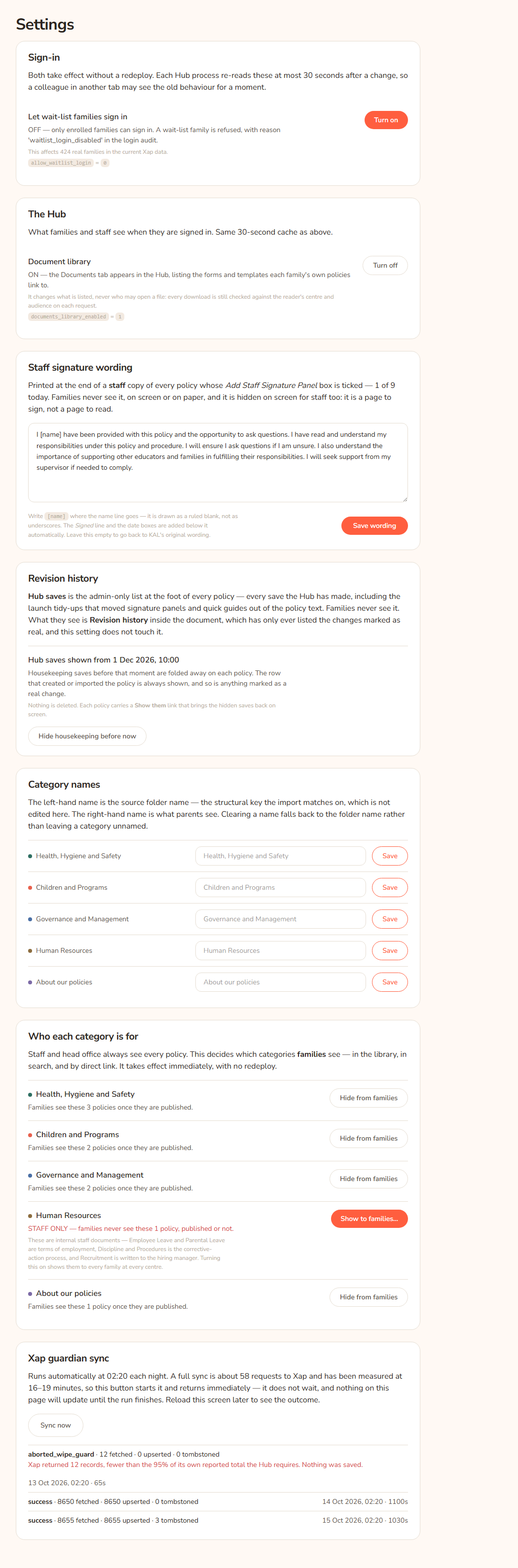
Settings in the console holds the few switches and wordings head office controls. Each section has its own Save or Turn on button. Nothing needs a redeploy.
Switches take effect within about 30 seconds. The Hub remembers each setting briefly so it stays fast. A colleague in another tab, or a family already on the site, may see the old behaviour for a moment. This does not mean the switch is broken.
Every change is written to the audit trail with your address and the time.
The sections, top to bottom
- Sign-in has one switch: Let wait-list families sign in. See Wait-list sign-in.
- The Hub has one switch: Document library. It shows or hides the Docs tab.
- Staff signature wording is the sentence printed on the staff signature panel. See Staff signature wording.
- Revision history has the button Hide housekeeping before now. See Housekeeping revisions.
- Category names sets the name families see for each policy category. See Categories and who sees them.
- Who each category is for decides which categories families can see. Same topic.
- Xap guardian sync has the Sync now button and the recent runs. See The Xap sync.
Turn a switch on or off
- Open Settings.
- Find the switch. The line under its name describes what the Hub does in its current position.
- Press Turn on or Turn off. The button reads Saving… briefly.
- The line under the name changes to describe the new position.
Example: Casey Example wants staff and families to stop seeing the Docs tab for a week. Under The Hub, Casey presses Turn off next to Document library. The text changes to say there is no Documents tab. Links to forms inside a policy keep working.
Under each switch is a small grey line such as documents_library_enabled = 1. That is the stored value. 1 is on, 0 is off, and (unset) means nobody has ever changed it.
Every option
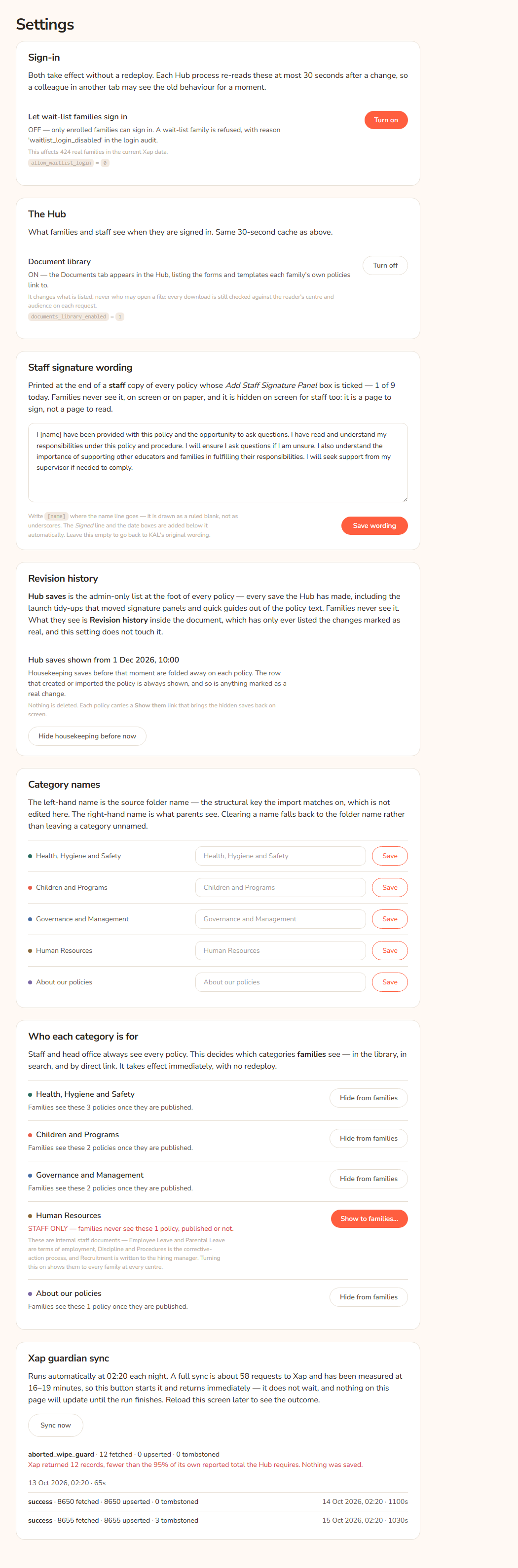
| Option | What it does | Default |
|---|---|---|
| Let wait-list families sign in (Turn on / Turn off) | Decides whether families whose Xap record is "On Wait List" can sign in. | Off |
| Document library (Turn on / Turn off) | Shows or hides the Docs tab and the page behind it. It never changes who may open a file. | On (it counts as on unless it is turned off) |
| Staff signature wording and Save wording | The wording printed at the end of a staff copy for each policy that has the signature panel ticked. | KAL's original wording |
| Hide housekeeping before now | Folds away launch tidy-up saves in the admin-only list on each policy. Nothing is deleted. | Every save shown |
| Category names (one box and Save per category) | The name families see. The left name is the original folder name and is not editable. | The folder name |
| Hide from families / Show to families… | Whether families can see a whole category. | Human Resources hidden, the rest shown |
| Sync now | Starts the Xap guardian sync straight away. |
Questions
Why does my change not show in another tab straight away?
The Hub keeps each setting for up to about 30 seconds. Wait a moment and reload.
Where is the setting that makes parents enter a code?
There isn't one. Every parent now signs in with either their Xap kiosk PIN or an emailed code, so there is nothing to switch. See Signing in.
Can I see who changed a setting?
Yes. Each change is logged with the person's address and the time. Head office can ask for the audit trail.
Do the switches affect staff?
The Document library switch affects everyone who sees the Docs tab, staff included. The wait-list switch affects only families.
If something goes wrong
When a change is refused, a message box appears at the top of the Settings page and nothing is saved. The messages are:
- "That setting could not be changed, so nothing was saved." The switch or setting was not recognised. Reload the page and try again.
- "That wording could not be saved, so nothing was changed." The wording did not match one that can be changed. Reload and try again.
- "That wording is too long (the limit is 2,000 characters), so nothing was saved." Shorten the wording and press Save wording again.
- "That category could not be found, so nothing was changed." The category was removed or renamed. Reload the page.
- "That change was refused, so nothing was saved." Any other refusal. Reload and try again, and contact the Hub's maintainers if it keeps happening.
- "Sync requested. It will appear below as running and then complete in roughly 16–19 minutes." This is a success message after Sync now.
- "APP_BASE_URL or CRON_SECRET is not set on this server, so the sync could not be triggered. Nothing was started." The server is missing a setting. Tell the Hub's maintainers.
- A category name longer than 150 characters is cut to 150 without a warning.