
Printing a policy - Staff, Full and Family copies
How to print a policy, and what the Staff copy, Full copy and Family copy each include.
Updated
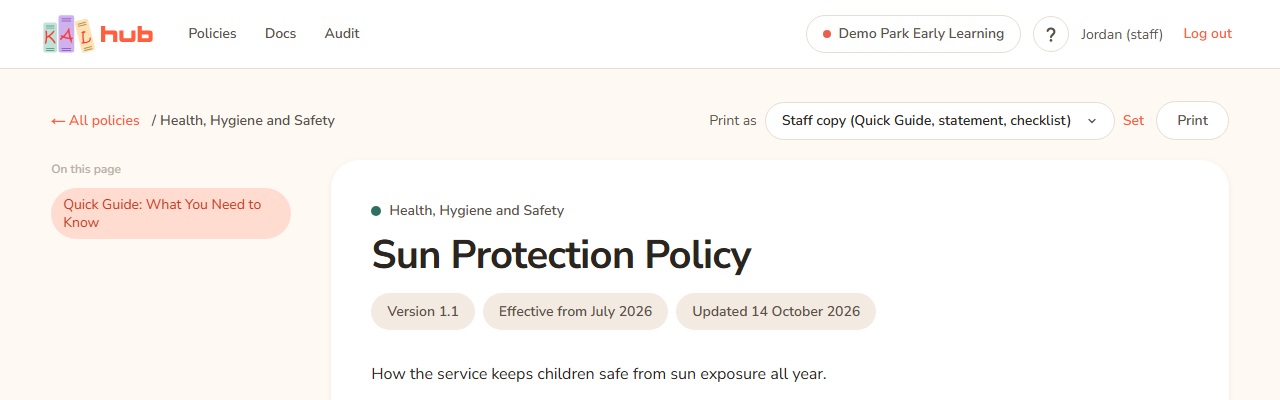
Every policy can be printed from its page. Staff and educators can also choose which copy to print. There are three copies. The copy you choose decides what is on the paper. Nothing about the choice changes what you see on the screen.
Print a policy
- Open the policy.
- If you see Print as, choose a copy from the list and press Set. The page reloads with your choice.
- Press Print (top right of the page). Your browser's print window opens.
- Choose a printer, or choose Save as PDF, and print.
Example: Alex Demo (a parent) opens "Sun Protection" at Demo Park and presses Print. There is no Print as list for families, so the paper is the Family copy.
If the Print button does nothing, use the browser's own print command (Ctrl+P on a computer).
The three copies
| Copy | Name in the list | What is on the paper |
|---|---|---|
| Staff | Staff copy (Quick Guide, statement, checklist) | The Quick Guide, the Policy Statement section, the staff checklist and the signature page. This is the short copy for staff. |
| Full | Full copy (whole policy, checklist and sign-off) | The whole policy, then the checklist and the signature page. |
| Family | Family copy | The whole policy with no checklist and no signature page. This is the copy to give to families. |
Every copy has the KAL logo and your centre's logo at the top (if the centre's logo file is missing, the centre's name is printed in its place), the policy name and version at the bottom of each page, and "Page N of M". The top of the first page also says which copy it is: Staff copy, Full copy or Family copy. Two printouts of the same policy can therefore be told apart.
The revision history (Changes to this document), the contents list, the header picture and the Ask about this button never print.
Who can choose
- Staff, educators and head office can use Print as. The first choice in the list, Staff copy, is the default.
- Families see no list. They print the Family copy.
- If a policy is staff-only (for example in a Human Resources category), the list has only the Staff copy and Full copy. There is no Family copy because there is no family to give it to.
- A head office user "viewing as a parent" has no choice either.
The checklist and signature page
Staff policies can include a staff checklist (boxes to tick) and a signature page. The signature page has a declaration, then lines for Signed and Date.
- They never show on the screen, for anyone, including staff.
- They print on the Staff copy and Full copy. They do not print on the Family copy.
- The signature page starts a fresh sheet so it can be signed and handed back.
- Not every policy has a signature page. It is switched on for each policy by head office.
Quick Guide missing
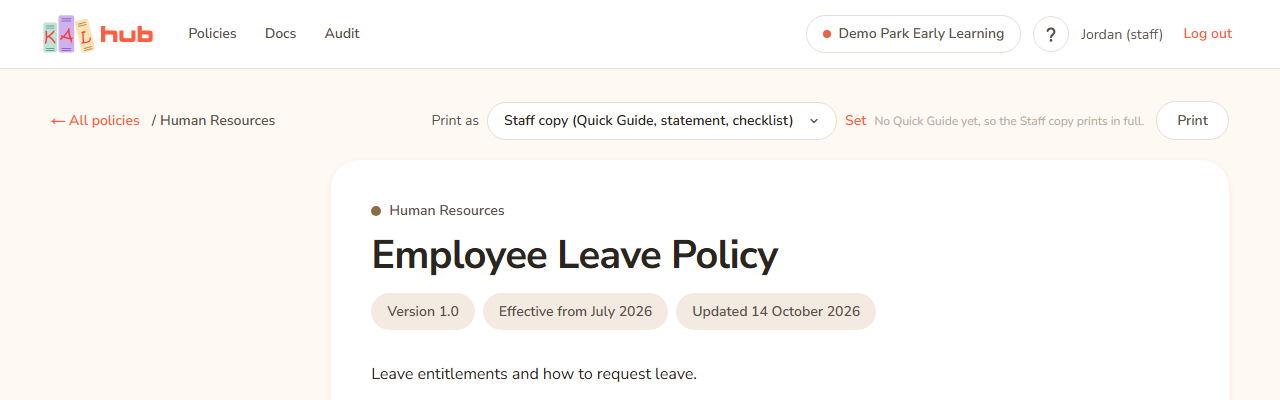
The Staff copy is built around the Quick Guide. If a policy has no Quick Guide, the Staff copy would print in full, and the page tells you so: No Quick Guide yet, so the Staff copy prints in full. In that case the paper says Full copy.
Every option
| Option | What it does | Default |
|---|---|---|
| Print as list | Chooses the copy. Shown to staff and educators only. | Staff copy |
| Set | Applies your choice by reloading the page with the copy in the web address. The choice is not remembered between visits. | |
| Opens the browser's print window. | ||
| Save as PDF (in the browser's print window) | Makes a PDF of the chosen copy. |
Questions
Which copy should I give a family?
The Family copy. A parent who prints a policy themselves always gets the Family copy.
Can a parent print the staff checklist?
No. Families are never sent the checklist, so it cannot be printed by them. A staff member who chooses Family copy gets a paper copy without it too.
Why did I get a different copy after pressing Set?
Set reloads the page and the choice is in the web address. If you open the policy again from the library, the list goes back to Staff copy.
Why is the policy statement missing from my Staff copy?
The Staff copy prints the section headed Policy Statement. If a policy has no section with that heading, the Staff copy prints only the Quick Guide, the checklist and the signature page. Choose Full copy to print everything.
Can I print the revision history?
No. Changes to this document appear on the screen only.
If something goes wrong
- No Quick Guide yet, so the Staff copy prints in full. The policy has no Quick Guide. Choose Full copy if you want the same thing without the note.
- The Print as list is not there. You are signed in as a family member, or the session is a head office "view as a parent". These sessions print the Family copy only.
- The Print button does nothing. Use your browser's own print command (Ctrl+P on a computer, or the browser menu on a phone).