The Audit tab - who has read which policy
See which parents and staff opened which policies, group the list, and filter by date, centre, person or policy.
Updated
The Audit tab opens the Policy views report. It lists who opened which policy, when, and for how long. Centre managers use it to check that staff have read a new policy. Head office uses it across all centres.
Who sees it
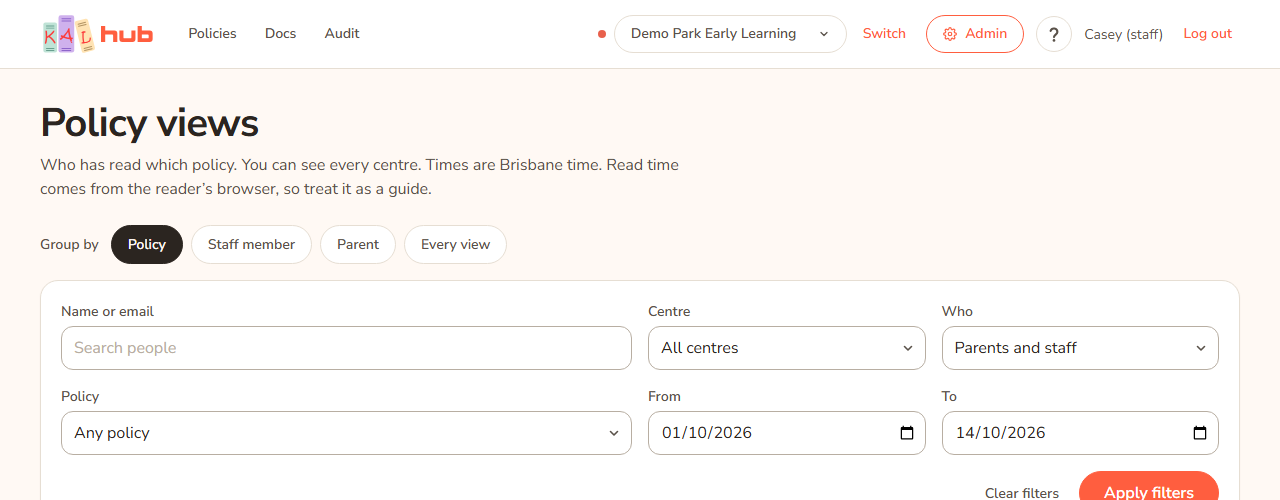
- Head office sees every centre.
- Centre managers and other staff with the centre or limited-centre portal role see their own centres only.
- Educators who sign in with FoundU do not see the tab.
- Families do not see the tab. Anyone not allowed gets a page not found screen, even if they type the address.
Open the report
- Press Audit in the header.
- The report opens with the last 30 days, grouped by Policy.
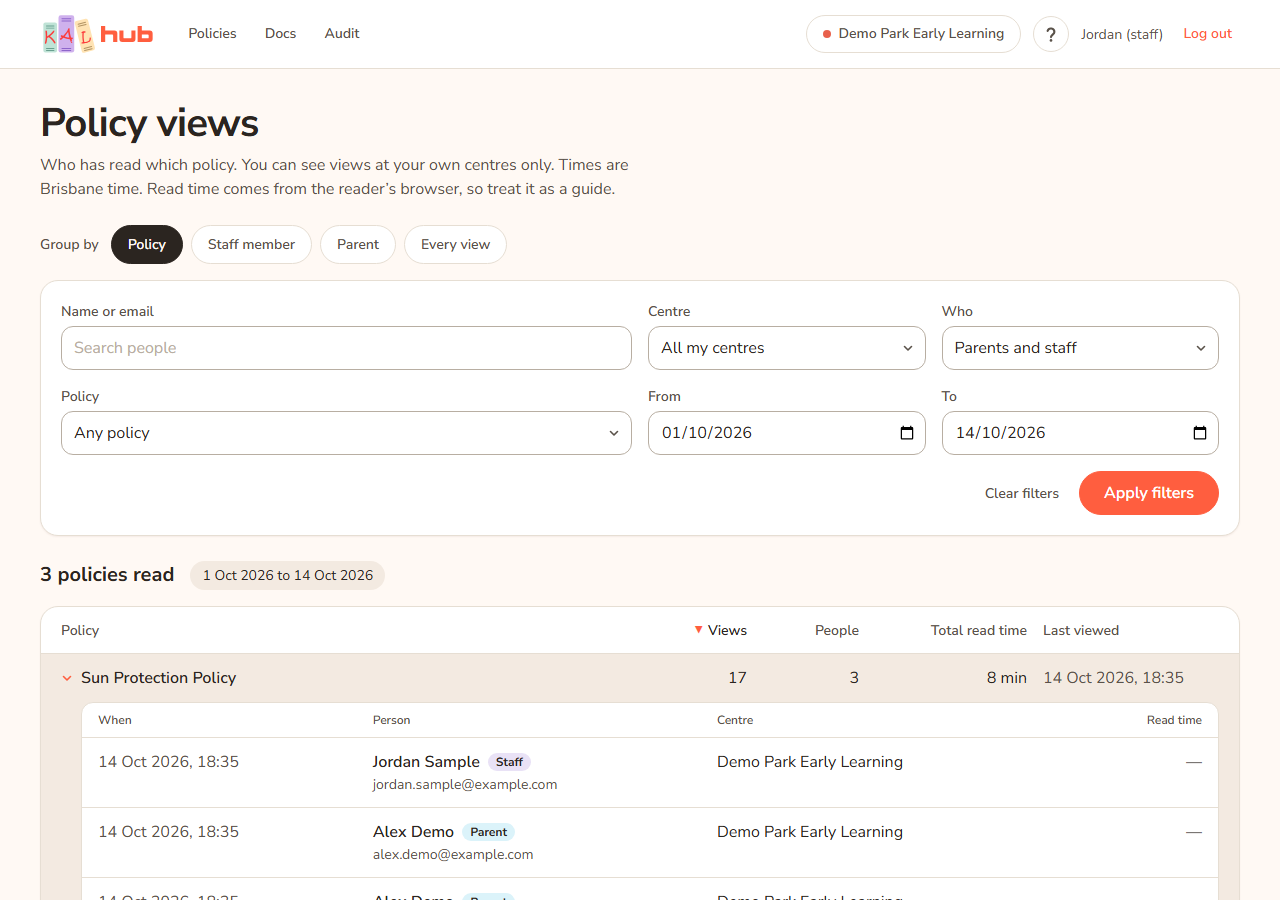
- Press a policy's row to open it and see each view.
- Press Apply filters after you change a filter.
Example: Jordan Sample is the manager at Demo Park. A new Sun Protection policy was published last week. Jordan presses Audit, finds "Sun Protection Policy", opens the row and sees which staff opened it and when.
Group the list
Under the heading is a row Group by with four choices:
- Policy: one row per policy. Columns: the policy, Views, People, Total read time and Last viewed.
- Staff member: one row per staff member. Columns: Email, Views, Policies, Total read time, Last viewed. The Who filter is set to staff.
- Parent: the same, for families. The Who filter is set to parents.
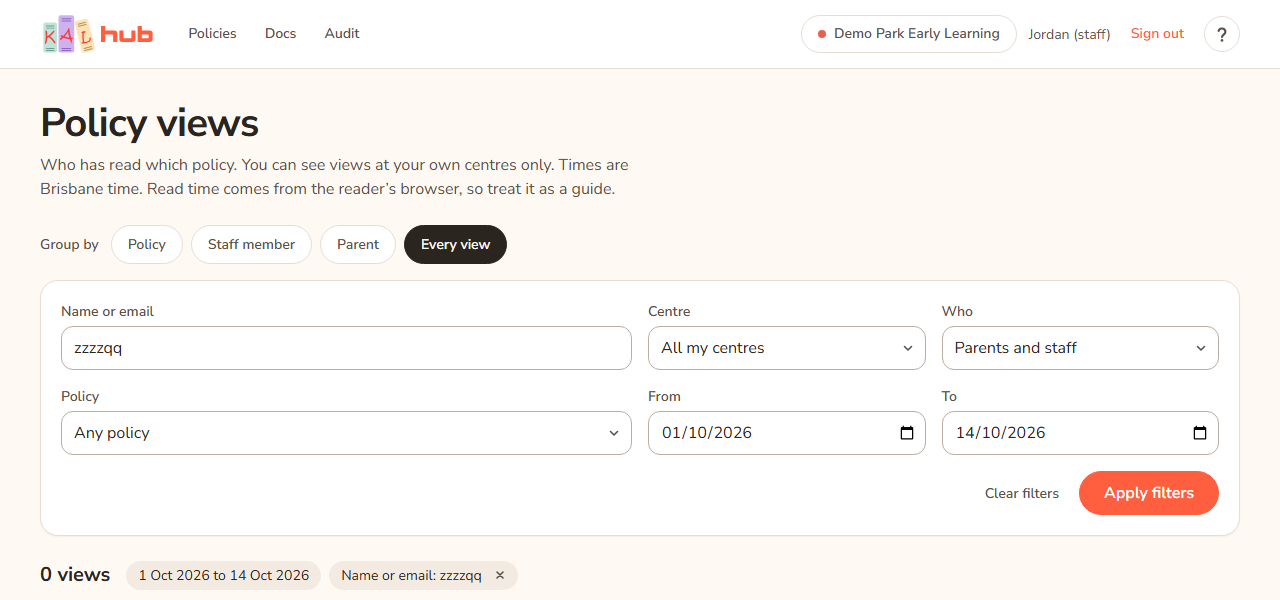
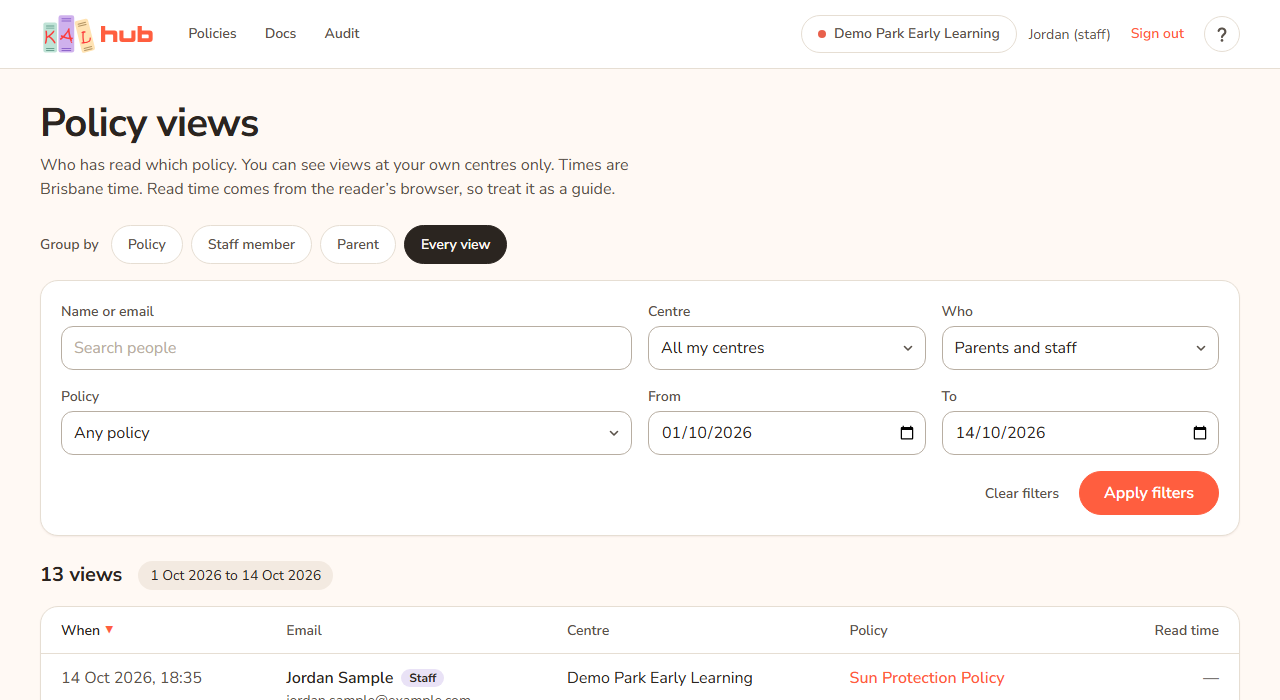
- Every view: no grouping. One row per view. Columns: When, Email, Centre, Policy, Read time.
Press the arrow beside a row to open it. It lists each view with the date, the policy or person, the centre and the read time. A group shows at most the latest 200 views.
Filters
The filter bar has:
- Name or email: part of a name or email. It also finds people by the name Hub holds for them.
- Centre: All centres for head office, All my centres for others, or one centre.
- Who: Parents and staff, Parents only or Staff only.
- Policy: Any policy or one policy.
- From and To: dates, in Brisbane time. Press Apply filters to apply them. Clear filters puts the filters back to the default, keeping the grouping.
Under the bar a line gives the count, for example "12 policies read" or "30 views", and small tags show the active filters. Press the cross on a tag to remove that filter.
Sort
Press a column heading to sort. Press it again to reverse the order. An arrow shows the current sort. The first sort is by Views (grouped) or When (every view), newest or most first.
Pages
The report shows up to 100 rows at a time. Previous and Next and "Page 2 of 5" appear at the bottom.
How to read it
- Times are Brisbane time.
- A person is shown by name and email when Hub knows their name. Otherwise it shows the email.
- The tag Parent or Staff shows what kind of sign-in it was. Educators show as Staff.
- The Centre is where the person was signed in when they opened the policy. It shows a dash if Hub does not know.
- Read time is measured in the reader's browser. It is a guide, not proof the person read every word. A dash means no time was recorded.
- Head office "view as a parent" sessions are not counted.
Every option
| Option | What it does | Default |
|---|---|---|
| Group by | Chooses how the list is grouped. | Policy |
| Name or email | Finds people by part of a name or email. | Empty |
| Centre | Limits to one centre. | All centres (or all your centres) |
| Who | Parents and staff, parents only, or staff only. Locked when grouping by staff member or parent. | Parents and staff |
| Policy | Limits to one policy. | Any policy |
| From / To | The date range. | The last 30 days, ending today |
| Apply filters | Applies the filters. | |
| Clear filters | Resets filters, keeping the grouping. | |
| Column headings | Sort the list. | Views (grouped), When (every view) |
| Tags under the bar | Show the active filters; the cross removes one. | |
| Previous / Next | Move between pages of 100 rows. |
Questions
Does this prove someone has read a policy?
No. It shows they opened it, and how long the page stayed open in their browser. For a signed acknowledgement, use the signature page. See Printing a policy.
Why can I not see another centre?
Your portal role gives you your own centres only. Head office can see every centre.
Why is a view missing?
Views by head office "view as a parent" are not counted. Views older than the retention period are removed. A view is recorded when the policy page opens.
Is it recorded when I open a policy?
Yes. Hub records that a policy was opened, by whom, at which centre and for how long. See Privacy and security for how activity is recorded and kept.
If something goes wrong
- No policy views match these filters. With "Try a wider date range, or clear the filters." Widen the dates or press Clear filters.
- Showing the latest 200 of N views. Narrow the dates to see the rest. A group has more views than it can list. Narrow the date range.
- A page not found screen. Your role does not allow the report, or Hub could not check your role. Contact head office if you think you should have access.