
Staff sign in (KAL Portal)
How people with a KAL Portal login sign in to KAL Hub with their Portal password, or with the Sign in with KAL Portal button.
Updated
If you have a KAL Portal login, you sign in to KAL Hub with it. You never create a separate Hub account. There are two ways in: your Portal password, or the Sign in with KAL Portal button.
Sign in with your Portal password
- On the sign-in page type your Portal email in Your email address and press Continue.
- The page says "Please enter your KAL Portal password."
- Type it in KAL Portal password and press Sign in. If you typed the wrong email, press Start again under the form to go back to the email box.
- If you have more than one centre, choose one. Head office goes straight in. See Choosing a centre.
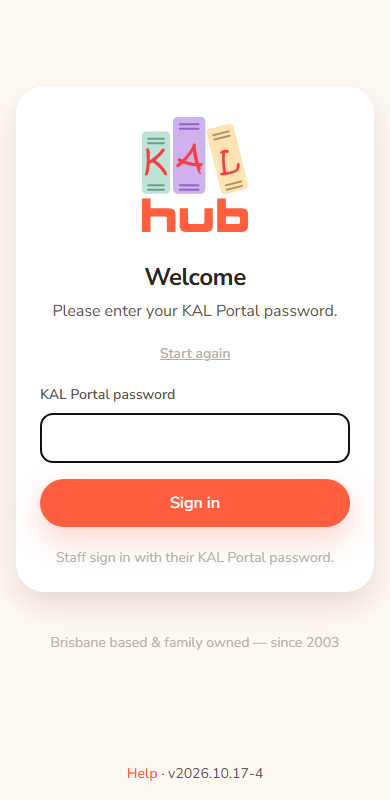
Example: Jordan Sample is a centre manager at Demo Park. Jordan types [email protected], presses Continue, types the Portal password and presses Sign in.
Sign in with KAL Portal
If Sign in with KAL Portal shows under Continue, you can press it instead of typing a password. You sign in on the Portal, with your password or with Microsoft, and come straight back to the Hub signed in. It is the way in for people who sign in to the Portal with Microsoft and have no password. You have 10 minutes to finish on the Portal.
The button only shows when head office has switched Portal sign in on. If you do not see it, use your password.
Example: Casey Example is head office and signs in to the Portal with Microsoft. Casey presses Sign in with KAL Portal, signs in on the Portal and lands in the Hub as head office.
Automatic sign in
If you are already signed in to the KAL Portal in this browser, opening the Hub sign-in page may sign you in without any button. If that does not work you just see the normal sign-in page, with no message. After you press Log out in the Hub, it does not sign you in again automatically until you close the browser. Press Sign in with KAL Portal to turn it back on.
Educators and Beattie Road staff
This page is for people who have a Portal login with a password. Educators sign in another way, and so do staff at Beattie Road, who are not on the payroll system. Both groups type their email, press Continue, then Email me a code instead. They are checked against the Portal's staff list.
- If head office has Portal sign-in for educators switched on, pressing Email me a code instead takes them to a Portal page that asks for a 6-digit PIN. They come back to the Hub signed in.
- If it is switched off, they get an emailed code.
A staff member whose record in the Portal has a faulty employee number is refused like any unknown address. Their centre manager should ask head office to fix the record. See Sign in with an emailed code for the steps, and for Change PIN.
What staff can see
Signing in as staff lets you read all the policies for your centre, including staff-only ones, and open the staff-only Docs. Head office also sees Admin. See Who can do what.
Every option
| Control | What it does | Who sees it |
|---|---|---|
| KAL Portal password and Sign in | Signs you in with your Portal password. | People with a Portal login |
| Sign in with KAL Portal | Signs you in through the Portal. Shown when switched on. | Everyone sees the button when it is on |
| Start again | Goes back to the email box. | On the password step |
| Centre buttons | Choose the centre to view. | Staff with more than one centre |
Questions
I have no password for the Portal. What do I do?
Use Sign in with KAL Portal if it shows. Ask head office if it does not.
Why can staff not use a code?
A Portal login always uses the Portal password or the Portal button. Educators without a Portal login use an emailed code, or the Portal PIN page. See Sign in with an emailed code.
Does signing out of the Hub sign me out of the Portal?
No. They are separate.
If something goes wrong
- "Portal sign-in did not work. Try again or use your email code." The Portal said no, you took too long, or your Portal login is not one we can use. Press Sign in with KAL Portal again, or sign in with your password. If it keeps happening, contact head office.
- "We couldn't sign you in with that email — please contact your centre." Your password was not accepted, or your Portal login is not set up for any centre. Contact your centre or head office.
- "That took too long — please start again." You waited too long. Open the sign-in page again.