The policy library - find a policy
Browse, search and filter the policies that apply at your centre, and open the guides that explain how to read them.
Updated
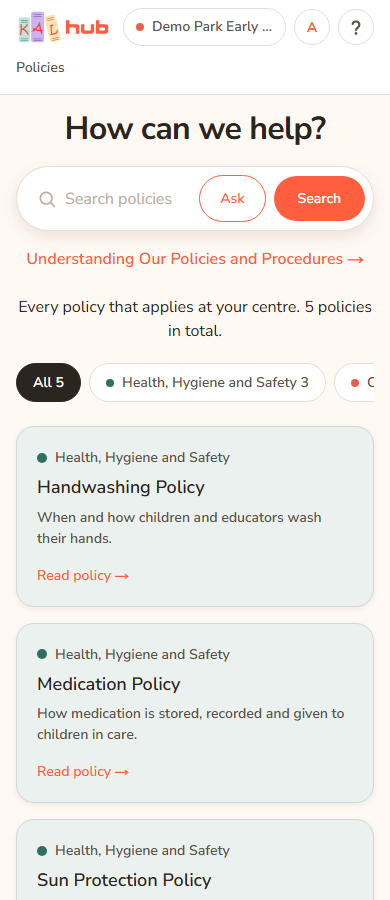
The policy library is the first page you see after you sign in. It lists every policy that applies at your centre. You can search it, filter it by category, and open any policy to read it. It works the same on a phone and a computer.
Find a policy by searching
- Open Policies in the header. The page is headed How can we help?
- Click the search box. It reads "Search policies — sunscreen, medication, fees…".
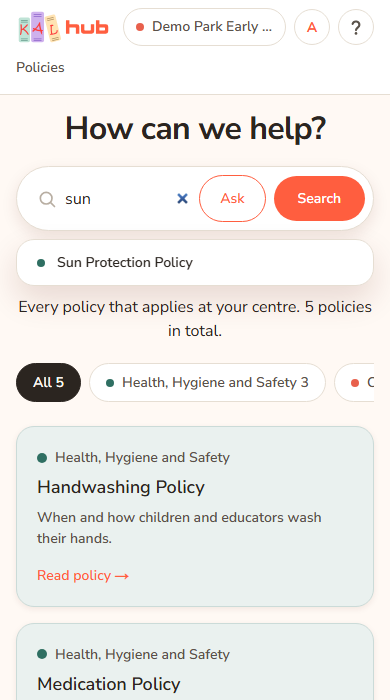
- Type a word or two. After two letters a short list of matching policy names drops down.
- Open a policy in one of two ways. Click a name in the drop-down list, or use the arrow keys to move down the list and press Enter. Or press Search to see the full list of matches on the page.
- Click a card to read that policy.
Search looks at policy titles and at the words inside each policy. Titles that match come first.
Example: Alex Demo wants to know what to do about sunscreen at Demo Park. Alex types sun and the drop-down shows "Sun Protection Policy". Alex taps it and the policy opens.
Filter by category
Under the search box is a row of buttons called category chips. The first is All with a number, then one chip for each category with the number of policies in it, for example Health, Hygiene and Safety 7.
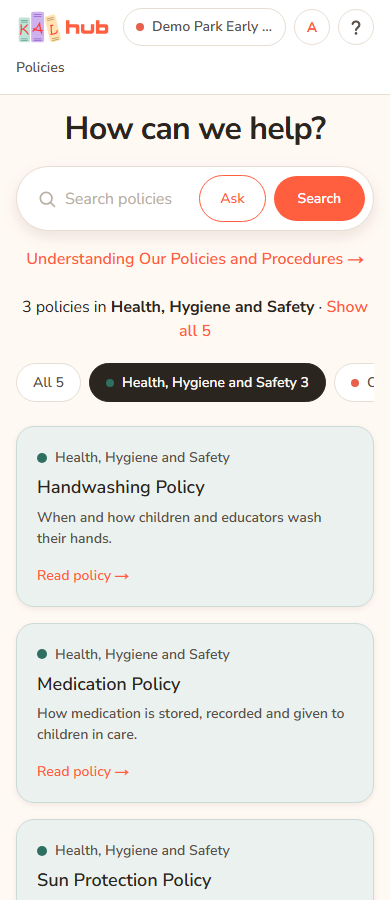
- Press a category chip. The cards change to that category straight away.
- Press All to see everything again. The line above the chips also offers Show all and the total.
- You can combine a search and a category. Search first, then press a chip to narrow the results.
Example: Sam Example searches for hat and gets four policies. Sam presses the chip for Health, Hygiene and Safety and sees only the ones in that category.
What each card shows
Each card shows the category name with a coloured dot, the policy title, a short summary if one has been written, and Read policy →. Some cards also have a picture across the top. Press anywhere on the card to open the policy.
The guides
Under the search box you may see one or more links with an arrow, such as the guide that explains how to read KAL policies. Guides are not listed among the policies or counted in the totals. They open like any other policy.
What you can see
The library shows the policies that apply at the centre named in the header.
- A policy for all centres appears everywhere.
- If your centre has its own version of a policy, you see your centre's version and not the all-centres one.
- Only published policies appear. Drafts and archived policies never do.
- Staff-only policies, such as those in a Human Resources category, appear only for staff and educators. Families do not see them, even by typing a link.
- If you can switch centres, the library changes when you do. See Switching centre.
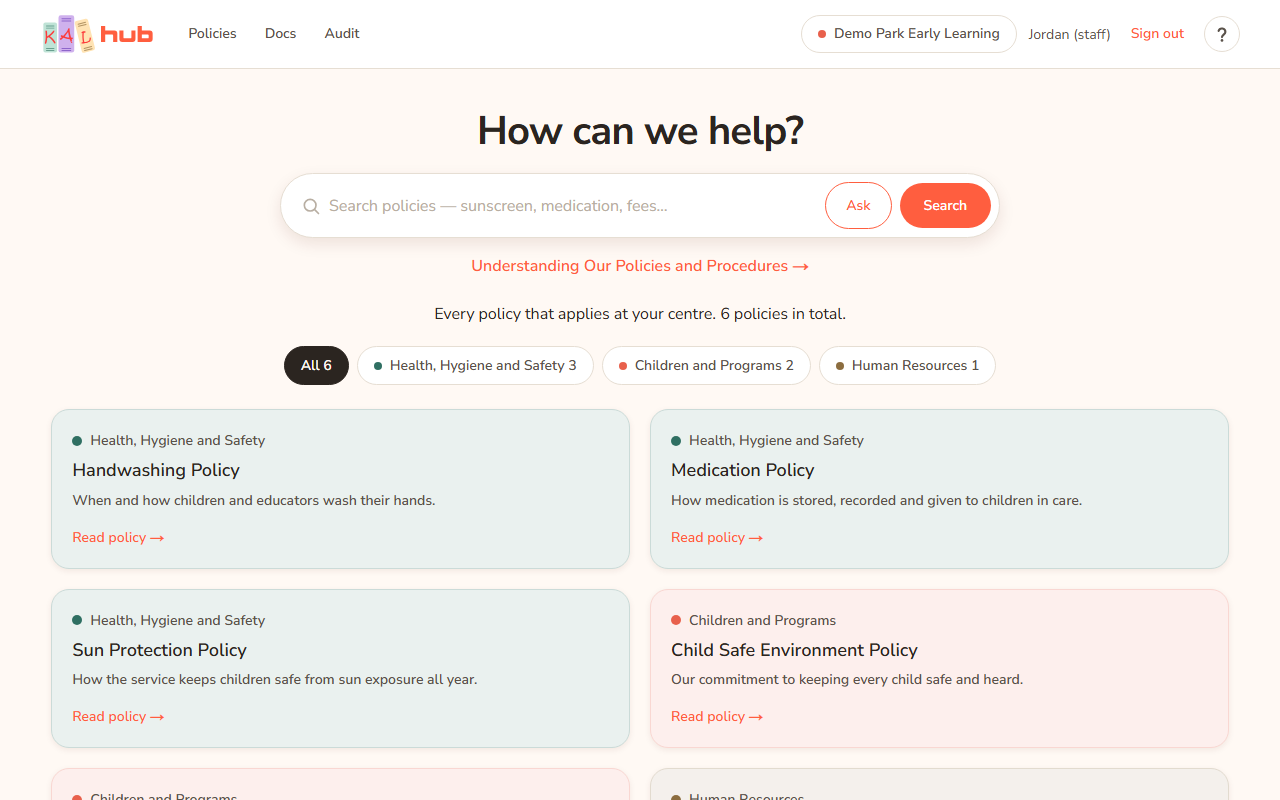
Every option
| Option | What it does | Default |
|---|---|---|
| Search box | Searches policy titles and the words inside policies at your centre. The drop-down starts at two letters and shows up to six names. | Empty |
| Search | Shows the full list of matches on the page. | |
| Ask | Sends what you typed to Ask KAL as a question. Drawn only when Ask KAL is switched on. | Hidden when Ask KAL is off |
| Drop-down suggestions | Opens a policy directly. Arrow keys move, Enter opens the highlighted one, Escape closes the list. | |
| All chip | Removes the category filter. | Selected |
| Category chip | Shows only that category. The number is how many policies it holds at your centre. | |
| Clear search | Appears while a search is showing. Returns to the whole library. | |
| Show all | Appears while a category is chosen. Removes the filter. | |
| Guide links | Open the guides that explain how to use the policies. | Shown if a guide exists |
| Card | Opens the policy. |
Questions
Why can I not find a policy a colleague mentioned?
It may belong to a different centre, it may still be a draft, or it may be staff-only and you are signed in as a family member. Ask at reception or at your centre. A staff member can also check from another centre if they have access to more than one.
Why does the number on a chip not match what I expected?
The numbers count only the policies you can read at your centre, and only the ones that match your current search.
Does searching record what I read?
A search you submit is recorded. The drop-down suggestions are not. Opening a policy is also recorded. Head office and centre managers can see which policies are being read in the Audit tab (see Policy views report). See Privacy and security.
Can I search in Ask KAL instead?
Yes. Press Ask beside Search, or use the link under "Nothing matched" when a search finds nothing. See Ask KAL.
If something goes wrong
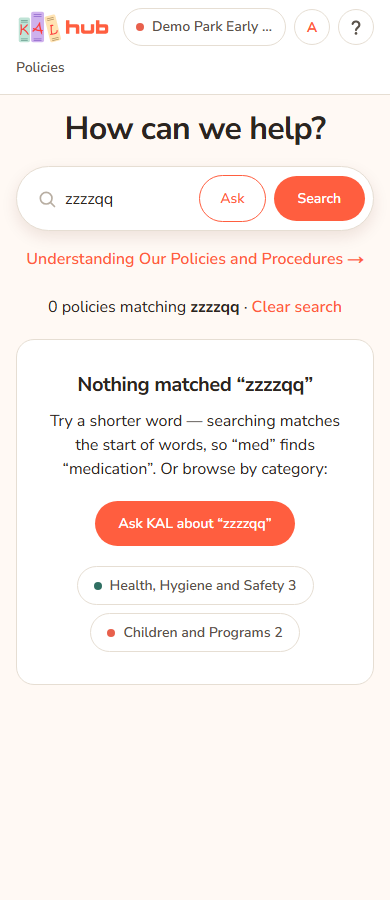
- Nothing matched “your search” with the text "Try a shorter word — searching matches the start of words, so “med” finds “medication”. Or browse by category:". Your search found no policy. Try fewer or shorter words, or press a category chip shown under the message. If Ask KAL is on you also see a button Ask KAL about “your search”.
- That category is not one of yours with "The link you followed names a category your centre’s library does not have. Here is everything it does have:". The link points to a category that does not exist at your centre, or that you may not read. Press a category chip or Show every policy.
- No category here goes by the name in the link, with Show all. The same problem, shown above the chips. Press Show all.
- No policies here yet with "Your centre’s policies will appear here as soon as they are published. If you were expecting one, please ask at reception." Nothing is published for your centre yet. Contact your centre.
- The drop-down does not appear but the Search button still works. The suggestions could not load. Press Search instead.