
Policy updates - how an uploaded document updates a policy
Upload a new version of a policy document, choose which existing policy it updates, and get a change-by-change comparison. Nothing is applied or published until you say so.
Updated
Policy documents are updated from time to time. When a new version arrives as a Word or PDF file, you upload it here. The Hub compares the uploaded document against the existing policy it updates and lists every difference as a change. You decide each change one at a time. This page explains the whole flow. The next two topics cover the middle and the end: Reviewing the changes and Applying the changes.
Two names are used on every screen: the Existing policy is what KAL has now, and the Uploaded document is the new file. Old is always on the left, new on the right.
The flow never deletes anything from the existing policy, never reformats it, and never publishes. The policy keeps whatever status it has.
The four steps
- Upload the file on the Policy updates page.
- Choose which existing policy it updates (the Hub suggests one).
- Review each change and answer it.
- Apply your answers. Publishing is a separate step on the policy itself.
Upload a document
- Open Policies and press Upload Policy Update. (Or go to Policy updates directly.) The page explains: "Upload a new policy update document. It is compared against the KAL policy it updates and you decide each change one at a time. Nothing is applied and nothing is published until you say so."
- Under "Upload an ACA document (Word or PDF)" choose your file. The Upload and compare button stays grey until a file is chosen.
- Press Upload and compare. It changes to "Uploading and reading the document…". This takes a few seconds.
- You land on the upload's own page. It has a shortlist of the policies it might update, with a suggestion from the assistant. Go on to choose the policy.
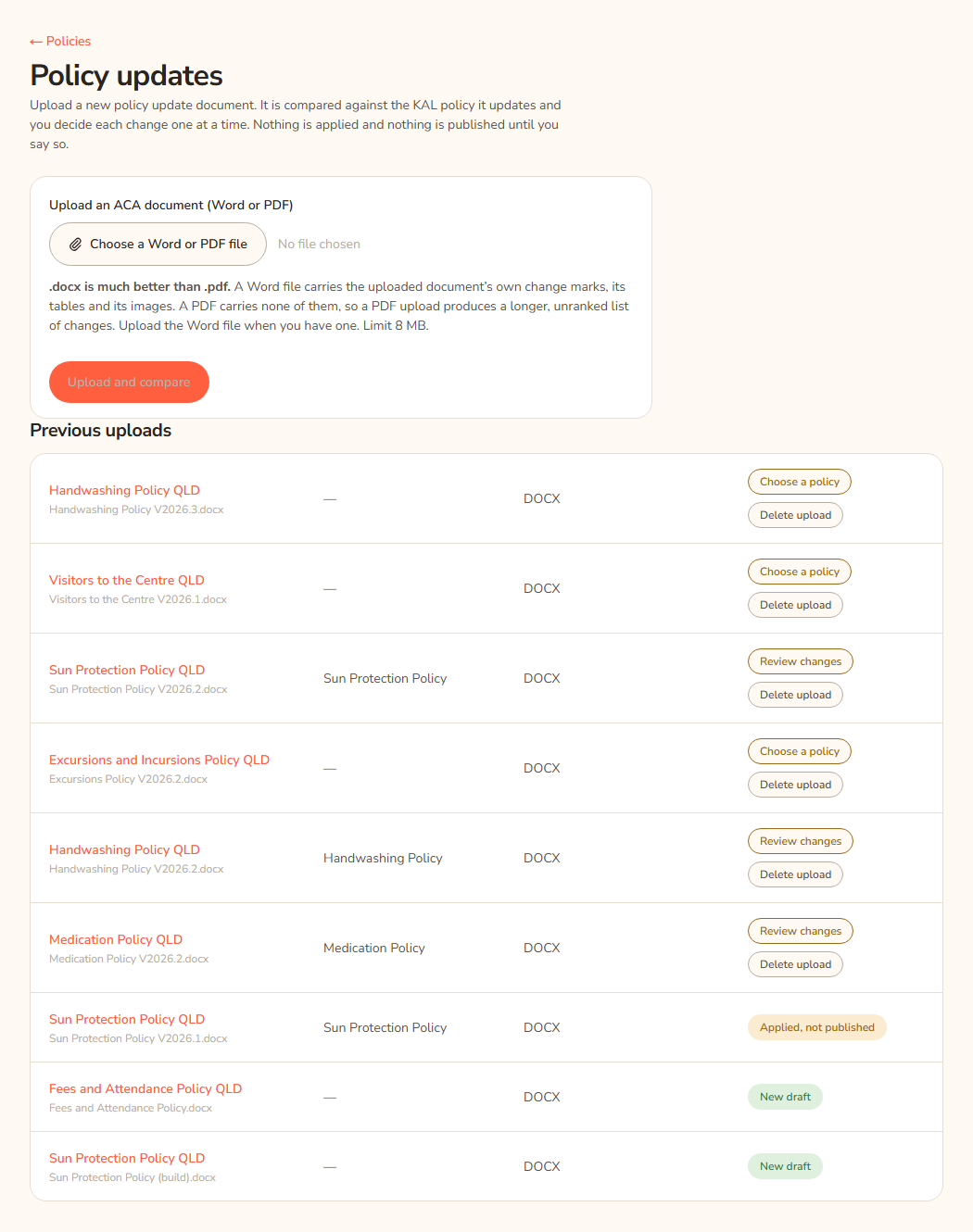
Word is much better than PDF. A Word file carries the uploaded document's own change marks, its tables and its images. A PDF carries none of them, so a PDF upload produces a longer, unranked list of changes. The limit is 8 MB.
If you press the upload button twice with the same file within half an hour while its upload is still open, the Hub reuses that upload instead of making a second one.
If the file is really a brand new policy, do not use this page. Use New policy from a document.
Choose the existing policy
The upload's page opens with the heading Which existing policy does this uploaded document update? Under it is a sentence from the assistant saying which policy it thinks is the match and how sure it is.
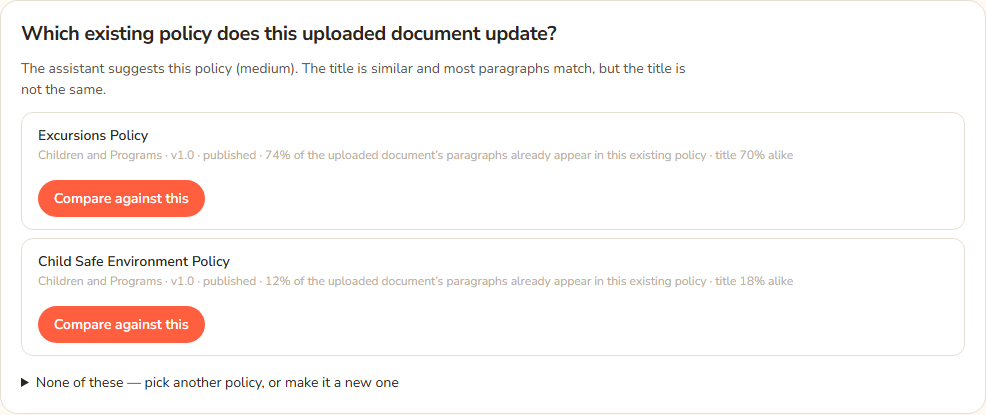
Each candidate shows its title, category, version, status, how much of the uploaded document's paragraphs already appear in that existing policy, and how alike the titles are.
- When one candidate is clearly right, only that one is listed. Press Compare against this. Other choices are under Not this one? Other candidates, or make it a new policy.
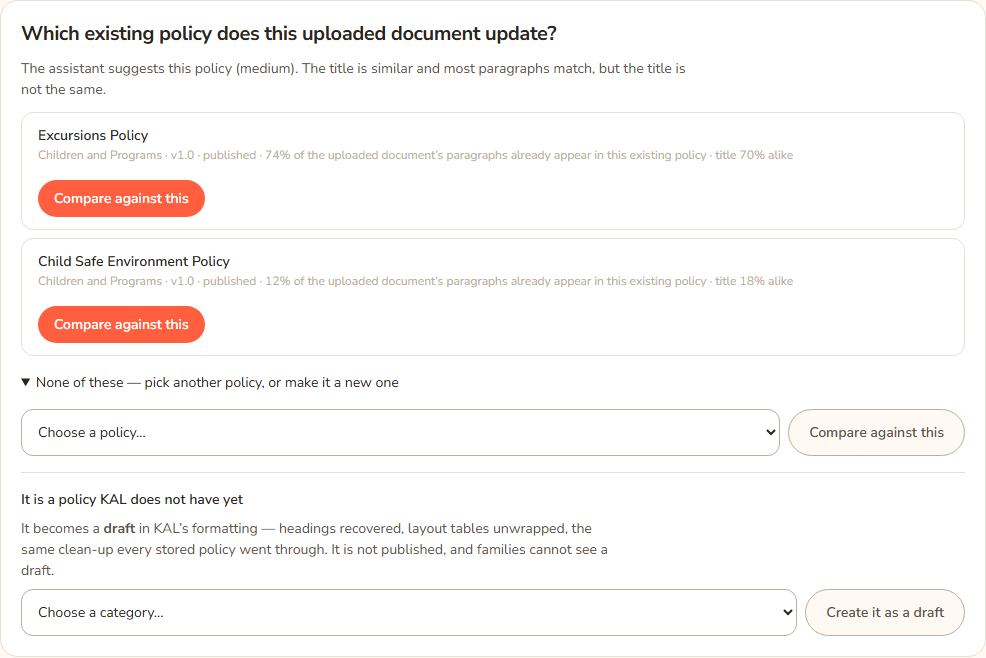
- When it is not clear, several candidates are listed. Press Compare against this on the right one. If none is right, open None of these — pick another policy, or make it a new one.
- To pick any policy in the library, choose it in the drop-down Choose a policy… and press Compare against this. Policies on the shortlist are marked "(shortlisted)".
- If the document is a policy KAL does not have yet, in the same section use It is a policy KAL does not have yet. Choose a category and press Create it as a draft.
Always check the match. A wrong policy makes every change below it look real. The numbers on the screen show it at a glance: the same document compared against the wrong policy shows many times more changes, and a very low "already appear" percentage.
After you press Compare against this the button says "Comparing…" while the comparison is built. Then the review screen opens. See Reviewing the changes.
Previous uploads
The Policy updates page lists up to the 50 latest uploads under Previous uploads. Each row shows the title and file name, the policy it was matched to, whether it was Word or PDF, when it was uploaded, and its status.
| Status | What it means |
|---|---|
| Choose a policy | Uploaded, but no existing policy has been chosen. The row link says Choose a policy. |
| Review changes | A policy was chosen and the comparison is waiting for your answers. The row link says Review changes. |
| Applied | Your accepted changes were saved to the policy as a new revision. |
| Applied, not published | Your accepted changes were saved to the policy's unpublished working copy. Families still see the published version. |
| New draft | The upload became a new draft policy. |
| Discarded | You closed the update without applying anything. |
| Failed | The file could not be processed. |
Every option
| Option | What it does | Where |
|---|---|---|
| Upload and compare | Stores the file, reads it, and shortlists the policies it might update. | Policy updates page |
| Compare against this | Builds the comparison against that existing policy. Greyed out and reading Comparing on the policy already chosen. | Upload page |
| Create it as a draft | Makes the upload a new draft policy in the chosen category. Not published. | Upload page, under "It is a policy KAL does not have yet" |
| Discard | Closes the update and keeps the record. Nothing is written to any policy. Shown while the upload is waiting or being reviewed, or failed. | Upload page |
| Delete upload | Removes the upload, its comparison and its stored file from the history. Shown only for uploads that never changed a policy (Choose a policy, Review changes, Discarded, Failed). | Policy updates page and upload page |
| Download the uploaded file | Downloads the original file you uploaded. | Upload page header |
| ← Policy updates | Back to the list. | Upload page |
| Build KAL's version → | For an upload that became a new draft: opens the build screen so you can add the Quick Guide, checklist and picture. | Upload page |
Questions
What is the difference between Discard and Delete upload?
Discard closes the update but keeps a record of it. Delete upload removes the record. If you uploaded the same file three times by mistake, delete the extras.
Why can't I delete an upload?
Once an upload has been applied to a policy, or has become a draft, it is that policy's provenance: the document that justified the change. It stays. The upload's page explains this under its title.
Does it matter which version of a document I upload first?
Upload the newest one. The comparison is between that file and what KAL has now.
Does it change families' view straight away?
No. The flow never publishes. Applied changes go onto the policy as a new revision if it is a draft, or into its unpublished working copy if it is published. See Applying the changes.
If something goes wrong
Messages on the Policy updates page:
- "No file was attached. Choose a .docx or .pdf and try again."
- "That file is neither a .docx nor a .pdf. Policy updates arrive as one of those two; nothing else is accepted."
- "That file is larger than 8 MB."
- "The file could not be read. It has been logged with its name — if it opens in Word, send it on and it can be looked at."
- "That upload could not be deleted. Nothing was removed — open it and its own page says why."
Messages on the upload's page:
- "The shortlist could not be built, so choose from the full library below." The assistant could not suggest a policy. Pick one from the list.
- "The comparison could not be built. The log names the reason." Press Compare against this again. If it keeps failing, tell the person who looks after the Hub.
- "This upload was not deleted and nothing was removed." followed by the reason, or "Reload the page — its state has changed since the button was drawn."
- After Create it as a draft works you are taken to the build screen. See Quick Guide and checklist.